Email alias services let you sign up for websites, newsletters and apps without ever giving out your real email address. Instead of handing your main inbox to every store, forum and app, you give each one a unique forwarding address that delivers to you privately. If one of those addresses starts getting spam, or turns up in a data breach, you switch it off and your real inbox is untouched.
Think of it as the email version of a “hide my email” button, or a burner email that you can actually manage. This guide explains how aliases work, compares the main services side by side, and walks you through setting one up in about ten minutes.
An email alias is a forwarding address that hides your real one. Create a unique alias for each website, let it forward to your main inbox, and delete or block any alias that starts receiving spam. Apple’s Hide My Email, Firefox Relay, SimpleLogin, addy.io, DuckDuckGo Email Protection and Fastmail’s masked email are the most widely used options.
Email Alias Services at a Glance
Here is a quick comparison before we go deeper. Features and limits change, so confirm current details on each provider’s pricing page.
| Service | Best for | Notable strengths | Main trade-offs |
| Apple Hide My Email | iPhone, iPad and Mac users | Built into iCloud+ and Sign in with Apple, no extra app | Works best inside Apple’s ecosystem, requires a paid iCloud+ plan |
| SimpleLogin | Polished all-round alias management | Reply and send from aliases, custom domains on paid plans, part of the Proton family | Free tier is limited, best features are paid |
| addy.io | Open-source fans and custom domains | Open source, self-hostable, strong domain support | Free tier has limits, more settings to learn |
| Firefox Relay | Firefox users | Tight browser integration, simple to use | Fewer advanced features, replies and extras may need a paid plan |
| DuckDuckGo Email Protection | Free, simple forwarding with tracker removal | Free, strips many email trackers, easy setup | Fewer organisation tools, tied to DuckDuckGo’s @duck.com addresses |
| Fastmail masked email | People who already use Fastmail | Aliases built into a full email account | Requires a paid Fastmail account |
| Custom domain with catch-all | Maximum control and portability | You own the addresses, no service lock-in | Needs a domain, DNS setup and some technical comfort |
What Is an Email Alias?
An email alias is an additional email address that sends messages to an inbox you already have. When someone writes to the alias, the message lands in your real mailbox, but the sender never sees your actual address.
A simple example: your real address is jane.doe@example.com. For an online shop, you create the alias shop.k3x9@aliasprovider.com. The shop only knows the alias. Order confirmations and receipts still reach you, but if that shop sells its mailing list or is breached, the leaked address is the alias, not your real one.
The key advantages:
- Your real address stays private. Strangers, advertisers and data brokers never see it.
- Each alias is separate. You can switch off one without affecting the rest.
- Most services forward in both directions. You can usually reply to a message and the reply goes out under the alias.
Aliases work for most everyday sign-ups: shopping, newsletters, apps, loyalty programmers, forums, free trials and one-off downloads.
Alias, Burner Email or Plus Address: What’s the Difference?
People use several terms for similar ideas, and they aren’t identical. Here is how they compare.
| Option | How it works | Best for | Weakness |
| Email alias (forwarding) | A unique address forwards to your inbox, and you can turn it off anytime | Long-term privacy and everyday sign-ups | Relies on the alias provider continuing to run |
| Burner email (disposable inbox) | A temporary address with its own short-lived inbox, often no account needed | One-time downloads, Wi-Fi sign-ups, quick verification | Messages disappear, public inboxes can be read by anyone, and you can lose access |
| Plus addressing (you+shop@gmail.com) | Adds a tag to your existing address, and mail still arrives in your inbox | Filtering and tracing who sold your address | Your real address is visible in the tag, and some sites strip or reject the tag |
| Custom domain catch-all | Any address at your own domain forwards to you | Full control and portability | Requires a domain and setup |
The takeaway: a true burner email is best for throwaway moments where you never need the account again. An alias is better when you’ll want to receive messages, reset a password, or reply later. Plus addressing helps with sorting but doesn’t actually hide anything.
Why Use Email Aliases?
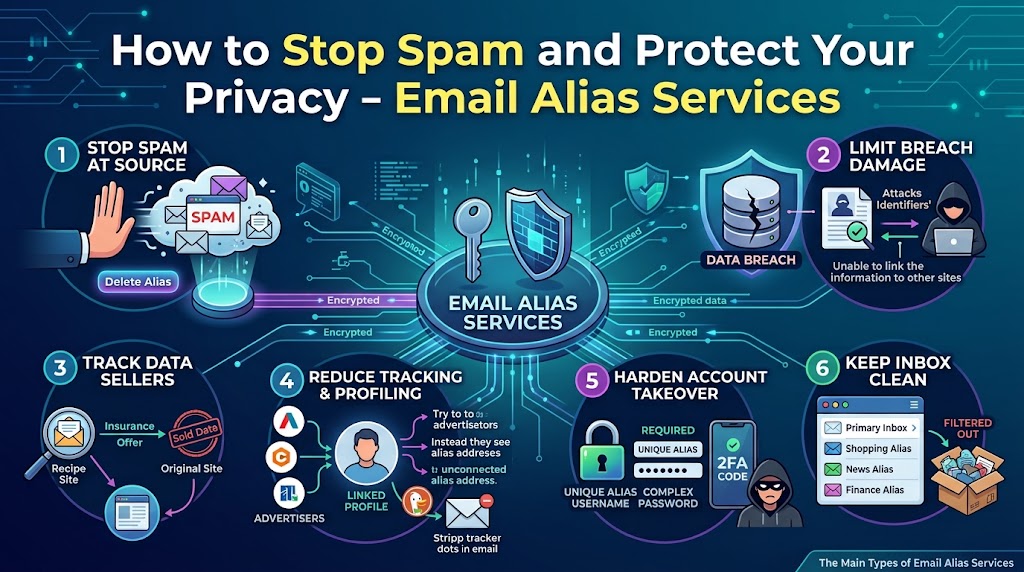
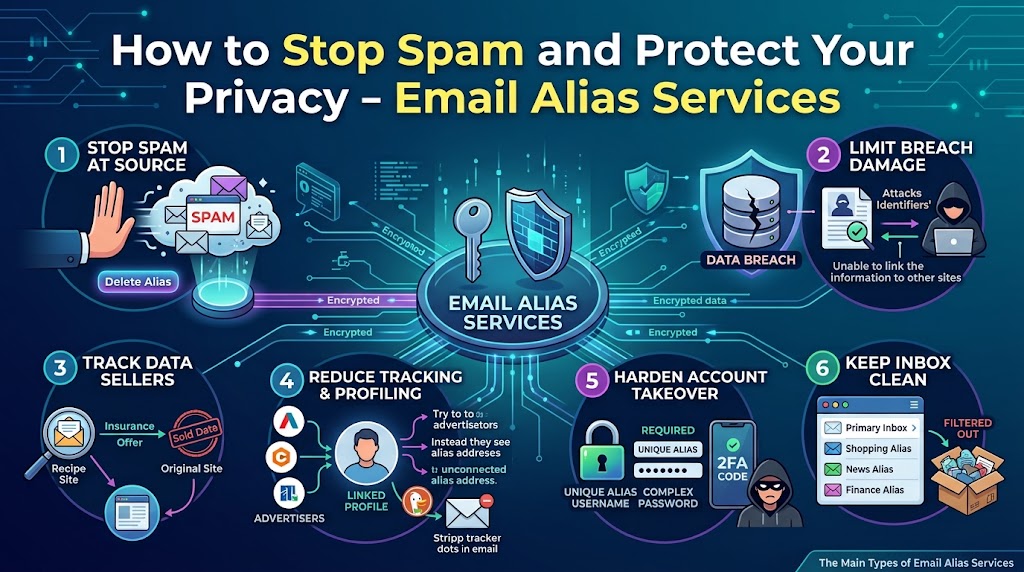
1. Stop spam at the source
When a company sells or leaks your email address, the spam arrives at the alias you gave that company. You can delete the alias and the spam stops. With your real address, the only fix is a lifetime of filters and unsubscribe links.
2. Limit the damage from data breaches
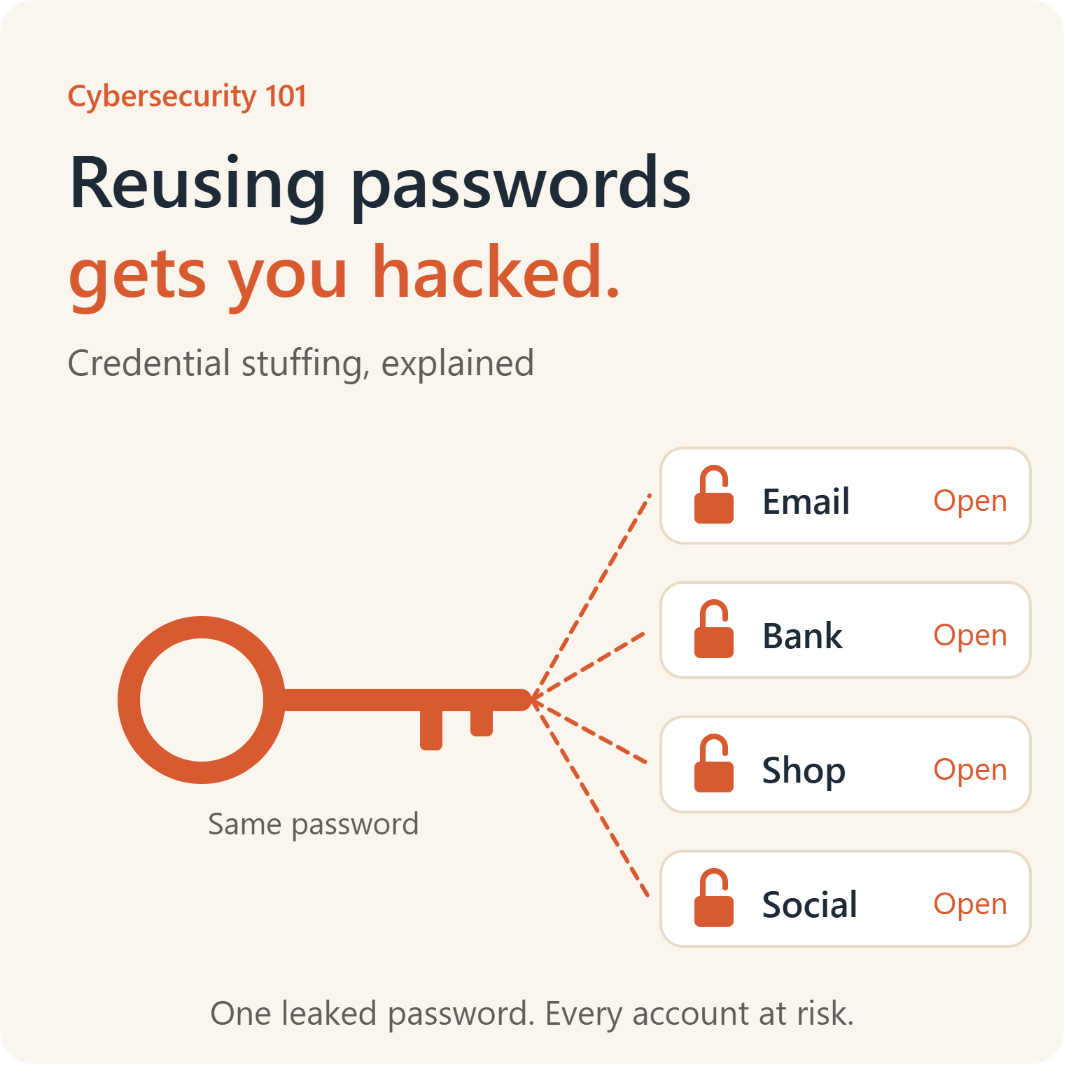
Breaches are routine. If the same email address appears in dozens of breach databases, attackers can use it to attempt password resets, phishing and credential stuffing across other services. An alias that exists only for one site makes that cross-referencing much harder. A leaked alias tells an attacker nothing about your other accounts.
3. Find out who sold your data
Because each alias is unique, you can see exactly which company shared it. If an alias created for a recipe site starts receiving insurance promotions, you know where the leak came from. That knowledge is useful when you want to complain, request deletion, or simply stop doing business with them.
4. Reduce tracking and profiling
Advertisers and data brokers often link your activity across sites using your email address as an identifier. Using a different address for each service makes that linking harder. Some services, such as DuckDuckGo’s Email Protection, also strip common tracking pixels from forwarded messages.
5. Make account takeover harder
When your username is the same email address everywhere, an attacker who learns it already has half of your login. With unique aliases, the username is different for each site, so a leak at one service tells attackers nothing useful about another. This works best alongside a password manager and two-factor authentication.
6. Keep your main inbox clean
Marketing emails, receipts and notifications from dozens of services can swamp a primary inbox. With aliases, you can see which alias each message came from, filter by alias, and mute the noisy ones.
The Main Types of Email Alias Services
Not all aliasing is the same. Understanding the categories helps you pick the right one.
Dedicated alias services. Companies like SimpleLogin, addy.io and Firefox Relay do one thing: create forwarding addresses. They typically offer browser extensions, apps and dashboards for managing aliases.
Platform-built aliases. Apple’s Hide My Email, Proton’s built-in aliases, DuckDuckGo’s Email Protection and Fastmail’s masked email are part of larger products. If you already use the platform, the feature may already be available to you.
Custom domain aliases. If you own a domain, you can create unlimited addresses at it and forward them to your inbox, either through your email host or a routing service. You control the addresses, so you can move providers without losing them.
Disposable inbox sites. Temporary email websites give you a throwaway inbox with no account. They are convenient for one-time use, but anyone who guesses the address may be able to read the mail, so never use them for anything sensitive or any account you want to keep.
Email Alias Services Compared in Detail
Each service has a different philosophy. The details below describe what each is best at. Pricing and limits change often, so check the provider’s own page before you decide.
Apple Hide My Email
Best for: people who live in the Apple ecosystem.
If you pay for iCloud+, you already have Hide My Email. It generates random addresses that forward to your chosen inbox, and it’s integrated into Sign in with Apple and Safari, so creating an alias takes a couple of taps. You can create aliases directly from Settings, deactivate them when you no longer need them, and reply from the alias.
Strengths: frictionless on Apple devices, no extra app, and a good option for non-technical users.
Trade-offs: it requires a paid iCloud+ subscription, works most smoothly on Apple hardware, and ties your aliases to your Apple Account. If you ever leave Apple, you lose the aliases.
SimpleLogin
Best for: people who want a mature, polished alias manager.
SimpleLogin is one of the best-known alias services and is part of the Proton family. It offers browser extensions and mobile apps, lets you reply and send from aliases, and supports custom domains on paid plans. It also includes organisation tools such as notes and contacts per alias.
Strengths: feature-rich, well-documented, strong reputation in the privacy community, and works well with Proton accounts.
Trade-offs: the free tier is limited and the most useful features, such as custom domains, require a paid plan.
addy.io
Best for: people who value open source and custom domain support.
addy.io (formerly AnonAddy) is open source and can even be self-hosted. It supports shared domains, custom domains, multiple recipients and PGP encryption options. Its dashboard gives you detailed controls for each alias.
Strengths: transparency, flexibility, and good value for custom domains.
Trade-offs: free plans have limits on aliases or bandwidth, and the many options can feel like a lot for a beginner.
Firefox Relay
Best for: Firefox users who want something simple.
Firefox Relay, from Mozilla, creates “masks” that forward to your real address. It’s built into Firefox and also works as an extension in other browsers. Setup is quick, and it’s easy to understand.
Strengths: very easy to start, strong brand trust, and tight browser integration.
Trade-offs: advanced features, such as replying from a mask, may need a paid plan, and it offers fewer controls than SimpleLogin or addy.io.
DuckDuckGo Email Protection
Best for: people who want free forwarding with tracker removal.
DuckDuckGo’s Email Protection gives you a personal @duck.com address plus the ability to generate unlimited random “Duck Addresses.” It removes many hidden email trackers before forwarding the message to you, and it’s free.
Strengths: free, simple, and the tracker blocking is a nice privacy bonus.
Trade-offs: fewer management tools and customisation, and your aliases live on DuckDuckGo’s domain.
Fastmail Masked Email
Best for: people who already use Fastmail as their main email.
Fastmail’s masked email feature creates aliases inside your Fastmail account. They integrate with the password manager 1Password, which can create and fill masked addresses as it creates logins.
Strengths: polished, integrated into a full email service, and works well with password managers.
Trade-offs: you need a Fastmail account to use it.
Custom Domain With Catch-All
Best for: people who want long-term control.
If you own a domain, you can set up a catch-all so that anything sent to anything@yourdomain.com reaches you. You then give every site a different address, such as amazon@yourdomain.com or newsletter-april@yourdomain.com. Services like Cloudflare Email Routing, or your domain registrar’s forwarding, can handle the routing.
Strengths: you own the addresses, you can switch providers without losing them, and the addresses look professional.
Trade-offs: you need to buy and maintain a domain, set up DNS, and be aware that catch-all addresses can attract guessed-address spam. Sending replies from the alias may also need extra configuration.
How to Choose the Right Service
Ask yourself these questions.
1. What devices and browsers do I use? Apple users may be happiest with Hide My Email. Firefox users may like Relay. Everyone else has plenty of options.
2. Do I need to reply from the alias? If you’ll correspond with people, such as a seller or a landlord, check that replying is supported on the plan you’ll use.
3. How many aliases will I need? Heavy users who sign up for dozens of services should check alias limits carefully, because free plans often cap either the number of aliases or the amount of mail.
4. Do I want my own domain? A custom domain protects you from provider lock-in. If you use a provider’s domain and the service closes or you leave, those addresses may stop working.
5. How much do I trust the provider? An alias service sees the mail passing through it. Look at who runs it, where it’s based, what its privacy policy says and whether its code is open to inspection.
6. What’s my budget? Some options are free, and others need a subscription. If you will rely on aliases for years, paying for a reputable service is often worth it.
7. How technical am I? Beginners should favour services with apps and browser extensions. Custom domain setups need DNS comfort.
How to Set Up Email Aliases: A 10-Step Guide
This process works for any service. Platform-specific details follow in the next section.
Step 1: Choose a service
Pick one using the criteria above. If you’re unsure, start with whatever is already built into your tools: Hide My Email on Apple devices, Relay in Firefox, or a free option like DuckDuckGo.
Step 2: Decide where aliases will forward
Choose the real inbox that will receive the forwarded mail. Use an address you check often and that has strong security: a long unique password and two-factor authentication. Your real inbox becomes the key to everything, so protect it.
Step 3: Create your account and verify your real address
Sign up with the alias service and confirm your forwarding address. Many services also let you add more than one recipient, which helps if you want some aliases going to a work or family inbox.
Step 4: Install the browser extension and mobile app
Extensions let you create an alias right inside a sign-up form, and apps help on your phone. This is what turns aliasing from a chore into a two-second habit.
Step 5: Create a test alias and send yourself a message
Before using an alias for anything important, send a test email to it from another account. Check that the message arrives in your real inbox and that the sender address is shown as expected. If the service supports replying, send a reply as well and confirm that your real address stays hidden.
Step 6: Set your naming and labelling habit
Give each alias a label, usually the site name, so you remember what it was for. Many services allow notes. We cover naming in more detail below.
Step 7: Use a new alias for every new sign-up
Make it automatic. Every time a form asks for an email, generate an alias instead of typing your real one. Your password manager may be able to do this for you.
Step 8: Add filters or labels in your main inbox
Create a simple filter that labels or sorts mail by alias. This helps you spot which sites send the most messages and keeps important mail, like receipts and security alerts, easy to find.
Step 9: Move your important existing accounts over gradually
You don’t have to switch everything at once. Start with newsletters and shopping accounts, then update the email address on other accounts when you next log in. We cover this in a later section.
Step 10: Review your aliases every few months
Open your dashboard, look at which aliases are active, and delete or disable the ones you no longer need. If an alias is receiving junk, block it. A regular review keeps your setup tidy and your spam low.
Setup Walkthroughs
Apple Hide My Email
- Make sure you have an active iCloud+ plan.
- On iPhone or iPad, open Settings, tap your name, then iCloud, then Hide My Email.
- Tap Create New Address, give it a label such as the name of the site, and confirm.
- Copy the address and paste it into the sign-up form.
- When signing in to apps with Sign in with Apple, choose Hide My Email to have Apple create a unique address automatically.
- To turn off an address later, return to the Hide My Email list, select the address and deactivate it.
Firefox Relay
- Visit the Firefox Relay website and sign in with a Firefox Account.
- Install the Relay extension in Firefox or a supported browser.
- When you see an email field, click the Relay icon to generate a new mask.
- Manage your masks from the Relay dashboard, where you can label, block or delete them.
SimpleLogin
- Create an account on the SimpleLogin website and verify your real email address.
- Install the browser extension and sign in.
- In any sign-up form, click the SimpleLogin button to create a new alias, or create one from the dashboard.
- Add a note describing what it’s for.
- To send from an alias, use the reverse alias SimpleLogin creates for each contact, or use the dashboard’s “send email” feature.
addy.io
- Register for an account at addy.io and add your real email as a recipient.
- Install the browser extension or mobile app.
- Create an alias from the dashboard or extension, choosing a random or custom format.
- To use your own domain, add it in the dashboard and follow the instructions to set up the DNS records.
- Review the alias list regularly and deactivate or delete the ones you no longer need.
DuckDuckGo Email Protection
- Open the DuckDuckGo app or browser extension and enable Email Protection.
- Choose your personal @duck.com address and set the inbox it will forward to.
- When a form asks for an email, use the option to generate a private Duck Address.
- Mail arrives in your real inbox with trackers removed where possible.
Custom Domain Catch-All
- Buy a domain from a registrar you trust.
- Set up email routing with your registrar, your email host or a routing service, and verify your destination inbox.
- Create a catch-all rule that forwards anything sent to your domain to your real address.
- Make a different address for each site, such as storename@yourdomain.com.
- Add a rule to block any address that starts receiving spam.
- If you want to reply from these addresses, check that your email host supports sending from custom addresses.
How to Name and Organise Your Aliases
A good naming habit makes aliases easy to manage later. A few approaches:
- Random aliases: services that generate random strings are the most private because nobody can guess them. They are harder to remember, so label each one.
- Site-based aliases: names like netflix or bank-name are easy to recognise, and work well with a custom domain. The downside is that they can be guessed, so a spammer who knows your domain could try other names.
- Hybrid aliases: combine the site name with a short random code, such as shop-k3x9. This is easy to recognise but hard to guess.
- Category aliases: use separate aliases for categories like shopping, travel, newsletters and forums, if you prefer fewer to manage. You lose some of the “one site, one alias” precision, though.
Whichever you choose, add a label or note for every alias, and keep one for important accounts (banking, government, healthcare) separate from the rest. For critical accounts, consider using a stable address you control permanently, because losing access to an alias could mean losing access to the account. We cover that risk below.
Replying and Sending From an Alias
Receiving mail is the easy part. Replying is where services differ.
- Many services create a reverse alias for each contact. When you reply to a forwarded message, your reply goes to the service, which sends it to the original sender as if it came from the alias.
- Some services offer replying only on paid plans, so check before relying on it.
- Apple’s Hide My Email lets you send and reply from your hidden address.
- With a custom domain, sending from the alias may need extra configuration with your email host.
If you need to send mail from an alias regularly, such as for marketplace sales, test a full exchange with a second account first. Make sure the other party sees only the alias, and make sure your replies don’t carry any signature or footer that reveals your real address.
How to Move Your Existing Accounts to Aliases
You don’t have to start from scratch. Use this approach.
- List your accounts. Your password manager is the best source, and your inbox search can show you which services email you most.
- Prioritise. Start with the noisiest or least trusted services: retail, newsletters, forums and apps you use rarely.
- Change the email on each account. Log in, open account settings, and replace your real address with a fresh alias. Many sites will ask you to confirm the new address by email, so keep the old address active until it’s done.
- Update your password manager. Change the username field so that it matches the new alias.
- Leave critical accounts for last. For banks, government services and anything involving money or identity, think carefully about whether to use an alias at all.
- Unsubscribe from what you don’t want. Moving accounts is a good time to delete ones you no longer use and request data deletion.
You can take this slowly. Even moving a handful of accounts a week will make a big difference in a few months.
Limits and Risks to Know About
Aliases are useful, but they are not magic. Be aware of the following.
The provider sees your mail. An alias service processes forwarded mail, so you are trusting it with your messages. Choose a provider with a clear privacy policy, a good reputation and, ideally, transparency such as open source code. Avoid sending extremely sensitive information through any forwarding service.
Some sites reject alias domains. A few websites block known alias or disposable domains. If a service refuses your alias, a custom domain alias is often accepted because it isn’t on a public blocklist.
Account recovery depends on the alias. If you lose access to your alias account, you may not be able to reset your password on the sites that use it. Protect your alias account with a strong password and two-factor authentication, and keep recovery options up to date.
Provider lock-in. If you use a provider’s domain and it shuts down, changes its pricing or you decide to leave, every account tied to those aliases needs updating. A custom domain reduces this risk.
Free plan limits. Limits on the number of aliases, bandwidth or replies can catch you out once you start relying on the service. Read the plan details before building your system around it.
Aliases don’t hide everything. Your IP address, device details, name, phone number and payment information are separate. An alias protects your email address, not your entire identity. Pair it with other privacy habits.
Catch-all addresses can attract spam. If you use a custom domain with a catch-all, spammers may try common names and reach you. Block addresses that receive junk, or use random aliases instead.
Legal and purchase records. Some purchases, warranties and legal accounts require a reliable contact address. An alias works for these, but keep your records somewhere safe, so you can prove which address you used.
Common Mistakes to Avoid
| Mistake | Why it’s a problem | Fix |
| Using one alias for many sites | You lose the ability to trace leaks and block one source | Create a separate alias per site |
| Not labelling aliases | You forget what each one is for | Add a label or note at creation |
| Forwarding to an insecure inbox | Your real inbox becomes the weak link | Use a strong password and two-factor authentication |
| Using a disposable inbox for accounts you care about | You may lose access and the inbox may be public | Use a proper alias instead |
| Relying on a free plan’s replies without testing | Replies may be restricted or reveal details | Test a full send and reply before using it |
| Skipping two-factor on the alias account | Anyone who takes it over can reset your passwords | Turn on two-factor authentication |
| Using aliases for critical accounts without a backup plan | Losing the alias could lock you out | Keep a stable address for banking and identity accounts |
| Never reviewing your aliases | Old aliases pile up and spam grows | Audit every few months |
| Forgetting that plus addresses reveal your real address | The tag exposes your base address | Use a true alias for privacy |
| Replying with a signature that includes your real address | It defeats the purpose of the alias | Check your reply settings and signature |
Frequently Asked Questions
What is an email alias service?
An email alias service creates extra forwarding addresses that deliver to your real inbox while hiding your actual address. You can create a different alias for each website, then block or delete any alias that starts receiving spam. Popular examples include Apple Hide My Email, SimpleLogin, addy.io, Firefox Relay and DuckDuckGo Email Protection.
What is the difference between an alias and a burner email?
An alias forwards to your real inbox and can be used for as long as you need it, including replying to messages. A burner email is usually a temporary inbox that disappears after a short time, often with no account and no way to recover it. Use a burner for one-time downloads and an alias for accounts you want to keep.
Is “hide my email” safe to use?
Hide my email features, such as Apple’s, are generally safe and protect your real address from the sites you sign up with. You are still trusting the provider that forwards your mail, so choose one with a clear privacy policy. Keep that provider account secured with a strong password and two-factor authentication, because anyone who accesses it can see your aliases.
Can I reply to emails from an alias?
Often yes, but it depends on the service and plan. Many providers use reverse aliases so your reply goes out under the alias and your real address stays hidden. Some services limit replying to paid plans, so test a send and reply with a second account before relying on it.
Are email aliases better than plus addressing?
For privacy, yes. Plus addressing, such as you+shop@gmail.com, still shows your real address in the tag, and some sites strip or reject the tag. It’s useful for sorting and spotting who sold your address, but a true alias hides your address and can be switched off independently.
Conclusion
Give Every Website Its Own Door
Your email address is one of the most widely shared identifiers you have, and it follows you into every breach, mailing list and data broker file. Email alias services give you a simple fix: a unique, disposable doorway for every site, all leading to one private inbox.
You don’t need a perfect setup on day one. Choose a service that fits your devices, create a test alias, and start using a fresh alias for each new sign-up. Within a few weeks, you will see which sites are noisy, which ones leak, and how much quieter your real inbox becomes. Then move your older accounts over at your own pace, protect your alias account with two-factor authentication, and review your list every few months.
Spam, trackers and breach fallout stay with the alias you can throw away, and your real address stays yours.