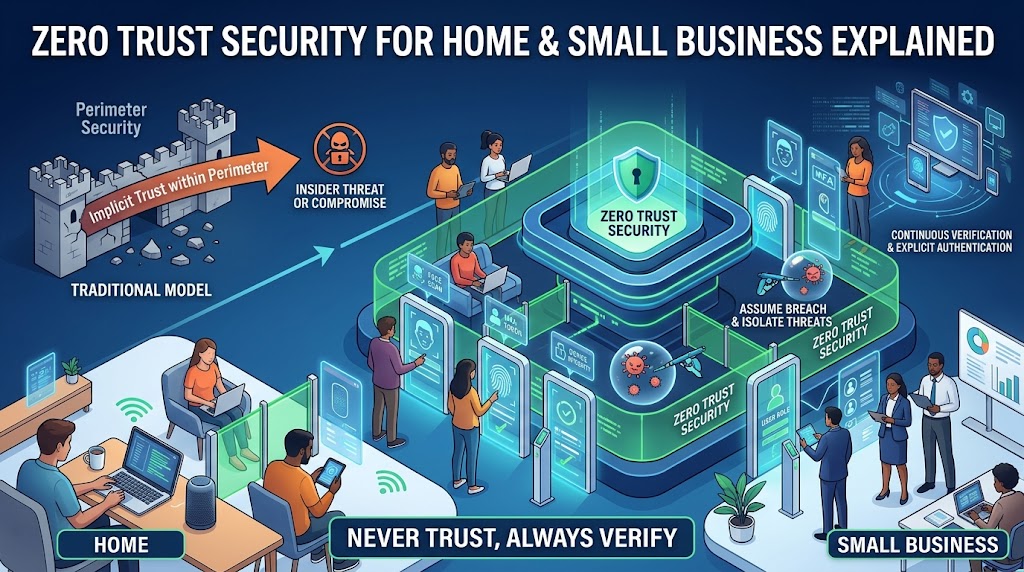
For decades, computer security worked like a medieval castle. You built a strong wall, dug a moat, put a guard at the gate and assumed that everyone inside was friendly. Firewalls were the walls. Passwords were the guard. And once you were through the gate, you could wander more or less freely.
That model made sense when everyone worked in the same building, on company-owned computers, connected to a company network. It makes far less sense today. Staff work from kitchen tables and coffee shops. Data lives in cloud services. Smart cameras, phones and laptops all connect to the same Wi-Fi. And attackers have learned that if they can steal a single password or trick a single employee, they are inside the castle, and nothing stops them from walking into every room.
Zero trust security is the answer to that problem. It sounds like a product you have to buy or a technology only large corporations use. It is neither. At its heart, it is a simple way of thinking: never trust, always verify. This guide explains the zero trust model in plain English, why it matters, and how to apply zero trust for beginners, at home and in a small business, using tools you probably already have.
What Is Zero Trust Security?
Zero trust is a security approach that assumes no user, device or network is automatically trustworthy, even if it is inside your home or office network. Every request to access an account, app or file must be verified (who is asking, from what device, in what context), granted only the minimum access needed, and monitored, on the assumption that a breach could already be happening.
In practice, zero trust means using multi-factor authentication, keeping devices updated and healthy, giving people least-privilege access, segmenting your network so one compromised device cannot reach everything, and logging and watching for unusual behavior.
Key Takeaways
- Zero trust is a mindset and strategy, not a single product. You cannot buy it in a box.
- Its three core ideas are verify explicitly, use least-privilege access and assume breach.
- It replaces the old “castle and moat” idea, where anything inside the network was trusted.
- You can start with basics most people already have: MFA, updates, separate accounts, guest Wi-Fi and backups.
- For a small business, the highest-value steps are single sign-on with MFA, device management, least privilege and ending exposed remote access.
- Zero trust is a journey. Each step reduces risk, and you do not need to do everything at once.
What Does Zero Trust Mean?
The term was popularized in 2010 by analyst John Kindervag, then at Forrester Research. Around the same time, Google began building an internal approach known as BeyondCorp, which moved employee access controls away from the network perimeter and toward individual users and devices. In 2020, the U.S. National Institute of Standards and Technology (NIST) published a detailed framework, Special Publication 800-207, defining zero trust architecture, and U.S. government policy has since pushed federal agencies to adopt it. Other countries and standards bodies have issued similar guidance.
The core idea fits in four words: never trust, always verify.
To see what that means, imagine two buildings.
Building A (traditional security) has a guard at the front door. Once you show your badge, you can open any door inside, enter any room and read any file. If a thief steals a badge, the whole building is exposed.
Building B (zero trust) has a guard at the front door, but also a lock on every room. Your badge opens only the rooms you need. Cameras watch the hallways. If something unusual happens, such as your badge opening the server room at 3 a.m., an alarm goes off. A stolen badge opens far fewer doors, and it is noticed quickly.
Zero trust turns your digital life into Building B.
What zero trust is not
- It is not a single product or vendor. Many companies sell zero trust products, but no one tool delivers it alone.
- It is not about distrusting people. It is about not letting identity, location or network position be the only basis for access.
- It is not a one-time project. It is an ongoing practice that improves over time.
- It is not only for large enterprises. The principles scale down to a family household.
Why the Old Model Fails
The perimeter approach has several weaknesses, and attackers exploit all of them.
Once inside, attackers move freely. If a single laptop is infected, a flat network lets malware reach printers, file servers and other computers. This is called lateral movement, and it turns small incidents into disasters.
The perimeter has dissolved. Remote work, cloud services, personal phones and smart devices mean that important data and users are no longer “inside” a single network.
Passwords are not enough. Credentials get stolen through phishing, data breaches and guessing. A password alone proves very little.
Insiders and compromised accounts are invisible. Traditional defenses focus on keeping outsiders out. They are poor at spotting a legitimate account behaving badly, whether because of a malicious employee or, far more commonly, a stolen login.
VPNs can give too much access. A traditional VPN often places a user on the whole network. A stolen VPN login can therefore expose everything.
Devices are not equal. An up-to-date, managed laptop is a very different risk from an old, unpatched home computer, yet the old model treated both the same once connected.
Zero trust addresses each of these problems by checking identity, device and context every time, and limiting what any one account or device can reach.
The Three Core Principles
NIST and other frameworks describe slightly different details, but all rest on three simple ideas.
1. Verify explicitly
Always authenticate and authorize based on all available information: who is asking, what device they are using, where they are, what they want to access and whether the request looks normal. A username and password alone are not sufficient. Use multi-factor authentication, check that the device is secure and look at context such as unusual locations or times.
2. Use least-privilege access
Give people and devices only the access they need, for only as long as they need it. A receptionist does not need access to payroll. A smart TV does not need to talk to your laptop. A contractor does not need permanent access to everything. Limiting access limits the damage when something goes wrong.
3. Assume breach
Design your systems as though attackers are already inside, or soon will be. This leads to practical habits: segment networks, encrypt data, log activity, monitor for unusual behavior, keep backups and have a plan to respond quickly. The question changes from “How do I keep everyone out?” to “How do I limit the damage and detect problems early?”
The Five Pillars of Zero Trust
Government frameworks, such as the U.S. Cybersecurity and Infrastructure Security Agency’s Zero Trust Maturity Model, organize zero trust into pillars. Here they are in plain language, with what they mean for small organizations.
Identity
Who is asking? Strong authentication is the foundation. This means unique accounts for every person, multi-factor authentication, passkeys or security keys where possible, and prompt removal of accounts when people leave. For a small business, a central identity system with single sign-on makes this manageable.
Devices
What are they using? A trusted identity on an untrusted device is still risky. Devices should be updated, protected with security software, encrypted and, in a business, enrolled in some form of management so you know what exists. Access can be limited or blocked from devices that are out of date or unknown.
Networks
How does the traffic travel? Do not trust a connection simply because it is on your network. Separate your devices into zones, encrypt traffic, restrict who can talk to whom and avoid exposing management interfaces to the internet.
Applications and workloads
What are they accessing? Each application, whether a cloud service, accounting software or a website you host, should require authentication, limit permissions and be kept updated. Remote access should be to specific applications, not the whole network.
Data
What are they trying to reach? Know where your important data lives, classify what is sensitive, limit who can see it, encrypt it and back it up. Data is what attackers actually want, so protecting it directly is the ultimate goal.
Across all five sit two cross-cutting capabilities: visibility and analytics (logging and monitoring to see what is happening) and automation and orchestration (responding quickly and consistently). For a small business, this can be as simple as turning on sign-in alerts and reviewing them.
Real Incidents That Show Why It Matters
These examples come from public reporting, official testimony and company statements.
Target (2013)
Attackers breached the U.S. retailer Target after stealing network credentials from a third-party heating and cooling contractor. Public reporting indicated that, once inside, the attackers were able to move across the network to systems that handled payment data, eventually affecting roughly 40 million payment cards. A zero trust approach would have limited what a vendor account could reach and segmented payment systems from other parts of the network.
Colonial Pipeline (2021)
In May 2021, a ransomware attack on Colonial Pipeline disrupted fuel supplies across parts of the eastern United States. According to testimony to Congress by the company’s chief executive and by security investigators, the attackers entered through a legacy virtual private network account that did not have multi-factor authentication, using a password that was reportedly found among leaked credentials. This is a textbook case of why “verify explicitly” matters. A password alone was the only barrier.
Microsoft and a forgotten test account (2024)
In January 2024, Microsoft disclosed that a state-linked attacker used a password spray attack to compromise a legacy, non-production test account that lacked multi-factor authentication, and then used its permissions to reach some corporate email accounts. It shows the zero trust principle that every account matters, including old, test and low-privilege ones, and that least privilege limits what a compromised account can do.
SolarWinds (2020)
A sophisticated supply chain attack inserted malicious code into a widely used network management product, which was then distributed to thousands of customers through legitimate software updates. It reinforced the “assume breach” mindset: even trusted software from trusted vendors can be a route for attackers, so monitoring and segmentation matter.
What these cases have in common
- Attackers needed only one weak entry point.
- Once inside, too much trust and too little segmentation let them spread.
- Missing MFA or forgotten accounts made the first step easy.
- Better verification, least privilege and monitoring would have reduced the damage.
Zero Trust at Home
You may not think of your household as a network that needs a security strategy, but the average home now has dozens of connected devices: phones, laptops, tablets, smart TVs, game consoles, cameras, doorbells, speakers, thermostats and work devices. Each is a potential entry point. Here is how to apply zero trust principles at home.
1. Verify explicitly: strengthen identity
- Use a password manager so that every account has a long, unique password
- Turn on multi-factor authentication for email, banking, shopping, cloud storage and social media, with an authenticator app, security key or passkey in preference to text messages
- Secure your primary email account first, since it can reset everything else
- Give each family member their own account on shared computers and streaming services instead of sharing one login
- Review sign-in alerts and respond when you get a notification you did not expect
2. Keep devices healthy
- Turn on automatic updates for phones, computers, browsers, routers and smart devices
- Replace devices that no longer receive security updates
- Use built-in or reputable security software and enable firewalls
- Encrypt your laptops and phones, using BitLocker or FileVault on computers and the built-in encryption on phones
- Use screen locks and strong PINs, and enable device-finding and remote-wipe features
- Install apps only from official stores
3. Use least privilege
- Use a standard account for daily use, and an administrator account only for installing software or changing settings
- Limit app permissions on phones and computers, such as camera, microphone, location and contacts
- Create separate profiles for children, with age-appropriate restrictions
- Do not give guests, babysitters or visitors your main Wi-Fi password. Use a guest network instead
- Remove access when it is no longer needed, such as old shared accounts and connected apps
4. Segment your home network
This is the home equivalent of putting locks on every room.
- Create a guest network for visitors, and keep it separate from your main devices
- Put smart home and IoT devices on their own network, sometimes called an IoT network or VLAN, so that a compromised camera or smart plug cannot reach your laptop or file storage. Many modern home routers and mesh systems support this with a simple setting
- Keep work devices on a network separate from your family’s gaming and entertainment devices, if your router allows it
- Do not expose devices to the internet through port forwarding unless you must, and never expose cameras or storage drives directly
5. Harden the router
Your router is the front door of your home network.
- Change the default admin password and Wi-Fi password to long, unique ones
- Use WPA3 or WPA2 encryption
- Update the router’s firmware, or replace it if it is no longer supported
- Disable remote administration, WPS and unneeded services
- Consider using DNS filtering to block known malicious sites
- Check the list of connected devices occasionally, and investigate those you do not recognize
6. Assume breach: prepare for the day something goes wrong
- Back up important files with a copy kept offline or in a versioned cloud backup, and test a restore
- Keep a list of your important accounts and know how to reset them
- Watch for warning signs, such as unfamiliar logins, unknown devices on the network or unexpected password reset emails
- Know what you would do if a device were stolen or an account hacked: change passwords from a clean device, revoke sessions, contact your bank and so on
- Consider credit monitoring or a credit freeze to limit the damage of identity theft
7. Be careful with remote access
If you need to reach home devices while away, such as a home storage device or camera, avoid opening ports on your router. Use a reputable secure remote access service or a properly configured VPN, protected with MFA.
Zero Trust for a Small Business
Small businesses face the same threats as large ones, but with fewer resources. The good news is that cloud tools you may already pay for, such as business email and productivity suites, include many zero trust features. Here is how to put the principles to work.
1. Start with identity
- Give every employee a unique account. No shared logins.
- Use a central identity provider with single sign-on (SSO) so staff sign in once, with strong protections, instead of managing dozens of separate passwords.
- Require multi-factor authentication for everyone, starting with email, finance, administrator and remote access accounts. Prefer phishing-resistant methods such as passkeys and security keys for administrators and finance staff.
- Use a business password manager for the accounts that cannot use SSO.
- Disable legacy authentication methods that do not support MFA.
- Run a strict joiner-mover-leaver process: set up access when staff join, adjust it when they change roles and remove it the same day they leave.
- Review accounts regularly, including old, shared, test and service accounts. Forgotten accounts are a favorite target.
2. Know and manage your devices
- Keep an inventory of every computer, phone, tablet and network device that touches your business.
- Enroll company devices in a management tool (mobile device management or endpoint management), which can enforce encryption, screen locks, updates and security software, and wipe lost devices.
- Set rules for personal devices that access business data, such as requiring a screen lock, updates and approved apps, or restrict them to web-only access.
- Use endpoint protection on every computer, and consider endpoint detection and response if you handle sensitive data.
- Block or limit access from devices that are unmanaged, out of date or jailbroken.
3. Apply least privilege everywhere
- Define roles and grant access based on role: finance staff to accounting, sales staff to the customer system, and so on.
- Remove local administrator rights from daily-use accounts.
- Limit access to sensitive files and systems to the smallest group that needs it, and review it at least quarterly.
- Separate duties for payments: the person who creates a vendor should not be the same person who approves and releases the payment.
- Give vendors and contractors time-limited, restricted access, with their own accounts and MFA.
- Use separate administrator accounts for IT tasks, not the same one used for email and browsing.
4. Replace broad network trust with application-level access
This is where zero trust differs most from the old approach.
- Do not expose remote desktop or management tools directly to the internet. These are among the most frequent ways ransomware operators get in.
- Replace the traditional all-access VPN with zero trust network access (ZTNA) or a secure access service that connects users only to the specific applications they need, after checking identity and device health. Many small business firewalls and cloud security services now include this.
- If you keep a VPN, protect it with MFA, keep it patched and limit what connected users can reach.
- Use cloud applications with built-in access controls, such as conditional access that checks location, device and risk before allowing a sign-in.
5. Segment your network
- Separate staff, guest, server, payment and IoT networks, so a problem in one cannot easily spread
- Place point-of-sale systems, security cameras, printers and building devices in their own segments
- Use the firewall to allow only the connections that are required between segments, and deny the rest
- Turn off unnecessary services and ports, and change all default credentials
- Use WPA3-Enterprise or similar authentication for office Wi-Fi if you can, so that devices and users are verified individually
6. Protect your data
- Identify where sensitive data lives: customer records, financial information, employee data and contracts.
- Encrypt data on devices, in the cloud and in backups.
- Limit sharing: review file-sharing settings so that documents are not public or open to “anyone with the link.”
- Back up regularly, following the 3-2-1 rule, with at least one offline or immutable copy, and test restoration.
- Use data loss prevention features in your email and cloud platforms where available to catch accidental sharing.
7. Monitor and respond
- Turn on logging for your identity provider, email, cloud storage and firewall, and keep logs long enough to be useful.
- Set alerts for risky sign-ins, impossible travel, new MFA registrations, suspicious inbox rules, mass downloads and administrator changes.
- Review alerts regularly, or have a managed security provider do so.
- Write a simple incident response plan: who to call, how to isolate a device, how to reset credentials and revoke sessions, and how to contact your bank, insurer and authorities.
- Practice with a short tabletop exercise once a year.
8. Train your people
Zero trust does not remove the human element. Teach staff to recognize phishing and impersonation, to report suspicious activity without fear of blame, and to understand why verification steps exist. When a manager asks for an urgent payment, a verification call should be normal, not insulting.
A 30-60-90 Day Roadmap
Zero trust is a journey. Break it into stages.
First 30 days: secure identity and visibility
- Inventory devices, accounts, applications and data
- Turn on MFA for email, finance, administrators and remote access
- Roll out a password manager
- Remove old, unused and shared accounts
- Enable automatic updates and encryption on all devices
- Change default passwords on routers, firewalls and devices
- Turn on sign-in alerts and basic logging
Days 31 to 60: limit access and segment
- Set up single sign-on and enforce MFA across applications
- Remove local administrator rights from everyday accounts
- Review and tighten access to sensitive files and systems
- Create guest, staff and device network segments
- Close exposed remote access, and move remote workers to secure access
- Enroll business devices in management and apply baseline policies
Days 61 to 90: strengthen and mature
- Introduce conditional access based on device health, location and risk
- Move to ZTNA or tighter VPN controls
- Tune alerts and review logs routinely
- Test backups and restoration
- Write and rehearse an incident response plan
- Review vendor and contractor access
- Schedule quarterly reviews to keep improving
Common Myths About Zero Trust
Myth: Zero trust is a product you can buy. It is a strategy implemented with many tools and practices. Products can help, but buying one does not make you “zero trust.”
Myth: It is only for large enterprises. Small organizations and households can apply the same principles using built-in features and low-cost tools.
Myth: It replaces firewalls and antivirus. Zero trust complements traditional defenses. Firewalls, endpoint protection and other controls remain valuable parts of a layered approach.
Myth: It means trusting no one and slowing everyone down. Done well, zero trust is mostly invisible. Single sign-on and risk-based prompts can make access smoother, with extra verification only when something looks unusual.
Myth: It is too expensive. Many of the most valuable steps, such as MFA, updates, least privilege and segmentation, are free or low cost. You can grow gradually.
Myth: You need to do everything at once. Zero trust is a journey. Even small steps meaningfully reduce risk.
Myth: Once deployed, you are done. Threats, devices and business needs change constantly, so zero trust requires continuous review.
Common Mistakes to Avoid
- Focusing on products instead of principles. Start with identity, devices, access and data.
- Ignoring forgotten accounts, test accounts and service accounts, which attackers love
- Enabling MFA only for some users, leaving gaps for attackers to exploit
- Leaving legacy protocols and VPN accounts without MFA
- Skipping inventory. You cannot protect what you do not know you have.
- Making access too complicated, so staff create workarounds, such as sharing passwords
- Neglecting to remove access when people leave or change roles
- Collecting logs but never reading them
- Not planning for incidents. Assume breach means preparing to respond
- Trying to boil the ocean. Prioritize your most valuable assets and highest-risk accounts first
What Does Zero Trust Cost?
Costs depend on your starting point and size, but you can make real progress cheaply.
- Free or included in tools you already pay for: MFA, conditional access basics, device encryption, automatic updates, built-in firewalls, guest networks, sign-in alerts and role-based permissions in cloud suites
- Low cost per user per month: password managers, identity and single sign-on services, endpoint protection, device management and security awareness training
- Moderate cost: business-grade firewalls with segmentation, ZTNA services, managed detection and response, and professional help with design
Because breaches can cost far more than prevention, many small businesses find that a few dollars per user per month of identity and device security is among the best investments they can make.
Frequently Asked Questions
What is zero trust security in simple terms?
It is the idea that you should never automatically trust any user, device or connection, even one inside your own network. Every access request must be checked, access should be limited to what is needed and you should watch for problems.
What does “never trust, always verify” mean?
It means that being on the home or office network, or having logged in once, does not prove that a request is legitimate. Each request is verified using identity, device health and context before access is granted.
Is zero trust a product?
No. It is a security strategy built from many practices and tools, including strong authentication, device management, network segmentation, least privilege and monitoring.
Can I use zero trust at home?
Yes. Using a password manager and MFA, keeping devices updated, separating guest and smart device networks, using standard accounts for daily use and backing up your data are all zero trust practices.
Is zero trust too complicated for a small business?
Not if you start with the basics. MFA, single sign-on, least-privilege access, device management and a closed-off remote access setup deliver most of the benefit, and many are built into the cloud tools you already use.
Does zero trust replace a VPN?
Often it can. Zero trust network access gives users access to specific applications rather than the whole network, and checks identity and device health each time. Some organizations keep a VPN but tighten it with MFA and limited access.
What are the first steps to adopt zero trust?
Turn on MFA, take an inventory of devices and accounts, remove unnecessary access, enable automatic updates and encryption, segment guest and device networks, and turn on logging and alerts.
Does zero trust mean I do not trust my employees?
No. It acknowledges that accounts and devices can be compromised, and that mistakes happen. Controls protect honest people from the consequences of stolen credentials or errors.
Will zero trust make life harder for users?
It can add a verification step, but good design keeps most of it unobtrusive, for example with single sign-on and prompts only when something unusual happens. Compared with the disruption of a breach, the inconvenience is small.
How does zero trust help against ransomware?
It limits how far ransomware can spread through segmentation and least privilege, blocks common entry points such as exposed remote desktop and accounts without MFA, and supports faster detection and recovery.
How is zero trust different from traditional perimeter security?
Perimeter security trusts anything inside the network. Zero trust treats the network as potentially hostile and verifies every request, regardless of where it comes from.
Is there a zero trust standard I can follow?
Yes. NIST Special Publication 800-207 describes zero trust architecture, and CISA publishes a Zero Trust Maturity Model. Both are useful references, though smaller organizations can start with the simplified steps in this guide.
Final Thoughts
Zero trust security sounds like a heavy, technical phrase, but its logic is something people already apply in everyday life. You do not hand your house key to everyone who walks through the front door. You lock the safe. You give the babysitter access to the kitchen, not the filing cabinet. You notice when something is out of place.
Translating that common sense into your digital life means verifying who is asking, limiting what they can reach and staying alert for trouble. Start small. Turn on multi-factor authentication. Give every person their own account and only the access they need. Keep devices updated. Put guests and smart gadgets on a separate network. Close off remote access that is open to the whole internet. Back up your data and write down what you will do if something goes wrong.
Each of those steps makes your home or business a little harder to break into and a lot harder to damage once someone does. That is the real promise of zero trust: not a wall that never fails, but a system built to limit the harm when it does.