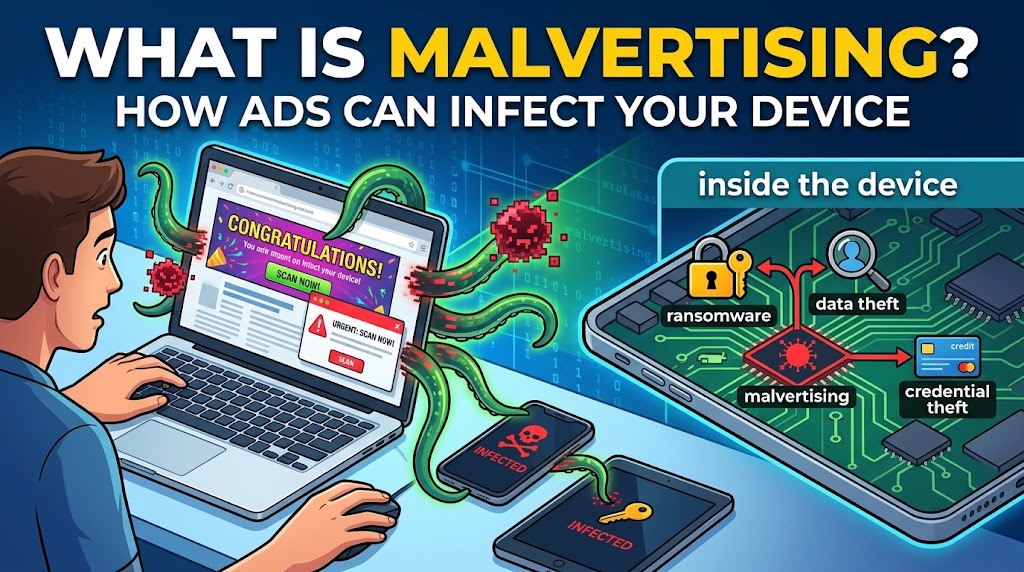
You open a respected news site to read the morning headlines. You do not click anything suspicious. You do not download a file. You scroll, read and close the tab.
That evening your computer starts acting strangely. A security warning appears that you have never seen before. Your browser’s homepage has changed, and a program you do not recognize is running in the background.
How did it happen? One possible answer is something most people never think about: an ad. Somewhere on that trusted news page, a banner or video ad was carrying hidden malicious code, delivered through the advertising system that pays for much of the internet. You did not click. You did not have to.
This threat is called malvertising, short for malicious advertising. In this guide you will learn what malvertising is, how malicious ads get onto legitimate websites, the different forms they take, real malvertising examples, the warning signs and the practical steps that keep you safe, without having to stop using the web.
What Is Malvertising?
Malvertising is the use of online advertising to spread malware or run scams. Criminals buy ad space, or compromise legitimate ads, and insert malicious code or deceptive links. The ads are then shown on real websites, search results, social media and apps. Some malvertising infects a device just by loading, called a drive-by attack, while other forms trick people into clicking and downloading fake software or entering personal details on a fake page.
You can protect yourself by keeping your browser and operating system updated, using a reputable ad blocker or protective DNS service, never downloading software from ads (go to the official website directly instead), and treating pop-up warnings and urgent phone numbers as scams.
Malvertising combines the words “malicious” and “advertising.” It is not the same as a website being hacked, and it is not just an ad you find annoying. It is a cyberattack that travels through the ad ecosystem: the networks, exchanges and platforms that connect advertisers to websites and apps.
The result is that harmful content can appear on any site that displays ads, including major news outlets, entertainment sites, weather pages and search engines. The website owner may be completely unaware, because they do not directly control which ad appears for each visitor. The ad is delivered by a third party, often within a fraction of a second.
Malvertising is attractive to criminals because it offers reach, trust and targeting:
- Reach: a single malicious ad can be shown on thousands of sites and to millions of people.
- Trust: the ad appears on a site you already trust, or at the very top of a search result.
- Targeting: attackers can use the same ad targeting tools as legitimate advertisers to choose victims by country, device type, browser or interest.
How Malvertising Works
To understand how malicious ads reach you, it helps to see how normal online advertising works.
The ad ecosystem in brief
When you load a web page, the page contains space for ads. In a fraction of a second, an automated auction takes place. Advertisers, through ad platforms, bid for the chance to show you an ad. The winner’s ad is delivered to your browser. There are many companies in the chain: advertisers, agencies, demand-side platforms, ad exchanges, supply-side platforms, publishers and ad-serving networks.
This complexity is a strength for business and a weakness for security. No single party sees or controls everything, and ad content is often loaded from servers different from the website you are visiting.
How attackers get in
Criminals use several routes to place malicious ads:
- Buying ads directly. They create advertiser accounts, often using stolen identities or payment cards, and submit ads that appear harmless.
- Posing as legitimate brands. They impersonate well-known software companies, banks or retailers, building trust.
- Starting clean, then switching. An ad is approved with harmless content. After it is running, the attacker changes the destination or code so it becomes malicious. Some ads only turn malicious for certain visitors or at certain times.
- Compromising ad networks or legitimate advertisers. Hacking an ad server or taking over an advertiser’s account lets criminals insert malicious code into ads that are already trusted.
- Cloaking. The ad shows one thing to reviewers and security scanners, and something different to real users. Attackers detect scanners by location, device or behavior and show them a harmless page.
- Redirect chains. An ad leads to a series of intermediate sites that profile your device before sending you to the final malicious page. Each hop makes tracing harder.
What happens when you see the ad
Depending on the attack, one of several things may happen:
- Drive-by download: The ad contains or redirects to code that exploits a vulnerability in an out-of-date browser, plugin or operating system, installing malware without any click.
- Click-based attack: You click on the ad, which takes you to a convincing fake page that asks you to download software, call a number or enter details.
- Forced redirect: The ad hijacks your browsing session and sends you to a scam page, even if you did not click.
- Fake alert: A pop-up claims your device is infected and urges you to act immediately.
In each case, the attacker relies on a combination of technical tricks and human psychology.
Types of Malvertising
1. Drive-by (no-click) malvertising
The most alarming kind. Simply loading the page with the malicious ad can be enough to start an infection if your software has unpatched weaknesses. This is why updates matter so much. Modern browsers have made this much harder than in the past, but it still happens, particularly against outdated systems.
2. Malicious search ads
Search engines show paid ads above the normal results. Attackers buy ads for popular search terms, such as the name of a well-known program, and display them with a legitimate-looking title and address. The ad leads to a lookalike download page that installs malware instead of the real software. This has become one of the most common forms of malvertising, because users searching for software are already planning to download something.
Beware that the ad can show the real company’s web address in the displayed link while sending you somewhere else after you click, through tracking templates and redirects.
3. Fake software and update ads
Ads and pop-ups claim that your browser, media player or operating system is out of date and urge you to install an update. The download is malware. Genuine updates come from the software itself or from your operating system, not from a banner ad.
4. Scareware and tech-support scam ads
Aggressive pop-ups imitate virus alerts, with flashing warnings, alarms and a phone number to call. Some lock the browser window to make it seem as if the computer is frozen. The scam aims to get you to call a fake “support agent” who will request remote access or payment.
5. Malicious redirects and clickjacking
An ad or an ad script forces your browser to jump to a different site, or places an invisible layer over a page so that your click is stolen. Redirects can lead to scams, fake prizes, phishing pages or exploit sites.
6. Phishing ads
Ads impersonate banks, payment services, cryptocurrency exchanges, delivery companies and government agencies. They lead to fake login pages designed to steal your credentials or card details.
7. Social media and video ads
Fake giveaways, celebrity investment promotions, bogus job offers and fraudulent shops appear as ads in social feeds and video platforms. Some link to malware or to scam sites. Some use deepfake videos of well-known people to appear credible.
8. In-app and mobile ads
Free apps and games earn money through ads. Malicious ads in mobile apps may redirect to scams, prompt fake app installs or push fake notification permissions. Some rogue apps are themselves designed to show intrusive or fraudulent ads.
9. Malicious QR codes in ads
A printed or on-screen advertisement may include a QR code that directs the scanner to a malicious page. Because you cannot read the destination before scanning, this is a favorite trick for phishing.
10. Notification and permission abuse
An ad or scam page asks you to “Allow notifications to continue.” If you agree, the site can send spam and scam alerts directly to your device, even when you are not browsing.
What Do Attackers Want?
Malvertising has many possible objectives:
- Information-stealing malware (infostealers) that grab saved passwords, browser cookies, cryptocurrency wallets and payment details
- Ransomware that encrypts files and demands payment
- Banking trojans that steal financial logins
- Remote access tools that give the criminal control of the device
- Cryptominers that hijack your processor to mine cryptocurrency
- Fake support scams that extract money directly from victims
- Credential theft through phishing pages
- Affiliate and click fraud, where criminals earn money by redirecting traffic or generating fake clicks
- Access resale: infected devices are sometimes sold to other criminals as a foothold into home or corporate networks
Because infostealers also steal browser sessions, one malicious download may expose many accounts at once, including work accounts if the device is used for both.
Malvertising vs. Adware vs. Regular Ads
These terms are often confused.
Regular ads are advertisements from genuine advertisers. They can be annoying or intrusive, and they track you for targeting, but they are not designed to harm you.
Adware is software that installs on your device and displays unwanted ads, often as pop-ups, and may track your browsing. It is installed on your computer, usually bundled with other software.
Malvertising is a malicious ad delivered through legitimate ad channels. It does not need to be installed by you first. It may deliver adware, ransomware, infostealers or a scam.
In short: adware lives on your device, while malvertising arrives through the ad network and tries to put something harmful there.
Real-World Malvertising Examples
These incidents come from public reporting, security research and law enforcement alerts.
The New York Times scareware ad (2009)
In September 2009, visitors to the New York Times website saw pop-ups claiming their computers were infected and urging them to buy antivirus software. The newspaper said the ad had been placed by someone posing as a legitimate advertiser, and it removed the ad after discovering it. This became one of the early, widely discussed examples of how scammers could slip malicious content into a trusted site’s ad inventory.
Yahoo ad network malware (2014)
In early 2014, security researchers reported that ads served through Yahoo’s network were redirecting visitors to sites hosting an exploit kit that installed malware on vulnerable computers. Yahoo confirmed it had removed the malicious ads. Researchers estimated that a large number of visitors were exposed, and the case showed that a major, well-run platform could be abused.
Large publishers and the Angler exploit kit (2016)
In March 2016, security firms reported a large campaign in which malicious ads appeared on high-profile sites, including major news and entertainment publishers, and redirected vulnerable visitors to an exploit kit that could install ransomware. Because the ads appeared on popular, reputable sites, many victims had no reason to be suspicious.
Fake software search ads (2022 onward)
In December 2022, the U.S. Federal Bureau of Investigation issued a public warning that cybercriminals were using search engine advertisements that impersonated legitimate brands, including software and financial services, to direct users to malicious sites. Security researchers have since documented many campaigns in which paid search ads for popular applications led to lookalike download pages that distributed information-stealing malware and loaders on both Windows and Mac computers.
Fake support and giveaway ads on social platforms
Over the past several years, fraudulent ads promoting fake giveaways, cryptocurrency schemes and bogus products have appeared on large social media and video platforms. Platforms remove huge volumes of such ads, but new ones are constantly created, and some use manipulated video of well-known people.
What these cases teach
- Trusted places can host bad ads. A respectable website or a top search result is not a guarantee of safety.
- Attackers copy trusted brands to make their ads convincing.
- The ad is often just the first step. The real danger comes from the page it leads to or the file it asks you to download.
- Updated software matters. Many drive-by attacks fail against fully patched systems.
Why Malvertising Is Hard to Stop
Even with the best intentions, platforms struggle to eliminate malicious ads, for several reasons:
Volume and speed. Billions of ads are served every day, and real-time auctions leave little time for deep inspection. Major platforms remove billions of ads for policy violations each year, yet determined attackers keep submitting new ones.
Complex supply chains. An ad may pass through many intermediaries, and responsibility is spread across them.
Cloaking and delayed activation. Malicious behavior may be hidden from reviewers and triggered only for specific visitors or after approval.
Disposable infrastructure. Attackers create accounts and domains quickly and discard them as soon as they are discovered.
Legitimate-looking content. An ad impersonating a well-known brand can look nearly identical to a real one.
Targeting abuse. Criminals use the same targeting tools as honest advertisers to aim at people most likely to fall for the scam.
This means that some responsibility inevitably falls on users and organizations to protect themselves.
Warning Signs of Malvertising
Signs that an ad or page is malicious
- Urgent pop-ups claiming you have a virus, your device is blocked or your account is at risk
- A phone number to call for “support” in a browser alert
- Prompts to download an update for your browser, Flash, a video player or your operating system
- A search ad for software that leads to a site with a slightly different web address from the official one
- Offers that are too good to be true, such as free expensive software, huge prizes or guaranteed investment returns
- A page that will not close, plays alarms or goes full screen
- Requests to allow notifications on an unfamiliar site
- Unexpected redirects to pages you did not choose to visit
- Misspelled brand names or odd domains, such as extra words, hyphens or unusual endings
Signs that a device may already be infected
- A changed browser homepage or search engine you did not choose
- New toolbars or extensions you did not install
- Constant pop-ups even on trusted sites
- Sudden slowness, overheating or loud fans
- Security software turned off
- Unfamiliar programs or processes
- Account alerts, password resets or logins you did not initiate
- Messages sent from your accounts that you did not write
How to Protect Yourself From Malvertising
The good news is that a handful of habits stop the vast majority of malvertising attacks.
1. Keep everything updated
Update your operating system, browser, extensions and apps. Drive-by attacks usually rely on known flaws that updates already fix. Turn on automatic updates wherever possible.
2. Use a reputable ad blocker
An ad blocker stops many ads from loading at all, which removes the delivery route for malvertising. Choose a well-known blocker from your browser’s official store, and avoid unknown extensions, which can themselves be malicious. Some people prefer to allow ads on sites they want to support. If so, consider a blocker that lets you control this per site.
3. Do not download software from ads
This is the single most useful rule for search ads. When you need software, go directly to the official website by typing the address or using a bookmark, or use the official app store or your operating system’s package manager. Do not click the first result without checking whether it is labeled as an ad (look for “Sponsored” or “Ad”).
4. Check the web address
Before downloading or entering any information, look carefully at the domain name. Make sure it exactly matches the official site. Be wary of extra words, unusual endings, hyphens and misspellings.
5. Never trust pop-up warnings
Legitimate security tools do not display alarming browser pop-ups with phone numbers. If a page claims your computer is infected:
- Do not call the number
- Do not click inside the pop-up
- Close the browser tab or window using the keyboard or your task manager
- If the browser will not close, force-quit it and reopen without restoring the last session
6. Use protective DNS or web filtering
Protective DNS services block known malicious and phishing domains before your device connects to them. Some are free for home users, and some routers support them. Many security suites include similar web protection.
7. Keep security software active
A reputable security product, such as the built-in Microsoft Defender on Windows, can block malicious downloads and warn about dangerous sites. Make sure real-time protection is switched on.
8. Use browser security features
Turn on Safe Browsing or equivalent protection in your browser, and enable HTTPS-only mode. Block pop-ups and redirects in site settings, and set notifications to “ask” or “blocked” by default.
9. Remove outdated plugins and unused extensions
Uninstall browser plugins you do not use, and review extensions periodically. Each one is potential attack surface.
10. Use a standard user account
Daily browsing from a non-administrator account limits what malware can do if it runs, and requires an extra password to install software.
11. Protect your accounts in case of theft
Use a password manager, unique passwords and multi-factor authentication, preferably passkeys or security keys, so that stolen credentials are less useful. Avoid saving passwords in the browser if you share a device or suspect an infection.
12. Be cautious with deals, giveaways and urgent offers
If an ad promises something extraordinary, such as a free premium subscription or a celebrity-endorsed investment, assume it is a scam until proven otherwise. Verify through independent sources.
13. Back up your data
Keep regular backups on an external drive or a reputable cloud service, ideally with an offline copy. If malware or ransomware strikes, you can restore your files without paying.
Protecting Your Phone and Tablet
Mobile devices have fewer drive-by exploits, but they are still exposed to scams, fake apps and notification abuse.
- Install apps only from official stores, and read reviews and developer details first.
- Update your phone regularly, including security patches.
- Do not tap ads that ask you to install an app or an update outside the store.
- Review notification permissions and revoke any from unknown sites.
- Use a mobile browser with built-in protection and consider a content blocker or protective DNS.
- Be careful with QR codes. Check the preview link before opening it.
- Remove apps you no longer use, especially ad-heavy free games.
- Never enter credentials after tapping an ad. Open the official app or website yourself instead.
Advice for Businesses and Website Owners
Malvertising is a business risk too. An infected employee device can lead to stolen credentials, ransomware or a wider breach. Website owners and publishers have an additional duty to their visitors.
For organizations
- Deploy protective DNS and web filtering to block malicious domains and categories of risky content
- Use endpoint detection and response tools that catch suspicious downloads and behavior
- Consider enterprise ad blocking on managed browsers, which reduces exposure
- Restrict software installation to administrators or approved sources, so a fake installer from an ad cannot run freely
- Keep browsers and operating systems patched through managed updates
- Train employees on malicious search ads, fake updates and tech-support pop-ups, with real screenshots
- Provide an approved software portal so staff do not search for downloads
- Require MFA and monitor for stolen sessions, since infostealers target browser cookies
- Protect your brand: monitor search ads and the web for impersonation of your company, and report fraudulent ads and lookalike domains to the platforms
For website owners and publishers
- Work with reputable ad partners and review their security policies
- Use ad quality and security scanning services and enforce blocking of automatic redirects
- Apply browser security features such as Content Security Policy to restrict what ads can do
- Sandbox ad content with iframe restrictions where possible
- Provide an easy way for visitors to report bad ads, and respond quickly
- Monitor user complaints and analytics for unusual redirects or spikes in bounce rates
- Prefer secure ad formats and avoid auto-playing or intrusive placements that train users to ignore warnings
What to Do If You Clicked a Malicious Ad
If you think you clicked a malicious ad, or that something was downloaded or installed, act calmly and quickly.
- Close the page or browser. If the window will not close, force-quit the browser.
- Do not call numbers or follow instructions shown on the page.
- Do not open or run any downloaded file. If you already ran it, disconnect from the internet to limit damage.
- Run a full scan with reputable security software and remove whatever it finds. Consider a second-opinion scanner.
- Delete anything installed recently that you did not choose, including extensions and programs, and reset your browser settings.
- Revoke notification permissions from any site that asked.
- Change your passwords from a different, clean device, especially for email, banking and any accounts used on the infected computer. Turn on MFA.
- Sign out of all sessions on your important accounts, because stolen cookies can allow access without a password.
- Check your bank and card statements, and contact your bank immediately if you entered financial details or allowed remote access.
- If you gave a scammer remote access, disconnect, uninstall the remote tool and consider a full system reset.
- Report the ad. Use the report option on the platform where you saw it. In the United States you can also report scams at reportfraud.ftc.gov or ic3.gov.
- Consider a clean reinstall of your operating system if the infection persists or you suspect a serious compromise.
Frequently Asked Questions
What is malvertising in simple terms?
It is when criminals use online ads to spread malware or trick you. The ads look normal and can appear on real websites, but they either infect your device or lead you to a harmful page.
Can I get a virus just by visiting a website with a bad ad?
It is possible, though less likely today than in the past. If your browser, plugins or operating system are out of date, a malicious ad can sometimes exploit a vulnerability without any click. Keeping everything updated greatly reduces this risk.
Is malvertising the same as adware?
No. Adware is software installed on your device that shows unwanted ads. Malvertising is a malicious ad delivered through the advertising system that tries to infect you or scam you.
Are Google search ads safe?
Most are, and major search engines work hard to remove harmful ads, but some malicious ads still get through, particularly those impersonating popular software. For downloads, go directly to the official site instead of clicking a sponsored result.
Do ad blockers really protect against malvertising?
Yes, to a significant degree. By preventing ads from loading, a good ad blocker removes the most common delivery route. It is not perfect, and it should be combined with updates, security software and cautious habits.
Are Macs and phones affected by malvertising?
Yes. While many older attacks focused on Windows, researchers have documented malvertising campaigns that deliver malware to Macs, and mobile users face scams, fake apps and notification abuse.
How can I tell if an ad is a search ad?
In most search engines, paid results are labeled “Sponsored” or “Ad” and appear above or below the organic results. Treat them with extra care when you are about to download software or log in to an account.
Will a VPN protect me from malvertising?
Not by itself. A VPN encrypts your connection but does not stop a malicious ad from loading or malware from running. Some VPN services include ad and malicious-domain blocking, which can help.
Is it safe to click “X” on a pop-up to close it?
Not always. On deceptive pop-ups, the close button may be fake and trigger a download or redirect. Close the browser tab or window using your keyboard shortcuts or task manager instead.
What should I do if I see a suspicious ad?
Do not click it. Report it through the ad’s feedback option on the platform, and tell the website owner if you can. Reports help remove malicious ads faster.
Is malvertising illegal?
Yes. Distributing malware, running scams and impersonating brands to defraud people are crimes under fraud and computer misuse laws in most countries.
Final Thoughts
The internet runs on advertising, and most ads are harmless. But the same system that lets a small business reach customers also lets criminals reach millions of people through websites they trust. That is what makes malvertising dangerous: it arrives disguised as a normal part of the web.
You do not need to give up browsing to stay safe. Keep your software updated, use a trustworthy ad blocker, and treat every unexpected warning, update prompt and too-good-to-be-true offer with suspicion. When you need software, type the official address or use an app store, rather than clicking an ad. And if a pop-up demands that you call a number or download something right now, close it and walk away.
A few simple habits turn malicious ads from a hidden threat into a minor annoyance.