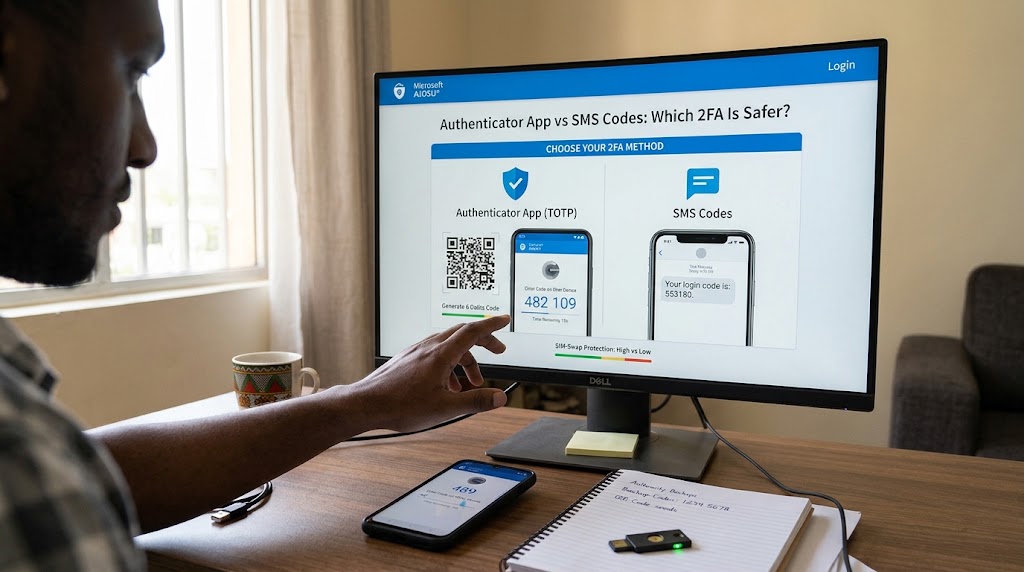
Authenticator app vs SMS: which is safer?
An authenticator app is safer than SMS codes for almost everyone. Text-message codes can be stolen through SIM swapping, telecom network weaknesses and phishing, while authenticator app codes are generated on your own device and never travel over the phone network. SMS is still far better than having no second factor, and it is easier to recover if you lose your phone. This guide compares both methods on security, convenience, recovery and lockout risk, scores them in a table, and gives you a simple flow to decide which one to use for each account.
Quick Comparison: Authenticator App vs SMS at a Glance
If you only have a minute, this table sums it up. Detailed explanations follow below.
| Authenticator app (TOTP) | SMS text codes | |
| Overall security | Strong | Moderate to weak |
| SIM swap risk | None | High |
| Network interception (SS7) | Not exposed | Exposed |
| Phishing resistance | Partial (still phishable in real time) | Weak |
| Works without signal | Yes | No |
| Setup effort | Medium (scan a QR code) | Very low (enter a number) |
| Recovery if you lose your phone | Backup codes, second device or cloud sync | Easy: move your number to a new SIM |
| Cost | Free | Free for you, but carrier fees may apply abroad |
| Best for | Email, banking, crypto, work, social media | Accounts that offer nothing else |
| Verdict | Use by default | Use as a fallback |
What Is Two-Factor Authentication (2FA) and Why Does the Method Matter?
Two-factor authentication adds a second proof of identity on top of your password. The idea is simple: even if a criminal steals your password through a data breach or a phishing email, they still cannot log in without the second factor. Passwords are the first factor (something you know). The second factor is usually something you have, such as your phone, or something you are, such as a fingerprint.
Not all second factors are equal. Security researchers rank them roughly like this, from weakest to strongest:
- Security questions (not really a second factor at all)
- SMS and voice call codes
- Email codes
- Authenticator app codes (TOTP)
- Push approvals with number matching
- Passkeys and hardware security keys (FIDO2 / WebAuthn)
The method matters because attackers go after the weakest link. If your bank offers an authenticator app but you choose SMS, a criminal who cannot crack your password may simply attack your phone number instead. Picking a stronger method closes that door.
If you have not turned on 2FA anywhere yet, start with our step-by-step guide on how to set up 2FA, then come back here to decide which method to choose.
How SMS 2FA Works
With SMS two-factor authentication, you enter your username and password, and the service sends a text message containing a short numeric code, usually six digits, to the phone number on file. You type the code into the login page, and the service lets you in.
Its big advantage is simplicity. You do not install anything, you do not scan anything, and almost everyone already knows how to read a text message. That is why banks, retailers and social networks have long defaulted to SMS: it has the lowest friction and the fewest support calls.
Its big weakness is also built into the design. The code is tied to your phone number, not to your phone. Whoever controls the number receives the code, and phone numbers are controlled by carriers, call centers and the aging telecom networks that connect them, none of which were designed to be a security layer.
How Authenticator Apps Work
An authenticator app generates time-based one-time passwords, known as TOTP, defined in an open standard (RFC 6238). Here is the process:
- When you enable 2FA, the website shows a QR code (or a text key).
- You scan it with your authenticator app. This transfers a shared secret key to your device.
- From then on, both the app and the website combine that secret with the current time to calculate the same six-digit code.
- The code changes every 30 seconds.
Because the code is calculated locally, nothing is sent to you at login. There is no message to intercept, no number to hijack and no carrier involved. The app works in airplane mode, in a basement with no signal, or abroad without roaming.
Popular authenticator apps include Google Authenticator, Microsoft Authenticator, Authy, 1Password, Bitwarden Authenticator, Proton Authenticator, Ente Auth and the open-source Aegis Authenticator on Android. All of them use the same TOTP standard, so a code from any of them works on any compatible website.
SMS 2FA Risks: How Text Codes Get Stolen
SMS codes stop many attacks, but they have several well-documented weak points. Understanding them helps you see why security agencies and major tech companies steer people away from SMS for important accounts.
1. SIM swapping
In a SIM swap attack, a criminal convinces your mobile carrier to transfer your phone number to a SIM card they control. They might impersonate you using personal details found in data breaches, trick a call-center agent, or bribe a corrupt insider. Once the number moves, every SMS code, including those from your bank and email, lands on the attacker’s phone.
This is not a theoretical risk. The FBI’s Internet Crime Complaint Center reported 1,611 SIM swapping complaints in 2021 with adjusted losses of roughly 68 million dollars, a sharp rise from the previous few years combined. Victims have lost cryptocurrency holdings, had social media accounts seized and watched bank accounts drained within minutes.
We cover the full attack chain and the defenses in our guide to SIM swapping, including how to add a carrier PIN and port-out lock.
2. Telecom network weaknesses (SS7)
SS7, the signaling system carriers use to route calls and texts between networks, was designed decades ago with little authentication. Researchers and criminals have shown that, with access to the right network position, messages can be redirected or read. Attacks have been used to empty bank accounts protected only by SMS codes. This kind of attack is harder to carry out than a SIM swap and is less common against ordinary people, but it shows the channel itself is not trustworthy.
3. Phishing and social engineering
SMS codes are easy to phish. A common scam: an attacker triggers a login on your real account, which sends you a real code, and then texts or calls you pretending to be your bank’s fraud team, asking you to read the code back to confirm your identity. Another version sends you to a lookalike website that collects your password and then prompts for the code, which the attacker immediately types into the real site.
4. Malware and notification leaks
Some Android malware can read incoming texts. Even without malware, codes often appear on lock screens, smartwatches and connected laptops where other people can see them. Message syncing across devices also spreads your codes to more places than you may realize.
5. Lost access abroad or without signal
This is a convenience risk rather than an attack, but it matters. If you travel and your SIM does not roam, or you are somewhere with poor reception, you may be unable to receive the text and therefore unable to log in at all.
What the official guidance says
The US National Institute of Standards and Technology (NIST) classifies authentication over the public telephone network, including SMS, as a restricted authenticator in its Digital Identity Guidelines (SP 800-63B). That does not mean banned, but it signals that organizations should treat it as a weaker option and offer alternatives. Google’s own research on account takeover found that SMS codes blocked 100 percent of automated bots and 96 percent of bulk phishing attacks, but only 76 percent of targeted attacks. On-device prompts did better on targeted attacks (90 percent), and physical security keys blocked all three categories.
The lesson: SMS defeats lazy, mass-produced attacks. It struggles against someone who is specifically after you.
Why Authenticator Apps Are Safer
Authenticator apps close the biggest SMS gaps while staying free and reasonably easy to use.
- No phone number to hijack. The secret key lives on your device. Moving your number to another SIM does nothing to your codes.
- Nothing travels over the network. There is no message to intercept or redirect, so SS7 attacks and carrier-side compromises are irrelevant.
- Offline operation. Codes keep working on a plane, in the countryside or abroad.
- Local protection. Most apps can be locked behind a fingerprint, face unlock or PIN, so a thief holding your unlocked phone still cannot easily see codes.
- Encrypted backup options. Modern apps and password managers offer encrypted syncing so a lost phone does not mean lost access.
- Short code lifetime. Each code expires in about 30 seconds, which narrows the attacker’s window.
An honest caveat: authenticator codes can still be phished
It would be misleading to call app codes unbreakable. If you type a six-digit app code into a convincing fake login page, the attacker can relay it to the real site within seconds. That is called real-time or adversary-in-the-middle phishing, and kits for it are widely sold. Authenticator apps are safer than SMS, but they are not the top of the ladder.
For your highest-value accounts, consider passkeys or hardware security keys. These verify the website’s real address cryptographically, so a lookalike site simply cannot get a valid response. Use an authenticator app as a strong default, and use passkeys or keys wherever they are offered.
Authenticator App vs SMS: Detailed Comparison
Security
Authenticator apps win clearly. They remove SIM swap risk, network interception and message-forwarding problems. The remaining risk is real-time phishing and device compromise, which applies to SMS too.
Phishing resistance
Both can be phished. SMS has additional exposure because attackers can also trick you into reading out codes over the phone, and because SMS codes are often sent unprompted and look generic. App codes are slightly harder to social-engineer because there is no message to refer to, but a victim who types the code into a fake site is just as exposed.
Convenience
SMS wins on convenience. There is nothing to install, and people understand it instantly. Authenticator apps need a one-time setup and you need to open the app at each login, although many apps let you copy codes quickly and some sites remember trusted devices for 30 days.
Recovery and lockout risk
This is where SMS holds its ground. If you lose your phone but keep your number, your carrier can move it to a new SIM and your SMS codes work again. With an authenticator app, a lost phone with no backup can mean being locked out until you pass the website’s manual recovery process, which can take days.
You can eliminate this risk with preparation: save the backup codes each site gives you, register a second device, or use an app with encrypted cloud sync. We walk through each recovery option in our how to set up 2FA guide.
Cost
Both methods are free for you. SMS costs the service provider money for every text, which is one reason some companies are cutting back on it or charging for it.
Availability
SMS is supported almost everywhere, including older services. Authenticator support is now near-universal on major platforms (email providers, banks, social networks, cloud services, exchanges), but a few legacy sites still offer SMS only.
Scoring Both Methods: Our 2FA Scorecard
We rated each method from 1 (poor) to 5 (excellent) on six criteria that matter in real life. Scores reflect typical behavior for a consumer account with sensible setup.
| Criteria | Authenticator app | SMS codes | Why |
| Phishing resistance | 3 | 1 | Apps still need you to spot fake sites, but SMS adds call-based scams on top |
| Resistance to SIM swap and interception | 5 | 1 | App codes never cross the carrier network |
| Ease of setup | 3 | 5 | SMS needs only a number; apps need a QR scan |
| Recovery if you lose your phone | 3 | 4 | SMS is easy to restore; apps need backups |
| Low lockout risk (with preparation) | 4 | 4 | Backup codes and cloud sync close the gap for apps; SMS fails when you have no signal or lose the number |
| Works without signal or while traveling | 5 | 1 | Apps run offline; SMS needs coverage and roaming |
| Total (out of 30) | 23 | 16 |
How to read the scorecard: authenticator apps lead on every security criterion. SMS only wins on setup ease and recovery, and the recovery gap can be erased by saving backup codes. If you are willing to spend five extra minutes at setup, the app is the better long-term choice.
Which Should I Pick? A Simple Decision Flow
Work through these questions in order and stop at the first one that applies.
- Does the account protect money, your email, your identity or your work? (Banking, primary email, crypto, password manager, company systems.) → Use an authenticator app, or a passkey or security key if the service supports one. Your email deserves special care because it can reset every other account.
- Does the service offer only SMS? → Use SMS, and harden it: set a PIN or passcode on your carrier account, enable port-out protection, and never share codes with anyone who contacts you.
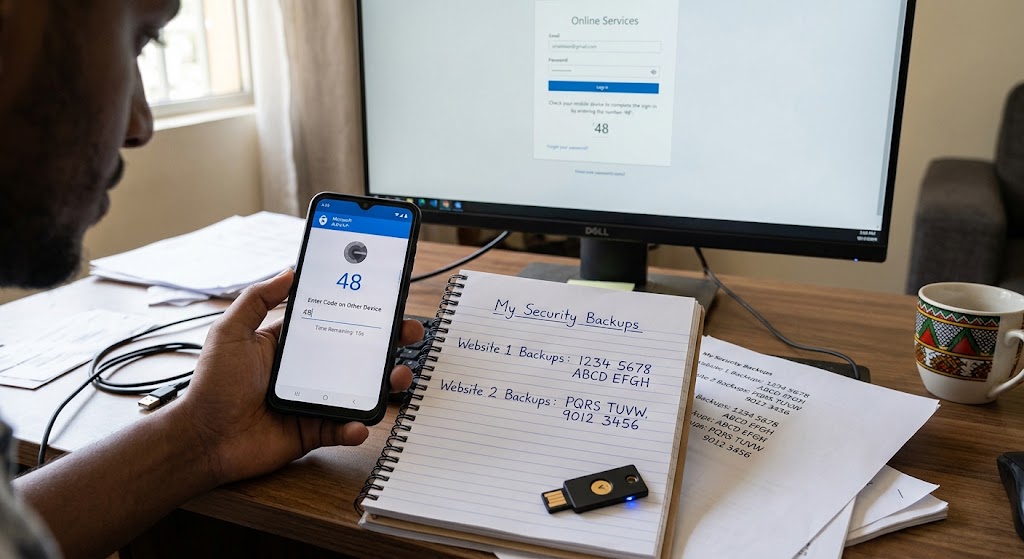
- Do you travel often, switch phones or have a history of losing devices? → Use an authenticator app with encrypted backup (such as a password manager’s built-in authenticator) and store your backup codes somewhere safe, offline.
- Are you helping a less tech-comfortable family member? → Start with SMS so they are protected today, then upgrade their email and banking to an app once they are comfortable.
- Do you have several accounts and want fewer steps? → Use one authenticator app for everything, with encrypted backup turned on, and keep SMS only as a last-resort recovery method.
Rule of thumb: use the strongest method each service supports, and always keep a recovery path.
Best Authenticator App: How to Choose
There is no single best authenticator app for everyone. Choose based on what you need most.
- Google Authenticator: Simple and widely trusted. Supports syncing codes through your Google account, which prevents lockouts but ties backup to that account’s security.
- Microsoft Authenticator: Good for work and school accounts, and supports passwordless sign-in and number-matching approvals for Microsoft services.
- Authy: Popular for encrypted multi-device backups, though check its current platform support before relying on it.
- 1Password, Bitwarden or Proton: If you already use these, built-in or companion authenticators keep passwords and codes in one encrypted place. This is convenient, but consider whether you want both factors stored together for your most critical accounts.
- Aegis Authenticator (Android) or Ente Auth: Open-source options with encrypted exports and strong privacy reputations.
What to look for: encrypted backup or easy export, a device lock (biometric or PIN), support for multiple devices, a clear privacy policy and ongoing updates. Avoid unknown apps with ads or permissions that seem unrelated to generating codes.
How to Switch From SMS to an Authenticator App Safely
Moving to an app takes a few minutes per account. Do it in this order so you never lock yourself out.
- Install your chosen authenticator app and turn on its lock and backup features first.
- Start with your email account, then banking, password manager, cloud storage and social media.
- Open each account’s security settings and look for two-step verification, then choose authenticator app.
- Scan the QR code and enter the six-digit code to confirm it works.
- Save the backup codes the site gives you. Print them or store them in your password manager, not in a plain note on your phone.
- Test a login in a private window before signing out of anything.
- Remove or downgrade SMS where possible so attackers cannot fall back to it. If the site requires a phone number for recovery, keep it but add a carrier PIN.
- Add a second device or backup so a lost phone does not lock you out.
For screenshots and per-service instructions, see our full guide to setting up 2FA.
How to Reduce SMS Risk If You Must Use It
Sometimes SMS is the only option your bank or government portal offers. You can still make it safer.
- Add a PIN or passcode to your mobile carrier account and ask for a port-out or SIM lock.
- Use a unique, hard-to-guess answer to carrier security questions, or avoid using ones based on public information.
- Never read a code aloud or reply with it to anyone who calls or texts you, even if they claim to be your bank. Real companies never need your code.
- Hide message previews on your lock screen.
- Keep your number private where possible, and avoid listing it publicly on social media.
- Turn on alerts for account changes so you notice a takeover early.
- Use a different number (a dedicated SIM or a number you share with no one) for sensitive accounts if your carrier allows it.
Read more about carrier-side protection in our SIM swapping guide.
Common Mistakes People Make With 2FA
- Skipping 2FA because SMS feels weak. Weak 2FA beats no 2FA by a wide margin.
- Not saving backup codes. This is the number one cause of painful lockouts.
- Keeping codes and passwords in the same unprotected note.
- Using only one device with no backup or second device registered.
- Approving prompts you did not start. If you get an unexpected approval request or code, someone has your password. Deny it and change your password.
- Ignoring email security. If an attacker controls your email, they can reset passwords everywhere, so secure it first.
- Entering codes on links from messages. Always type the website address yourself or use a saved bookmark.
Authenticator Apps vs Passkeys and Security Keys
Passkeys, built on FIDO2 and WebAuthn, replace the password and the code with a cryptographic credential stored on your device and unlocked by your fingerprint, face or PIN. Because the credential is bound to the real website, phishing sites cannot use it. Hardware security keys work similarly and are the gold standard for people at high risk, such as journalists, executives and crypto holders.
Where passkeys are available, they are generally the best option. Authenticator apps remain the best widely supported choice for everything else, and SMS remains the fallback. A practical plan looks like this:
- Passkey or security key where offered
- Authenticator app where passkeys are not available
- SMS only when nothing else exists
Frequently Asked Questions
Is an authenticator app really safer than SMS?
Yes. Authenticator apps are not vulnerable to SIM swapping or text interception, which are the main attack routes against SMS. Neither method is fully phishing-proof, but apps remove several of SMS’s weakest points and work offline.
Is SMS 2FA better than no 2FA?
Absolutely. SMS stops most automated attacks that rely on stolen passwords alone. Switch to an app when you can, but never skip 2FA because SMS is the only option.
What happens if I lose my phone with an authenticator app?
You can recover using backup codes, a second registered device or an app with encrypted cloud backup. Save these before you need them, because recovering without them can take days.
Can hackers bypass authenticator app codes?
Only in specific ways, mainly real-time phishing, where you enter a code on a fake site and the attacker uses it instantly, or if malware controls your device. Check URLs carefully and use passkeys or hardware keys for high-value accounts.
Which authenticator app should I use?
Any reputable TOTP app works, such as Google Authenticator, Microsoft Authenticator, Authy, or a password manager’s built-in authenticator. Prioritize encrypted backups and a device lock.
Final Verdict: Which 2FA Is Safer?
An authenticator app is the safer choice, and it is the one most people should use for email, banking, crypto, work accounts and social media. It protects against SIM swapping and network interception, works without signal, and costs nothing. SMS earns its place only as a fallback for services that offer nothing better, and as a stepping stone for people new to 2FA.
Your action plan for today:
- Secure your email account with an authenticator app or passkey.
- Repeat for banking, your password manager and any account that holds money or identity.
- Save backup codes and add a second device.
- Add a PIN and port-out lock to your carrier account.
- Leave SMS on only where nothing else is available.
Continue with how to set up 2FA for hands-on steps, and read SIM swapping: what it is and how to prevent it to lock down your phone number.