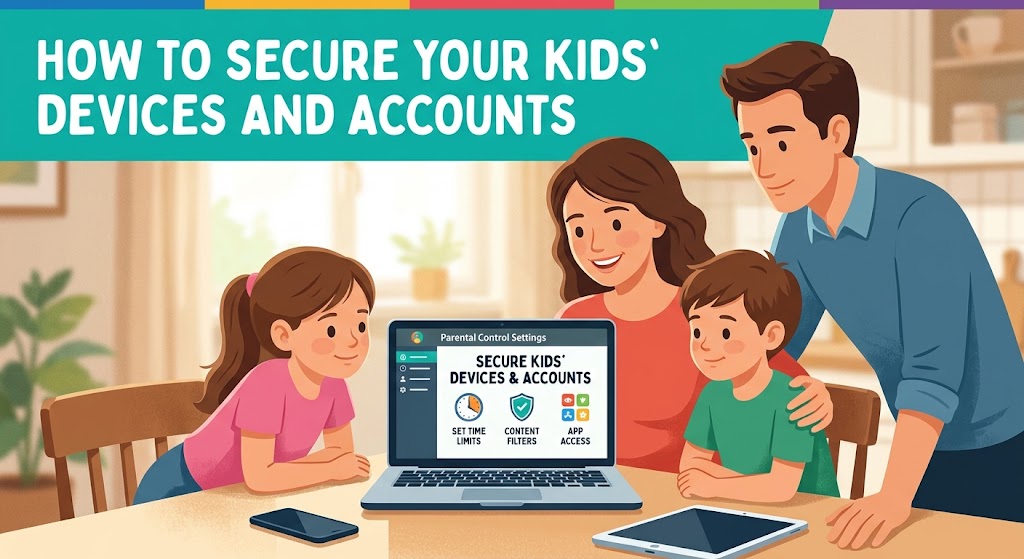
Handing a child their first tablet or phone feels like a milestone, and it’s also the moment you become their IT department. Kids click things adults wouldn’t. They reuse simple passwords, install games from sketchy sources, share more than they should, and often have no idea that a “free gift card” message is a scam. None of that makes them careless people. It makes them people who haven’t had time to build the instincts yet.
The good news is that you don’t need technical expertise to cover the biggest risks. Most of the work is a one-time setup of built-in tools, followed by regular conversations that matter more than any setting. This guide walks through what to secure, in what order, and how to adjust as your kids get older.
Start with the conversation, not the controls
Settings can block a lot, but no setting can replace a child who knows what to do when something feels wrong. Before you configure anything, talk to your kids about why you’re doing it.
Kids who feel monitored without explanation tend to find workarounds: a friend’s phone, a second account, a hidden app. Kids who understand the reasons are more likely to come to you when something goes wrong. Frame the controls as seatbelts, not surveillance. You’re not assuming they’ll crash. You’re making sure a mistake doesn’t turn into a disaster.
Two ideas are worth repeating often, in plain language that fits their age:
- They won’t be in trouble for telling you. If a stranger messages them, a link asks for their password, or they see something upsetting, you want them to tell you quickly. If the response is to take away the device, they’ll stop telling you. Say out loud that coming to you is always safe.
- Some information stays private. Full name, school, home address, phone number, passwords, and photos of themselves in revealing situations don’t get shared with people they only know online.
For younger children, keep it concrete: “If a game asks for your name or address, come get me.” For teens, you can talk about scams, impersonation, and how a photo, once sent, can’t be taken back.
Step 1: Secure the device itself
Every account on the device is only as safe as the device. Start here.
Set a passcode. Use a passcode or PIN on every phone, tablet, and laptop your child uses. For young kids, a PIN you know is fine. Skip obvious ones like 1234 or birthdays. If the device supports fingerprint or face unlock, that’s useful for teens, but make sure you also know the backup passcode.
Keep software updated. Updates fix security holes that attackers actively exploit. Turn on automatic updates for the operating system and for apps. This is one of the highest-value things you can do, and it costs nothing.
Use a standard account, not an administrator. On a shared computer, create a separate user account for each child, and keep the administrator account for yourself. This stops kids, and any malware they accidentally install, from changing system settings or installing software without your approval.
Turn on find-my-device. Both Apple and Google offer built-in tools to locate, lock, or wipe a lost device. Set them up before you need them.
Encrypt and back up. Modern phones encrypt storage once a passcode is set. Make sure backups are on too, so a lost or broken device doesn’t mean lost photos and schoolwork.
Step 2: Use the built-in parental controls
You probably don’t need to buy anything to start. The major platforms ship with capable family tools.
Apple devices. Family Sharing lets you create a child account for kids under 13 and manage their devices from your own. Screen Time lets you set app limits, downtime schedules, content restrictions by age rating, and require approval before downloads or purchases (“Ask to Buy”).
Android and Chromebooks. Google Family Link lets you create a supervised account for a child, approve or block app installs, set daily limits and bedtimes, filter content in Chrome and Google Search, and see where the device is.
Windows. Microsoft Family Safety lets you add child accounts, set screen time limits, filter websites in Microsoft Edge, and review activity reports.
Game consoles. Xbox, PlayStation, and Nintendo Switch all have their own family apps. They control playtime, restrict who can chat with your child, limit purchases, and set age-appropriate content ratings. Gaming is where many kids first talk to strangers, so check these settings even if you think your child only plays alone.
Platforms update these tools regularly and menus move around, so if you can’t find a setting, search the company’s official help pages for the current steps.
Keep in mind the age rules. Many services require users to be at least 13 (this varies by country and service), which is why younger kids typically use supervised child accounts rather than regular ones. Don’t help a child lie about their birthdate to get a regular account, because that can remove the protections designed for younger users.
Step 3: Lock down the accounts
Devices connect to accounts, and accounts hold the personal information. Securing them matters just as much.
Create strong, unique passwords. The most common failure is a short password reused everywhere. If one site is breached, attackers try that same password on other services. For kids who can handle it, teach the idea of a passphrase: several random words strung together, like “purple-tractor-lemon-river,” which is easier to remember than a jumble of symbols and much harder to guess.
Use a family password manager. Many password managers offer family plans, and some browsers and phones include built-in managers. This lets a child use strong passwords without memorizing them. For younger children, you can hold the master access yourself.
Turn on two-step verification. Also called two-factor authentication, this requires a second proof of identity, such as a code from an app, in addition to the password. Enable it on the primary email account first, since email is the key to resetting every other account. For teens, an authenticator app is better than text messages where possible.

Protect the recovery options. Make sure the recovery email and phone number on your child’s accounts point to you or to an address you control. If your child gets locked out, or if someone tries to take over the account, you want the alerts to reach you.
Know the main accounts. Make a simple list of the accounts your child has: email, Apple ID or Google account, school accounts, game accounts, social media, and streaming. You can’t secure what you don’t know exists. Keep the list somewhere safe, like your password manager.
Step 4: Tighten privacy settings on apps and games
Default settings on many apps lean toward sharing more, not less. Spend ten minutes on each app your child uses.
- Make profiles private. On social platforms, set accounts to private so only approved followers see posts.
- Limit who can message or contact them. Restrict messages and friend requests to people they already know in real life where the app allows it.
- Turn off location sharing. Check both the app and the phone’s system settings. Photos can also contain location data, so disable location tagging in the camera if you don’t want it embedded.
- Review what’s visible in the profile. Usernames shouldn’t include a full name, school, or birth year. Profile photos shouldn’t show a school logo or house number.
- Disable or restrict in-app purchases. Require a password or approval for every purchase. Kids have run up very large bills by accident.
- Check ad and data settings. Many platforms let you limit personalized ads and data collection for younger users.
Pay special attention to anything with chat, voice, or live streaming. These features connect your child to strangers more directly than most others.
Step 5: Vet apps before they get installed
Not every app is what it looks like. Some are designed to collect data, display aggressive ads, or push in-app spending, and a few are outright malicious.
Turn on approval for new downloads, so that every install comes to you first. Stick to official app stores, since side loading apps from random websites is a common route for malware. Before approving, check the app’s age rating, read a few recent reviews, look at what permissions it requests, and ask whether it really needs access to the camera, contacts, microphone, or location. A flashlight app that wants your contacts is a red flag.
It’s also worth checking whether an app has chat features, because that changes the risk level a lot. A puzzle game with no interaction is a very different thing from one with open voice chat.
Every few months, go through the installed apps together and delete anything unused. Fewer apps means fewer places for something to go wrong.
Step 6: Secure the home network
Your Wi-Fi is the doorway for every device in the house.
Change the router’s default admin password. The login for the router’s settings page often ships with a well-known default. Change it.
Use a strong Wi-Fi password and modern encryption. Look for WPA2 or WPA3 in your router settings. Avoid leaving the network open or using an old, weak setup.
Keep router firmware updated. Many routers don’t update themselves. Check occasionally, or turn on automatic updates if offered.
Consider network-level filtering. Some routers and DNS services let you block categories of websites for every device on your network, which is handy for smart TVs and gaming consoles that don’t have their own controls. These filters aren’t perfect, and savvy teens can bypass them, but they add a useful layer.
Set up a guest network. Visitors and your kids’ friends can connect there instead of to the main network, keeping them away from your computers and other devices.
Step 7: Teach kids to spot scams and manipulation
The weakest point in any security system is usually a person being tricked, and children are targeted by scammers more than many parents realize. Games, social platforms, and messaging apps are common hunting grounds.
Teach these patterns in terms your child will recognize:
Free stuff is rarely free. Offers for free in-game currency, skins, or gift cards often lead to phishing pages designed to steal login details. Tell kids that anyone offering something amazing for just a password is a scammer.
Never share passwords, even with friends. Friends can change their minds, fall out, or have their own accounts hacked. A message from a “friend” asking for a login could be someone who has taken over that friend’s account.
Be wary of urgency. “Your account will be deleted in 10 minutes!” is a pressure tactic. Real companies don’t work that way. Teach kids to stop and ask you when something is rushing them.
Don’t click unknown links or open unexpected attachments. If a message seems odd, even from someone they know, check with the person another way first.
People online aren’t always who they say they are. A “kid” in a game chat could be an adult. This is the hardest one to teach without frightening children, but it matters. A calm rule works: we don’t share personal details, photos, or move to private chats with people we’ve only met online, and we always tell a parent if someone asks us to keep a secret.
Warning signs that something is wrong include a stranger asking to move the conversation to a different app, requests for photos, gifts or money offered in exchange for secrecy, or someone saying “don’t tell your parents.” Make sure your child knows that any of these is an immediate reason to come to you.
If you ever suspect a child is being groomed or exploited, save screenshots, don’t confront the other person, block them, and report to the platform and to the appropriate authorities. In the US, the National Center for Missing & Exploited Children runs the CyberTipline for reporting. In other countries, local police or child protection agencies handle reports.
Step 8: Manage screen time and content without making it a battle
Security isn’t only about hackers. Exhaustion, bad content, and constant notifications cause their own harm.
Set clear, consistent rules that your child knows in advance: which devices, when, and where. A common approach is keeping devices out of bedrooms overnight, since late-night use hurts sleep and is also when risky conversations tend to happen. A charging spot in the kitchen or living room works well for the whole family, parents included.
Use downtime schedules in the built-in tools to enforce this instead of arguing about it every evening. Having the system say “time’s up” feels less personal than hearing it from you.
Content filtering helps, but it isn’t foolproof. Filters miss things and sometimes block harmless sites. Treat them as a safety net, not a guarantee. For younger children, shared spaces for device use work better than any filter. For teens, the balance shifts toward trust and conversation.
Step 9: Adjust as they grow
What suits a seven-year-old would feel insulting to a fifteen-year-old, and it won’t work anyway. Plan to loosen controls in stages.
Young children (roughly under 8). Use supervised accounts, approve every download, limit usage to curated apps, and stay nearby. Pre-load kid-friendly content, and avoid open-ended browsing or chat.
Older children (roughly 8 to 12). Allow more independence within limits. Keep approval for downloads, maintain content filters, and use shared family spaces for devices. Start the conversations about scams, privacy, and respectful behavior online before they get their first social accounts.
Teens. Shift from restriction toward guidance. Keep key protections (strong passwords, two-step verification, privacy settings) but give them more freedom and responsibility. Talk about digital footprints, sharing photos, online relationships, and how to report and block people. Agree on boundaries together where you can, since teens follow rules they helped make far better than rules handed down.
Remember that the goal is a young adult who can protect themselves without you. Every step of independence you give, with a safety net underneath, is practice.
What about monitoring apps?
Many tools let parents see messages, browsing history, and location. Whether to use them is a personal decision, and there’s no universally right answer.
Location sharing is a reasonable, widely accepted option, especially for kids who walk or travel on their own. Content-level monitoring, such as reading messages, is more contested. It can catch real dangers, but it can also damage trust, particularly with teens, and covert monitoring can backfire badly if discovered.
If you choose to monitor, a few principles help. Be open about it, so your child knows what you can see. Match the level to their age and to any specific concern. Don’t use it as a substitute for conversation. And research any monitoring app carefully before installing it, since some collect a lot of data themselves and not all are trustworthy. A tool meant to protect your child shouldn’t become a new privacy risk.
Prepare for when something goes wrong
Even with good setup, incidents happen. A child clicks a bad link, an account gets hacked, or a stranger sends a disturbing message. Having a plan reduces panic.
If an account is compromised: change the password right away from a secure device, turn on two-step verification, check the recovery email and phone for changes you didn’t make, log out of all other sessions, and check whether the same password was used anywhere else. Then warn friends or contacts if the account sent suspicious messages.
If a device may be infected: disconnect it from Wi-Fi, run a scan with the built-in security tools or a reputable antivirus, uninstall anything suspicious, and change passwords from a different, clean device. If you can’t clean it confidently, a factory reset after backing up is the safest option.
If your child sees something upsetting: stay calm. Thank them for telling you. Ask what happened without blame, and help them block or report the content. Your reaction decides whether they’ll tell you next time.
If money or personal information was exposed: contact the bank or card issuer, watch for suspicious activity, and in more serious cases consider a credit freeze. A child’s identity can be misused for years before anyone notices, because no one is checking their credit. In some countries, you can place a freeze on a minor’s credit file, so look up the local process.
A quick checklist
- Every device has a passcode and automatic updates turned on.
- Each child has their own account, with a standard (non-admin) role on shared computers.
- Find-my-device and backups are enabled.
- Parental controls are set up through Apple, Google, Microsoft, or console tools.
- Downloads and purchases need approval.
- Passwords are strong and unique, preferably in a password manager.
- Two-step verification is on for email and main accounts, with recovery details pointing to a parent.
- Social and gaming profiles are private, with location sharing off and contact limited to known people.
- The router has a changed admin password, WPA2 or WPA3, and updated firmware.
- Your child knows they won’t be punished for telling you about something wrong.
- You’ve reviewed the list of apps and accounts in the last few months.
Frequently asked questions
At what age should I stop using parental controls?
There’s no fixed age. Most families loosen controls gradually through the teen years, keeping the security basics, like strong passwords and two-step verification, indefinitely. The aim is to hand over control as your child shows good judgment.
Do I need to buy special software?
Often not. Apple, Google, and Microsoft all include free family tools that cover the essentials. Paid products can add features like cross-platform reporting, but start with what’s built in and see what’s missing.
What if my teen bypasses the controls?
It happens, and it’s worth treating as information rather than a crime. Ask why they did it. Often it points to a rule that feels unreasonable, and a conversation can fix the real issue better than a stricter filter. Technical limits will always be beatable by a determined teenager. Trust and clear expectations hold up better.
Is it okay to know my child’s passwords?
For young children, yes, it’s a good idea. For teens, many families agree on a middle path, such as keeping passwords in a shared family password manager or storing a sealed emergency copy. The point is that you can help if something goes wrong.
Should kids have social media accounts at all?
That’s a decision for each family. Platform age minimums exist for a reason, and many parents choose to wait beyond them. If your child does have accounts, private profiles, limited contacts, and open conversation reduce the risks considerably.
Start with one thing this week
You don’t have to do everything in a weekend. If you’ve done nothing yet, start with the basics: a passcode and automatic updates on every device, then parental controls through the built-in tools. Next, work through accounts and passwords. After that, have the privacy and scam conversations, and revisit them as your child grows.
No setup makes a child completely safe online, and chasing perfection is a recipe for burnout. What works is a layered approach: protected devices, secured accounts, sensible limits, and a child who knows they can come to you. The tools handle the technical side. You handle the part that no software can.