Most people find out their backup plan was bad at the worst possible moment. The laptop won’t boot, the phone is in a lake, or a folder of client files is suddenly encrypted and a message on the screen asks for money. That’s when you learn whether the “backup” you set up two years ago was a backup or just a hopeful gesture.
The 3-2-1 backup rule is the simplest way to avoid that moment. It’s short enough to remember, it works for a person with one laptop and a small company with a file server, and it doesn’t depend on any particular brand of software or hardware. This guide explains what the rule means, how to apply it step by step, which mistakes quietly break it, and what a realistic setup looks like.
What the 3-2-1 rule actually says
The rule is three short instructions:
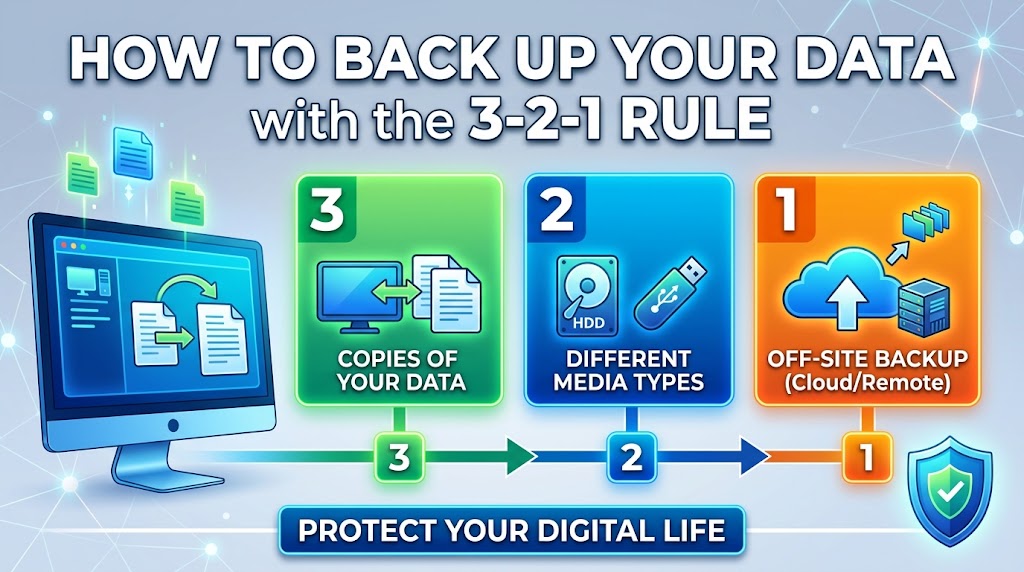
- Keep 3 copies of your data.
- Store them on 2 different types of storage.
- Keep 1 copy somewhere else, away from the other two.
The idea is usually credited to photographer Peter Krogh, who described it in his writing on managing digital photo archives. It has since become the standard shorthand for sensible backups across the industry.
The “3 copies” count includes your original. So the working files on your laptop are copy one, a backup drive is copy two, and a cloud backup is copy three. You don’t need three backups plus the original, though more never hurts.
“2 different types of storage” means you shouldn’t put everything on the same kind of device. Two external hard drives of the same model, bought together and kept in the same drawer, share too many weaknesses. A drive plus a cloud service, or a drive plus a network storage box, spreads the risk better.
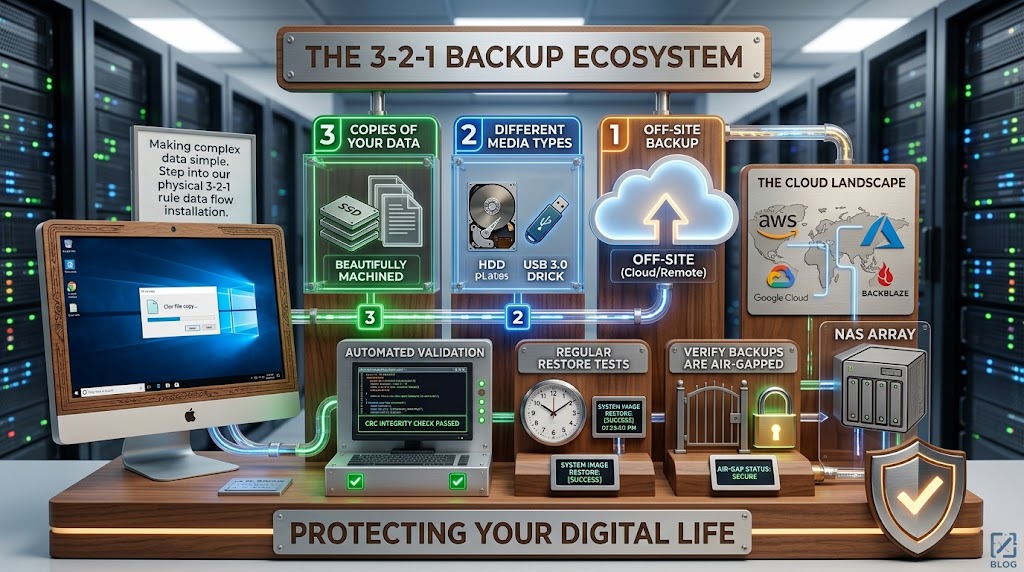
“1 offsite” covers the disasters that hit a whole location at once: fire, flood, theft, a power surge. If every copy lives in your house or office, one bad day can take all of them.
Each part of the rule exists because a different kind of failure happens in real life. Having three copies protects you from a single device dying. Mixing storage types protects you from a flaw that affects one kind of device. The offsite copy protects you from a problem that affects a whole building.
Why one backup isn’t enough
A single backup feels like safety, but it has a weakness: it’s one more thing that can fail, and it often fails quietly. You usually only discover the problem when you need it.
Think about how data gets lost. Hard drives wear out, and while some run for many years, there’s no reliable date on which one will stop. Solid-state drives have no moving parts, but they fail too, sometimes suddenly and without warning. Laptops get dropped, stolen, or left in taxis. Phones go through washing machines. People delete the wrong folder, save over the wrong file, or reformat the wrong drive. Software updates occasionally corrupt things. Malware, including ransomware, can encrypt every file it can reach, and that includes a backup drive left plugged in.
Now picture the common setup: one laptop and one external drive that stays connected to it all day. That looks like two copies, but both sit in the same place, are powered by the same outlet, and are reachable by the same malware. A theft, a fire, or a ransomware infection could remove both at once. It’s better than nothing, but it’s not what people imagine when they say they have a backup.
The 3-2-1 rule works because it forces independence between your copies. The goal isn’t just more copies. It’s copies that don’t share the same single point of failure.
Step 1: Work out what you’re protecting
Before you buy anything, spend ten minutes listing what you’d be devastated to lose. This step feels boring, and it saves you from the two classic errors: backing up everything at great expense, or backing up the wrong things and missing what matters.
Start with the obvious folders: Documents, Desktop, Pictures, and Downloads if you keep important files there. Then think about the places people forget:
- Email, if you use a desktop mail client that stores messages locally
- Photos and videos on your phone, which often live only on that phone
- Password manager data, including any recovery keys or emergency kits
- Project files from creative tools, such as video editing, music production, or design work
- Application data, like accounting software files, databases, or notes apps with local storage
- Browser bookmarks and saved settings, if you rely on them
- Scans of identity documents, contracts, tax records, and medical paperwork
A useful way to sort this is by asking two questions about each item. First, can I get this back some other way? Software you downloaded can be downloaded again. Your wedding photos can’t. Second, how much work did it take to create? A year of writing or a finished thesis is worth far more than a pile of temporary files.
Whatever lands in the “irreplaceable” and “a lot of work” categories is what the 3-2-1 rule needs to cover fully. Things you can easily recreate can get lighter protection or none.
It also helps to get a rough sense of size. Check how much storage your important data takes up. A person with documents and a modest photo library might have under 100 GB. A photographer or video editor might have several terabytes. That number decides what hardware and cloud plan make sense, and it keeps you from buying a drive that’s too small.
Step 2: Set up copy one and copy two (local backups)
Your original data is copy one. The next step is making a second copy that you control directly, usually on an external drive or a network storage device.
An external drive is the simplest option. Pick one with more capacity than you currently need, since your data will grow. As a rough rule, a backup drive should be at least as large as the data you’re protecting, and ideally two or three times larger if you want to keep older versions of files.
Both major desktop systems have built-in tools that make this easy:
- macOS has Time Machine. You plug in a drive, choose it as the backup destination, and it keeps hourly, daily, and weekly snapshots, so you can go back to an earlier version of a file.
- Windows has File History, which saves copies of files in your user folders to a drive you select, and it keeps versions over time. Windows also includes older backup tools, but File History is the one aimed at everyday files.
- Linux users often use tools like rsync for simple copying, or dedicated backup tools such as restic or BorgBackup, which handle versions, deduplication, and encryption.
A network-attached storage (NAS) device is a small box with one or more drives that sits on your home or office network. It’s a good fit if several computers need backing up or if you want a shared place for files. Many NAS devices can also run scheduled backups and push a copy to the cloud. They cost more than a plain external drive and need a bit more setup, but they handle multiple users well.
Whichever you pick, version history matters more than most people realize. If a backup only mirrors your current files, then when you accidentally delete something or ransomware encrypts it, the damage can copy straight into the backup on the next run. A proper backup keeps older versions, so you can go back to how things looked last Tuesday.
Step 3: Use two different kinds of storage
The “2” in 3-2-1 is the part people most often skip. Having two copies on external hard drives isn’t wrong, but it only counts as two media types if you treat the drives as the same category, which means they share the same weaknesses.
Different media fail in different ways. A hard drive can die from a head crash or from being bumped while spinning. An SSD can fail from controller problems or wear. A cloud service can have an account lockout, a billing problem, or an outage. Optical discs can scratch or degrade. Tape, still used in larger organizations, has its own failure modes. By mixing types, you make it much less likely that the same flaw hits both copies.
For most people, a practical pairing looks like this:
- Your computer’s internal drive (the original)
- An external hard drive or NAS (local backup, a different device)
- A cloud backup service (a different kind of storage entirely, in a different place)
That arrangement already satisfies “two types” because the external drive and the cloud service are different technologies managed by different parties.
If you’d rather avoid the cloud for some data, you can use two physical media types instead, such as an external hard drive plus a second external SSD, or a NAS plus an external drive. This is weaker on the “different type” front than using the cloud, but it can still be reasonable if you keep one of them offsite.
Step 4: Get one copy offsite
The offsite copy is what rescues you when the problem is bigger than a single device. If a burglar takes the laptop and the backup drive sitting next to it, or if a fire damages the room, the offsite copy is what remains.
There are two main ways to do this.
Cloud backup. This is the easiest approach for most people. A cloud backup service installs a small program on your computer, runs in the background, and uploads encrypted copies of your files to remote servers. Well-known options include Backblaze, iDrive, and Carbonite, and tools like Arq or Duplicati let you back up to storage providers you choose yourself. Pricing and features change often, so check current plans before committing.
A few things to look for:
- Version history. You want to be able to restore older versions and deleted files, not just the latest copy.
- Encryption. Ideally your data is encrypted before it leaves your computer. Some services let you hold your own encryption key, which means the provider can’t read your files, though it also means that if you lose the key, the provider can’t help you either.
- Restore options. Find out how you’d get data back. Downloading terabytes over a slow connection can take a long time, so some services offer to ship a physical drive.
- Upload speed and limits. Your first backup can take days or weeks on a slow connection, especially with a large photo or video library. Check whether the service throttles uploads.
Physical offsite copy. If your internet connection makes large uploads impractical, or you simply prefer to keep data under your own control, you can rotate an external drive to a different location. That might be a relative’s house, a workplace drawer, or a safe deposit box. A common habit is to keep two backup drives and swap them every week or month: one stays connected at home while the other sits offsite, and you exchange them on a schedule. The offsite copy will always be a bit out of date, but a slightly old copy beats having nothing.
You can also combine both approaches. Many people use the cloud for documents and recent work, and a rotated drive for large archives that would take too long to upload.
Backup is not the same as sync
This confusion causes more lost data than almost anything else, so it deserves its own section.
Services like Dropbox, Google Drive, OneDrive, and iCloud Drive are built to keep your files synchronized across devices. When you change a file on your laptop, the change appears on your phone. That’s convenient, and it feels like safety, but it isn’t the same as a backup.
The problem is that sync mirrors your mistakes. If you delete a file on one device, the deletion spreads to the others. If ransomware encrypts your files, the encrypted versions can sync up and replace the good ones. Many sync services do offer file recovery or version history for a limited time, which helps, but those features vary by service and plan, and they’re generally not designed to be your only line of defense.
A real backup is a separate, independent copy that doesn’t change just because the original changed. You can still use sync for convenience. Just don’t count it as one of your three copies unless you’ve confirmed how version recovery works and how long deleted files are retained. A safer approach is to treat your sync folder as part of your original data and make sure it’s also covered by a true backup.
Protect your backups from ransomware and mistakes
Modern ransomware often looks for backups on purpose. If your backup drive is always plugged in or your backup share is always mounted, malware on your computer may be able to reach it and encrypt or delete it along with everything else.
A few habits reduce that risk:
Keep at least one copy disconnected. A backup drive that’s only plugged in during the backup and then unplugged can’t be encrypted while it’s sitting in a drawer. That’s the idea behind the “air gap.” It takes a little discipline, but it’s one of the strongest protections available.
Use versioning and, where available, immutability. Some cloud storage providers offer “object lock” or similar features that prevent files from being changed or deleted for a set period, even by you. Some backup tools support this. If you’re protecting a business, it’s worth asking about.
Use separate credentials. If the account that can log into your backup storage is the same one you use every day, anyone who steals that login can wipe the backups too. Where you can, use a different account or a different password, and turn on two-factor authentication for any backup service.
Be careful with always-on network shares. A NAS folder that’s mapped as a drive letter on every computer in the office is reachable by malware on any of them. Restrict permissions so ordinary accounts can write new backups but can’t delete old ones.
Encrypt what leaves your hands
Backups contain everything: financial records, private photos, identity documents. If a drive is lost or stolen, or a cloud account is breached, unencrypted backups hand all of it to whoever gets them.
For local drives, use the built-in disk encryption: BitLocker on supported editions of Windows, FileVault or encrypted APFS volumes on a Mac, or LUKS on Linux. Many backup tools can also encrypt the backup itself.
For cloud backups, look for encryption in transit and at rest at a minimum, and consider a service that supports a private encryption key so only you can decrypt your data.
There’s one catch worth stating plainly: if you lose the password or key to an encrypted backup, the data is gone. Store the recovery key somewhere safe and separate, such as a password manager, a printed copy in a secure place, or both. Don’t keep the only copy of the key on the same computer you’re backing up.
Automate it, then stop thinking about it
The best backup system is the one that runs without you remembering. Manual backups tend to happen enthusiastically for the first month and then gradually less often, until the most recent one is half a year old.
Set your tools to run on a schedule. Time Machine and File History run automatically whenever the drive is connected. Cloud backup clients typically run continuously or daily in the background. For NAS devices and command-line tools, you can schedule jobs to run overnight.
How often is enough? It depends on how much work you can afford to redo. If you’d be fine losing a day of changes, a nightly backup works. If you write or design for a living, hourly or continuous backup makes more sense. A useful question to ask yourself: if everything disappeared right now, what’s the most recent point I’d be happy to go back to? Your backup frequency should be at least that often.
For the offsite drive you rotate by hand, set a recurring calendar reminder. It’s a small thing, and it’s the difference between a habit and a good intention.
Test your restores
An untested backup is a guess. Backups fail in ways that don’t announce themselves: a backup job quietly stops after a software update, a drive fills up, a folder was never included in the first place, or the files are there but corrupted or encrypted with a password nobody remembers.
Every few months, pick a few files and actually restore them. Do it properly:
- Choose some files at random, including something old and something recent.
- Restore them to a different location and open them to confirm they work.
- Once in a while, check that the backup software reports success and that the most recent backup date is what you expect.
- For a more thorough test, try restoring a whole folder, or simulate a replacement computer to see how long full recovery would take.
It also helps to write down the recovery steps, especially if someone else might need to do it. Where is the offsite drive? Where is the encryption key? Which account holds the cloud backup? In a real emergency, you won’t want to be working that out under stress.
Many backup tools can verify their own data, but a test restore is still the most convincing proof that the whole chain works.
Don’t forget your phone
Phones hold some of the most irreplaceable data people have, mostly photos and videos, and they’re easy to lose or break. They’re also easy to forget when planning backups.
Both iPhone and Android can back up to their respective cloud services (iCloud and Google), which covers a lot, including photos, contacts, and app data. That’s a good first layer. But remember the earlier point about sync: a photo library that syncs to the cloud is not automatically a separate backup. If you delete a photo from your phone, it may disappear from the cloud too.
To make phone data 3-2-1 compliant, you might:
- Keep the built-in cloud backup turned on as one copy.
- Periodically copy photos and videos to your computer, where your regular backup takes over.
- Or use a second photo backup service as an independent copy.
Check also what isn’t covered, such as messaging app histories, authenticator apps, and files stored inside individual apps. Authenticator apps deserve special attention: losing the phone can lock you out of accounts if you haven’t saved recovery codes.
Applying the rule in a small business
Businesses face the same problems with higher stakes: customer records, accounting files, and shared documents that others depend on. The 3-2-1 rule still applies, with a few additions.
Start with what the business can’t operate without. That usually means accounting data, customer and order records, contracts, and any databases or shared drives. Make sure those are covered first.
Think about who can touch the backups. If every employee’s computer can reach the backup storage, so can any malware an employee accidentally installs. Limit access, and keep at least one copy that’s not connected to the main network.
Consider how long you could be down. Restoring a few files is quick. Rebuilding a whole server from backups can take hours or days. Decide what’s acceptable and test whether your setup can meet it.
Finally, be aware of legal or regulatory duties around data you hold. Depending on your industry and where you operate, there may be rules about how long you must keep certain records, or how personal data must be protected and where it can be stored. If that applies to you, it’s worth getting advice from a qualified professional, since this guide can’t cover every jurisdiction.
Beyond 3-2-1: the newer variations
As threats have evolved, some people extend the rule. You may see versions like 3-2-1-1-0, which adds two ideas: one copy should be offline or immutable (so ransomware can’t alter it), and there should be zero errors when you verify your backups through testing.
You don’t have to adopt every extension to benefit. But the two additions point at real weaknesses in the original rule: a backup that’s always reachable can be attacked, and a backup that’s never tested can’t be trusted. If you’re starting from scratch, aim to cover the basic 3-2-1 first, then add an offline copy and regular test restores as your next improvements.
Common mistakes that quietly break the rule
Some patterns come up again and again:
Counting sync as a backup. Covered above, but it’s the number one culprit.
Keeping the “offsite” copy too close. A drive stored in the next room, or in your car parked outside, isn’t really offsite. It should be somewhere a single event wouldn’t reach.
Never checking. Backup software can fail silently for months. A glance at the last-successful-backup date takes seconds.
Backing up only part of the data. The folder you forgot to include is, by Murphy’s law, the one you needed.
Storing the only encryption key with the data. A key that sits on the machine that died is no key at all.
Using one account for everything. If a single login controls your laptop, your cloud sync, and your backup storage, one compromise takes out all three.
Waiting for a “good time.” The best moment to set this up was last year. The second-best is this weekend.
A realistic example setup
Here’s what a sensible, affordable setup might look like for someone with a laptop, a phone, and a photo library.
The laptop’s internal drive holds the original files, which is copy one. An external hard drive, encrypted and connected via the built-in backup tool, keeps hourly or daily versions of those files. That’s copy two, on a different device and a different kind of storage than the internal drive. A cloud backup service runs quietly in the background, uploading encrypted copies of the same files to remote servers. That’s copy three, and it’s also the offsite copy.
The phone backs up to its built-in cloud service, and every month or so the person copies new photos to the laptop, where the regular backup picks them up. Recovery keys and passwords are stored in a password manager, with a printed emergency copy in a secure spot. Every few months, a calendar reminder prompts a quick test restore of a few files.
That setup counts as 3-2-1, it costs a drive plus a modest monthly subscription, and once configured it takes almost no attention.
A quick checklist
Use this to check where you stand:
- I know which files are irreplaceable, and I’ve listed them.
- I have at least three copies of that data, including the original.
- Those copies live on at least two different types of storage.
- At least one copy is stored offsite, away from my home or office.
- At least one backup keeps older versions of my files.
- My backups are encrypted, and I’ve stored the recovery key separately.
- Backups run automatically, or I have a recurring reminder.
- At least one copy can be disconnected or is protected from being changed.
- I’ve tested restoring files within the last few months.
If you can check every line, you’re in better shape than most people. If you can’t, pick the first unchecked item and fix just that one this week.
Frequently asked questions
Is the 3-2-1 rule overkill for personal use?
It’s modest. For most home users, it comes down to one external drive and one cloud service on top of the computer they already own. The cost is small compared with losing years of photos or documents.
Does the cloud count as my offsite copy?
Yes, as long as it’s a real backup with version history and not just a synced folder. A cloud backup service stores your data in a different location than your home or office, which is exactly what the offsite requirement asks for.
How many versions should I keep?
There’s no universal number. Keeping daily versions for a few weeks and weekly or monthly versions for longer gives you room to recover from mistakes you don’t notice right away. More history uses more space, so match it to your storage and how long it typically takes you to spot a problem.
Can I use two cloud services instead of a drive?
You can, and it’s better than a single copy, but it keeps all your copies reliant on internet-based services and the accounts that control them. Having one copy under your physical control, such as a drive, is a useful safeguard if an account gets locked or compromised.
How often should I replace my backup drives?
Drives don’t come with a reliable expiry date, so there’s no precise answer. Many people replace backup drives every few years as a precaution, and sooner if a drive shows errors or starts behaving oddly. The more important point is not to rely on any single drive, which is what the 3-2-1 rule is for.
Start with the smallest step
Backups are one of those things everyone agrees are important and almost nobody does perfectly. You don’t need a flawless system today. You need a better one than you had yesterday.
If you have nothing at all, start by turning on a cloud backup or plugging in an external drive with your computer’s built-in tool. If you have one backup, add a second copy in a different place. If you already have a decent setup, test a restore and make sure one copy is offline.
The 3-2-1 rule isn’t about being paranoid. It’s about making sure that when something goes wrong, which eventually it will, losing your data is an inconvenience instead of a disaster.