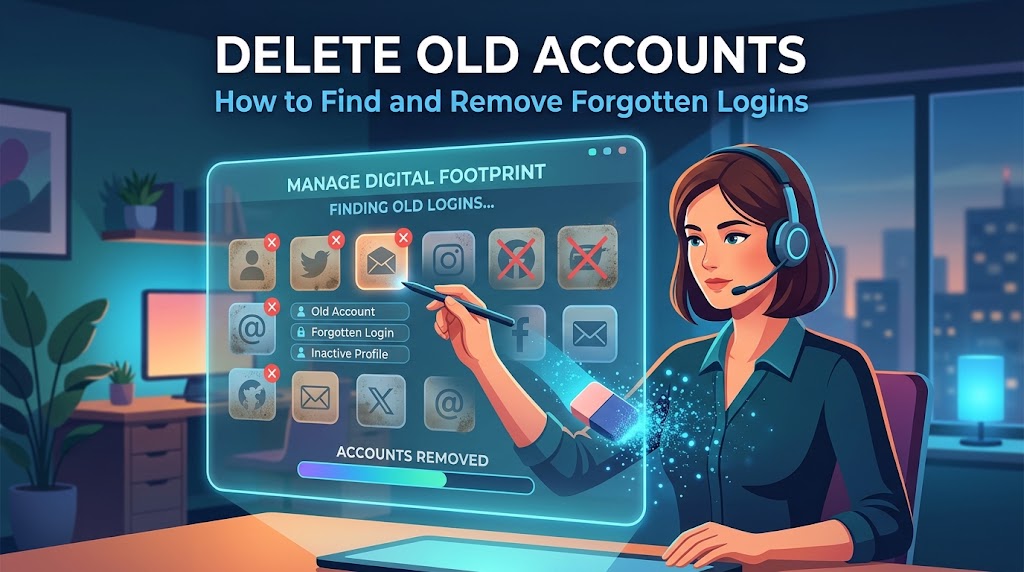
If you have been online for more than a few years, you almost certainly have accounts you have forgotten about: a photo site you tried once, a forum you joined in college, a shop you ordered from in 2014, a game you quit long ago. It is time to delete old accounts, because every forgotten login is a small, unguarded door into your personal life. Old accounts hold names, addresses, birthdays and sometimes payment details, usually protected by a weak or reused password and no extra security. When the company behind one gets breached, your data leaks, and attackers use it to try the same email and password elsewhere. This guide shows you how to find old accounts, decide which to keep, and delete online accounts safely, step by step.
Delete Old Accounts at a Glance
- Why do it: Fewer accounts means a smaller attack surface, less data exposed in breaches, less spam and tracking, and fewer passwords to manage.
- How long it takes: A first pass takes a couple of hours. A thorough cleanup can be spread over a few weekends. After that, a quick yearly check keeps you tidy.
- The process in short: Make a list, find forgotten accounts, sort them into keep or delete, back up anything you need, cancel subscriptions, delete (not just deactivate), confirm the deletion and unlink connected logins.
- Biggest mistake to avoid: Deleting an account before you export photos, documents, purchases or records that you still need. Many deletions are permanent.
- If you cannot delete an account: Remove as much data as possible, change the email and password, delete saved payment methods and turn off marketing emails.
Why You Should Delete Old Accounts
Old Accounts Are Easy Targets for Hackers
Attackers love dormant accounts because nobody is watching them. You will not notice a login from another country on a site you have not visited since 2016. Weak points include:
- Reused passwords. If an old account shares a password with something important, a breach of the old site becomes a key to your current accounts. This attack, called credential stuffing, uses stolen email and password pairs to try many other sites automatically.
- Outdated security. Older accounts may have no two-factor authentication, old security questions and abandoned recovery email addresses.
- Weak or abandoned recovery details. If the recovery email or phone number is no longer yours, someone else may be able to claim the account.
- Takeover for scams. A hijacked account can be used to impersonate you, message your contacts, or make purchases.
Companies Get Breached, and Your Data Goes With Them
Every company that stores your information is a possible breach. Smaller or defunct websites often have poor security and may never tell you if they were hacked. The less of your data that is scattered around the internet, the less there is to leak. If you have already seen signs that someone misused your details, see our guide on what to do after identity theft (/what-to-do-after-identity-theft/).
Privacy, Tracking and Spam
Old accounts often keep sending marketing emails, sharing data with partners and building profiles about you. Deleting them can reduce spam, tracking and targeted advertising.
Less Clutter, Less Risk, More Peace of Mind
Fewer accounts means fewer password resets, fewer notifications and less to remember. You also reduce the chance that an old embarrassing post, outdated profile or forgotten photo surfaces when someone searches for you.
Costs and Hidden Subscriptions
Forgotten accounts may still be charging you for subscriptions, free trials that turned into paid plans or unused premium tiers. A cleanup can save real money.
Before You Start: What You Need
- Access to your main email addresses, including old ones. Many password resets and deletion confirmations go to your email.
- A password manager or a secure place to store login details. If you do not have one, start one now, since you will be resetting passwords.
- A tracking list. A spreadsheet or notes app works well (see Step 1). Do not store plain-text passwords in an unprotected file.
- Two-factor authentication access. Keep your phone and any authenticator apps close.
- A few hours, plus patience. Some services hide the delete button, make you contact support or add waiting periods.
- Storage space for backups. A cloud folder or external drive for data you plan to keep.
- A safety mindset. Only use the official website or app of a company to delete an account. Never pay anyone to “delete your account,” and be careful of scam emails pretending to be account-deletion notices.
How to Delete Old Accounts: 12 Steps
Step 1: Create Your Account Tracking List
Before you hunt, set up a simple list. Use columns for:
- Service or website name
- Username or email used
- Category (shopping, social, finance, entertainment, work, etc.)
- Last time used (estimate)
- Contains data I need? (yes or no)
- Keep, delete or unsure
- Status (found, access recovered, data exported, deletion requested, deletion confirmed)
- Notes and date completed
Do not write passwords in this list. Keep credentials in a password manager. The list is your project tracker, and it becomes proof that you finished each deletion.
Step 2: Find Old Accounts You Forgot About
This is the detective work. Use several methods, because no single one finds everything.
Method 1: Check Your Password Manager and Browser Saved Passwords
- Open your password manager and sort by name or by last used date.
- Open your browser’s saved passwords (in Chrome, Edge, Firefox, Safari or Google Password Manager) and scroll through the list of sites.
- Look at old entries, entries with weak or reused passwords and sites you no longer recognize.
- Some password managers include security audits that show reused or compromised passwords. Check them.
Method 2: Search Your Email Inbox
Your email holds a trail of every account you ever created. Search each of your email addresses (including old ones) for phrases that appear in sign-up messages, such as:
- “welcome to”
- “verify your email”
- “confirm your account”
- “confirm your registration”
- “thanks for signing up”
- “activate your account”
- “your account has been created”
- “reset your password”
- “your order” or “receipt”
- “subscription” or “free trial”
- “unsubscribe” (this shows newsletters tied to accounts)
- “your username”
Also search by year, for example messages older than five years, and scan senders you no longer recognize. Add each finding to your list. Check spam and trash folders too.
Method 3: Review “Sign in with Google,” “Sign in with Apple,” Facebook and Microsoft Connections
Many accounts were created with a single click through a social login. Review them from the identity provider’s side:
- Google: open your Google Account, go to Security, and look for the section on third-party apps and services (sometimes called “Your connections to third-party apps and services” or “Sign in with Google”). Remove apps you no longer use.
- Apple: open your Apple Account settings and look for apps and services you have used with “Sign in with Apple,” then stop using it with those you do not need. Also note any addresses created through “Hide My Email.”
- Facebook / Meta: open Settings and look for “Apps and Websites” or the connected experiences list, and remove old apps.
- Microsoft: open your Microsoft account’s privacy or security settings and review apps and services with access.
- X, GitHub, LinkedIn and other platforms: check the “connected apps” or “authorized applications” pages.
Removing the connection does not always delete the account on the other site, so record each one on your list and delete the account separately.
Method 4: Check Your Phone and Computer
- Scroll through your app library, including hidden or unused apps.
- Check your app store purchase and subscription history.
- Look at old devices (tablets, consoles, smart TVs, e-readers and fitness trackers), which may keep accounts signed in.
- Review browser extensions and desktop software that require logins.
Method 5: Review Bank and Card Statements
Subscriptions and purchases reveal accounts you may have forgotten. Look through several months of statements for recurring charges, small monthly fees and merchant names you do not recognize. Check PayPal, Apple, Google Play and other payment platforms for active subscriptions and authorized merchants.
Method 6: Check Data Breach Notification Services
Services such as Have I Been Pwned let you enter an email address and see which known breaches included it. Each breach name is a service where you had an account, even if you forgot. Use this carefully: enter only your own email addresses, and use the official site. Review each result, and add the service to your list if you still need to delete it.
Method 7: Search for Your Usernames and Email Addresses
Search your commonly used usernames and email addresses in a search engine, with quotation marks, to see profiles and posts tied to them. Try variations you used on gaming sites, forums and social networks. You may find old blogs, reviews, dating profiles and comment histories.
Method 8: Look at Old Email Accounts
If you have an old email address you no longer check (a school, work or former provider address), log in and search it using the phrases above. Many accounts hide there. If the old email account is itself inactive, make sure you can still access it before you delete anything that depends on it, since deletion confirmations will go there. Note that some providers delete inactive email accounts after a period, which could lock you out of the accounts linked to them.
Method 9: Check Credit Reports and Public Records for Financial Accounts
Free credit reports can reveal old credit cards, loans, store cards and utility accounts. Closed accounts with a zero balance are normal, but open accounts you do not use deserve attention. Closing financial accounts can affect your credit, so treat them more carefully than ordinary website accounts (see the special cases below).
Method 10: Ask Family, Friends and Colleagues
Think about accounts connected to old jobs, schools, clubs and shared services, such as old photo-sharing sites, group chats, loyalty clubs and event platforms.
Step 3: Sort Accounts Into Keep, Delete and Unsure
Go through your list and decide. Use these guidelines.
| Category | What to Do |
| You use it regularly, and it has useful features | Keep. Strengthen the password and turn on two-factor authentication |
| Contains important records, such as banking, tax, health, insurance, mortgage, education transcripts | Keep, or export records before you close |
| Holds purchases you still need, such as game libraries, ebooks, domain names, software licenses | Keep or export, and check transfer options |
| You have not used it in years and it has no data you need | Delete |
| Free trial or subscription you do not need | Cancel, then delete |
| Social media profiles with old posts, tags or photos | Download archive, then delete or clean up |
| Dating, forums, and sites with personal or sensitive content | Delete (high priority) |
| Work or school accounts | Do not delete on your own. Follow your employer’s or school’s instructions |
| Not sure | Look at what it stores, then decide. If still unsure, put it on a “review in 30 days” list |
Prioritize high-risk accounts first: anything with payment details, a reused password, personal or sensitive information, or a history of breaches.
Step 4: Back Up Anything You Want to Keep
Deletion can be permanent, so export first. Common things worth saving:
- Photos, videos and albums
- Documents, notes and files
- Emails, chat histories and contact lists
- Purchase histories, receipts and invoices (useful for taxes, warranties and returns)
- Ebooks, music and software licenses, or proof of ownership
- Posts, blog entries and creative work
- Reviews or content you want to keep a copy of
- Medical, financial or legal records
Look for options in the account settings labeled Download your data, Export, Archive or Data portability. Large platforms (Google, Facebook, Instagram, X, Amazon, Microsoft and others) provide download tools. Keep backups in an organized folder on an encrypted drive or a trusted cloud service. Check that downloads open properly before deleting anything.
Step 5: Cancel Subscriptions, Redeem Balances and Check for Linked Services
Before deleting:
- Cancel paid subscriptions and free trials. Some companies refuse to delete accounts with active billing, and canceling stops future charges.
- Use up or transfer balances. Gift cards, store credit, loyalty points, miles, prepaid balances and cryptocurrency or digital wallet funds can be lost permanently when an account closes.
- Remove stored payment methods. Delete saved credit cards and bank details if you can do so before closing.
- Check linked services. Some accounts are used to sign in to other apps, to manage devices (such as smart home or fitness gear) or to verify identity elsewhere. Switch those to another login first.
- Check for ownership issues. Domain names, online stores, advertising accounts, developer accounts and shared team workspaces need to be transferred or properly shut down.
- Note app store and platform entitlements. Game libraries, in-app purchases and digital movies may disappear with the account.
Step 6: Regain Access to Accounts You Cannot Log Into
You usually have to log in to delete an account, so you may need to recover access first.
- Try the “Forgot password” or “Reset password” option, using each email address you might have used.
- Check old email accounts and spam folders for reset messages.
- Try common usernames and variations. Look in your password manager and browser history for clues.
- If your email or phone number has changed, look for alternative recovery options, such as answering security questions or submitting an identity verification form.
- Contact customer support. Explain that you want to access or delete the account and that you no longer have access to the original email. Be ready to provide identifying information, such as the account name, creation date, last purchase and a government ID if requested. Only share identification through official support channels.
- If the company is out of business or unresponsive, use privacy rights (see Step 8) or consider reporting the problem to a regulator if it refuses legitimate requests.
- Use a strong, unique password when you reset, and store it in your password manager.
Be careful during this step. Scammers send fake “password reset” and “account closure” messages. Only use links you reach by typing the website address yourself or using a trusted bookmark.
Step 7: Clean Out Your Data Before You Delete (Optional but Smart)
Some companies keep copies of data for a period after deletion, or only deactivate accounts. If you want to limit what remains:
- Delete posts, comments, photos, messages and uploaded files, where the service lets you.
- Remove your address book, saved addresses and payment methods.
- Replace profile information (name, birth date, address, phone, photos) with minimal or neutral details where the terms of service allow it. Do not provide false information in any way that violates a service’s rules or the law.
- Turn off marketing emails and data sharing in the privacy settings.
- Disconnect linked social accounts and third-party apps.
This step is extra insurance if the deletion process is not instant.
Step 8: Delete the Account (Not Just Deactivate)
Understand the difference:
- Deactivation or suspension: hides your profile but keeps your data, and often lets you return by logging in. It is not enough if your goal is to remove your data.
- Deletion or closure: permanently removes the account and (eventually) most data, although companies may keep certain records for legal reasons.
How to Find the Delete Option
Delete options are often buried. Try these approaches:
- Open the account’s Settings, then look under Account, Privacy, Security, Data, Profile or Manage Account for Delete account, Close account, Remove account or Delete my data.
- Search the help center for “delete account,” “close account” or “remove my data.”
- Use a directory of direct deletion links, such as JustDeleteMe, which rates how easy it is to delete accounts at many services and links to the right page. Check that the link is current and goes to the real company website before entering any information.
- Search the web for “[service name] delete account.” Prefer results from the company’s own domain.
- Look at the privacy policy for instructions on deleting data or exercising your rights, and for a privacy contact email.
- If no delete option exists, email or submit a request to customer support or the privacy team (see the template below).
What You May See During Deletion
- A request to re-enter your password or verify by email or text
- A survey asking why you are leaving (optional)
- A waiting period (often 7 to 90 days) during which logging in cancels the deletion
- A confirmation email with a link you must click
- A warning about lost content, purchases or usernames
- A final confirmation button
Follow every step, and do not log in again during the waiting period unless you want to cancel.
Using Your Privacy Rights to Request Deletion
Many places give you a legal right to ask companies to delete your personal data:
- The European Union, the United Kingdom and some other countries: the right to erasure (the “right to be forgotten”) under data protection laws like the GDPR.
- California and a growing number of other U.S. states: the right to request deletion of personal information under state privacy laws.
- Other countries and regions have similar laws, and the details differ.
Companies typically must respond within a set period (often about a month) and may keep data that they are legally required to retain. If a company ignores a valid request, you may be able to complain to a data protection authority or consumer regulator.
Sample Account Deletion Request Email
Use this template when there is no self-service option, or when you cannot log in:
Subject: Request to delete my account and personal data
Hello,
I am writing to request the permanent deletion of my account and all associated personal data.
Account details:
- Name on the account: [your name]
- Username: [username, if known]
- Email address associated with the account: [email]
- Approximate date of sign-up or last use: [date]
Please delete my account, profile and personal data from your systems and from any processors or partners you have shared it with, to the extent required by applicable data protection law. Please also stop sending me marketing communications.
Please confirm in writing when the deletion has been completed, and let me know if you need any additional information to verify my identity.
Thank you,
[Your name]
Send requests only to official support or privacy contact addresses listed on the company’s website. Keep a copy and note the date. Do not send passwords or sensitive documents unless the company’s official verification process requires it and you have confirmed that it is genuine.
Step 9: Confirm the Deletion and Watch for Grace Periods
Do not assume it worked just because you clicked a button.
- Look for a confirmation email or message. Save it, or a screenshot, in your records.
- Wait out any grace period. Do not log in during it unless you want to restore the account.
- After the period ends, try to log in with the old credentials. You should see an error saying the account does not exist. Be careful not to create a new account by accident.
- Try the password reset page with your email. A deleted account should not be found.
- Search for your profile publicly. It may take time for search engines to remove cached pages.
- If the account still exists after the promised timeframe, contact support, quote your earlier request and, if necessary, escalate using your privacy rights.
- Update your tracking list with the date and outcome.
Step 10: Handle Accounts That Cannot Be Deleted
Some services make deletion hard or impossible. Do your best to reduce the risk:
- Ask support or the privacy team for deletion in writing (see the template). Cite your legal rights if they apply.
- Remove personal data you can edit or delete: profile details, address, phone number, photos, saved cards and posts.
- Change the email to a throwaway address if the site allows it, which stops marketing and breach exposure tied to your main email.
- Change the password to a unique, random one stored in your password manager, and turn on two-factor authentication if available. A locked, tidy account is far safer than an abandoned one with a reused password.
- Unsubscribe from all marketing emails and disable notifications and data sharing.
- Remove third-party and social logins connected to the account.
- Set a reminder to revisit in a few months, since policies and tools change.
Step 11: Unlink Connected Logins and Clean Up Leftovers
After deleting, tidy up the traces:
- Remove the account from your password manager and browser saved passwords.
- Remove any “Sign in with” connection from Google, Apple, Facebook, Microsoft and other providers.
- Delete the related app from your phone, computer and smart devices.
- Remove browser extensions linked to the account.
- Unsubscribe from any leftover emails, and mark persistent unwanted emails as spam.
- Cancel recurring payments that might still be set up at your bank, card issuer or payment platform.
- Revoke any app passwords, API keys or tokens you created.
- Update your tracking list and, if you used a unique alias email for that service, close or retire the alias.
Step 12: Prevent Account Buildup in the Future
Cleanup is much easier if you do not accumulate clutter again.
- Use a password manager and give every account a unique password.
- Use email aliases or forwarding addresses for sign-ups, which makes it easy to trace spam and to cut off a service later. Some email providers and privacy tools offer built-in alias features.
- Think before you sign up. Ask whether you really need an account or whether you can check out as a guest.
- Avoid “Sign in with” buttons for services you only plan to use once, or use them knowingly and review them regularly.
- Cancel trials the day you start them by setting a calendar reminder, or use a virtual or single-use card if your bank offers one.
- Delete accounts when you finish with them. Make deletion part of ending a project, a move, a job or a service.
- Do a yearly account audit. Put a reminder in your calendar and repeat Steps 2 to 4 quickly.
- Turn on two-factor authentication for the accounts you keep.
- Keep recovery emails and phone numbers current.
- Keep a short list of your most important accounts and how to recover them, so you or your family are not locked out.
Special Cases: How to Delete Different Types of Accounts
| Account Type | Things to Check Before Deleting |
| Social media (Facebook, Instagram, X, TikTok, Snapchat, LinkedIn, etc.) | Download your archive, deactivation vs deletion, grace periods, third-party logins that use the account, tagged content and messages that persist for others |
| Email accounts | Everything that uses that address for logins and recovery, deletion windows, whether the address can be reused by others, forwarding for important contacts, and whether you need a transition period |
| Cloud storage and photo services | Export all files first, check shared folders and links, cancel storage plans |
| Shopping sites and marketplaces | Order history for returns and warranties, gift cards and store credit, saved payment methods, seller accounts with pending payouts |
| Banking, brokerage and credit cards | Never delete casually. Close properly with the institution, move funds, keep statements, and check how closing affects credit. Contact the provider directly |
| Streaming and entertainment | Cancel subscriptions, watch for purchased content, download receipts |
| Gaming platforms | Purchased games, in-game items, balances, friends lists and cloud saves can disappear. Check transfer options before closing |
| Dating apps | Cancel subscriptions in the app store (deleting the app does not cancel billing), delete the profile and messages, and remove linked social accounts |
| Forums and communities | Posts may remain after deletion, so look for options to anonymize or delete content. Request deletion of personal data in writing |
| Health, insurance and government portals | Do not delete without checking your obligations and how you will access records later. These accounts often cannot be deleted, so secure them instead |
| Cryptocurrency exchanges and wallets | Withdraw all funds, save transaction records for taxes, and secure or close the account according to the platform’s rules |
| Domain, hosting and website accounts | Transfer or release domains properly. An expired domain can be re-registered by someone else and used to take over linked accounts |
| Developer, advertising and business accounts | Check billing, team access and data retention, then follow the company’s formal closure procedure |
| Work and school accounts | Managed by your organization. Do not delete without their approval |
A Note About Your Main Email Accounts
Think very carefully before deleting an email address that other accounts use for login or recovery. Once that address is gone, you may be unable to reset passwords or prove ownership. If you want to retire an old email address, first update every account that uses it (see Step 2), keep the address active for a transition period, and check how long the provider waits before deleting inactive accounts. Also consider that a deleted username may become available to someone else on some services, which can allow impersonation, so be cautious with usernames that are tied to your identity.
Common Mistakes When You Delete Old Accounts
- Deleting before backing up photos, documents or records you need
- Choosing deactivate instead of delete, and assuming your data is gone
- Forgetting to cancel subscriptions, which may continue to charge you or block deletion
- Losing balances, gift cards, loyalty points or digital purchases
- Deleting an email account that other accounts depend on
- Using fake “account deletion” websites or paying a stranger to do it
- Logging back in during the grace period and canceling the deletion by accident
- Not checking that the deletion actually happened
- Skipping the unlinking of connected apps and saved passwords
- Closing financial accounts without understanding how it affects your credit or records
- Giving false information or violating terms of service while trying to hide data
- Doing a one-time cleanup and never reviewing again
Delete Old Accounts Checklist
- I created a tracking list
- I searched my password manager and browser for old logins
- I searched each of my email addresses for sign-up and welcome messages
- I reviewed “Sign in with” connections on Google, Apple, Facebook and Microsoft
- I checked my phone, old devices and app stores
- I reviewed bank, card and payment platform statements for subscriptions
- I checked breach lookup results for my email addresses
- I sorted accounts into keep, delete and unsure
- I exported data I need and tested the backups
- I canceled subscriptions and used or transferred balances
- I regained access to accounts I could not log into
- I removed personal data before deleting where possible
- I deleted (not only deactivated) the accounts and saved the confirmations
- I verified the deletions after the waiting period
- I unlinked connected logins and removed saved passwords and apps
- For accounts I cannot delete, I changed the email and password, removed data and turned on two-factor authentication
- I set a yearly reminder to repeat the audit
What If Something Looks Wrong While You Are Cleaning Up?
- If you find an account you do not recognize that was created with your email, it could be a sign that someone used your information. Reset the password, check for activity and consider contacting the service. If you see suspicious or fraudulent activity, follow our guide on what to do after identity theft (/what-to-do-after-identity-theft/).
- If you get a message saying someone tried to log in or reset your password, do not click links inside it. Go to the site directly.
- If a service refuses a legitimate deletion request, document everything, and consider contacting a data protection authority or consumer protection agency in your area.
- If you are worried that a deleted account’s data has already been exposed, change the passwords of any account that used the same password and turn on two-factor authentication.
Frequently Asked Questions About Deleting Old Accounts
How do I find old accounts I forgot about?
Check your password manager and browser saved passwords, search your email for words like “welcome,” “verify your email” and “your account,” review “Sign in with Google/Apple/Facebook” connections, look through bank and card statements for subscriptions, run your email addresses through a breach lookup service such as Have I Been Pwned, and search your usernames online. Combining these methods finds most forgotten accounts.
Is it better to delete or deactivate an old account?
Deleting is better if you want your data removed, because deactivation usually hides your profile but keeps your information on the company’s servers. Choose deactivation only if you might come back and want everything restored. Back up what you need before deleting.
What if I cannot remember my password or no longer have the email?
Try the password reset option with any email addresses you might have used, check old inboxes and spam folders, and contact customer support with identifying details. If the company will not help, you may be able to use your privacy rights to request deletion. Be careful to use official channels only, because scammers target people trying to recover accounts.
Will deleting an old account remove all my data?
Not always. Companies often delete most personal data but may keep some records for legal, tax, security or fraud-prevention reasons, and backups may take time to clear. Your legal rights depend on where you live. A written deletion request that cites your privacy rights can improve the result, and you can ask the company to confirm what was deleted.
Should I delete my old email account?
Be careful. Other accounts may depend on that email for logins and password resets, and a deleted address can leave you locked out. Update every account that uses it first, keep it active during a transition period and check the provider’s rules on inactive accounts. If you decide to delete it, do so only after you are sure nothing important relies on it.
Conclusion: Delete Old Accounts and Keep the Ones That Matter Secure
Every forgotten login is a liability, and cleaning them up is one of the most effective privacy and security tasks you can do. Make a list, find old accounts using your password manager, email and connected logins, back up what matters, cancel subscriptions, delete online accounts properly, and confirm the results. For the accounts you keep, use unique passwords and two-factor authentication. Then set a yearly reminder so the clutter never builds up again. Start with the riskiest accounts this week, and you will quickly feel the difference.