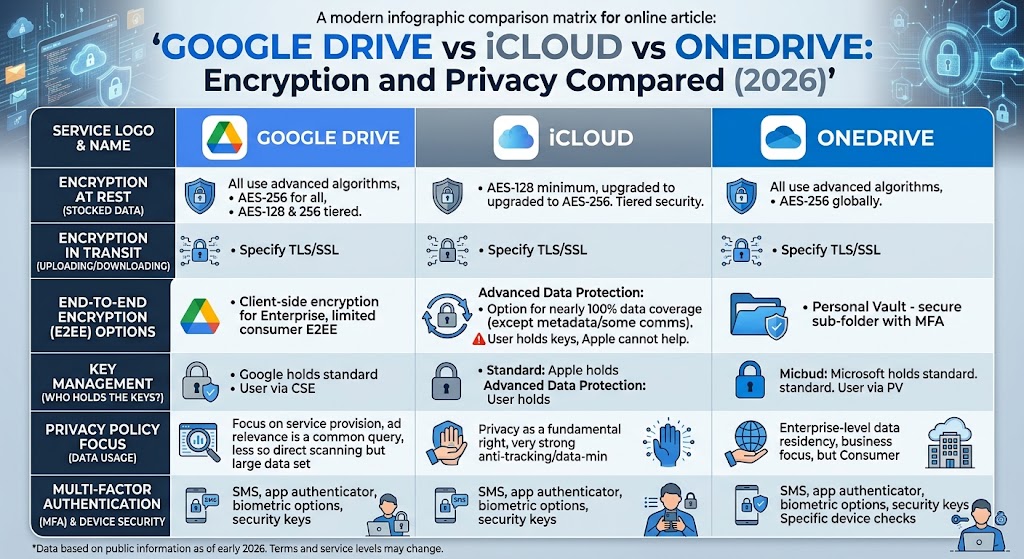
Which cloud storage protects your files best? We compare Google Drive, iCloud, and OneDrive on encryption, who holds the keys, privacy controls, and cost.
Most people choose cloud storage the way they choose a phone charger: whatever fits the devices they already own. If you have an iPhone, you end up on iCloud. If you use Android or Gmail, it’s Google Drive. If your laptop came with Microsoft 365, you’ve got OneDrive. Security rarely enters the decision.
It should, because “encrypted” means very different things depending on who holds the key. A file can be encrypted on the provider’s servers and still be readable by the provider. It can also be encrypted so that only you can ever open it. Google Drive, iCloud, and OneDrive sit at different points on that spectrum, and the gap is bigger than their marketing suggests.
This guide compares the three on encryption, key control, privacy, and practical security features, then shows how to get stronger protection from whichever one you use. Prices and features change often, so verify anything that matters before you subscribe.
The short answer
If you want a ranking by privacy protection, it looks like this:
- iCloud, with Advanced Data Protection turned on. It’s the only one of the three that offers true end-to-end encryption for files to ordinary consumers, though you have to switch it on, and it isn’t available everywhere.
- OneDrive and Google Drive, roughly tied. Both encrypt your files in transit and at rest, but the company holds the keys by default. Neither offers end-to-end encryption for personal accounts’ regular storage.
If you’re picking purely on privacy, iCloud with Advanced Data Protection wins. If you’re picking on everything else, such as collaboration, Office compatibility, or Android support, the answer shifts, and the section on adding your own encryption will matter more.
Encryption terms that actually matter
Before comparing the services, it helps to separate a few phrases that companies use as though they meant the same thing.
Encryption in transit protects your files while they travel between your device and the provider’s servers. All three use it, and it’s standard (TLS/HTTPS). It stops someone on public Wi-Fi from reading your uploads.
Encryption at rest protects files while they sit on the provider’s storage. All three do this too. It protects against someone physically stealing a hard drive from a data center. It doesn’t protect you from the provider itself, because the provider holds the keys and can decrypt your data when it needs to.
End-to-end encryption (E2EE) is different. The keys exist only on your devices, so the provider can’t read your files even if it wants to, or is legally compelled to. This is the strongest protection, and it’s what privacy-focused services advertise as “zero-knowledge.”
Client-side encryption is a related but distinct idea. Your data is encrypted before it leaves your device, but who controls the keys varies. In Google’s business version, the customer organization controls them through an external key service, which means an administrator may be able to access the content.
The question to ask of any cloud service is simple: can the company read my files? For the default setup on Google Drive and OneDrive, the answer is yes. For iCloud with Advanced Data Protection, the answer is no, for most categories of data.
iCloud: strongest option, but you have to turn it on
Standard Data Protection
Out of the box, iCloud uses what Apple calls Standard Data Protection. Your data is encrypted in transit and on Apple’s servers, but Apple holds the keys for many categories, including iCloud Drive and Photos. Apple can use those keys for account recovery, and it can respond to valid legal requests for that data.
A set of the most sensitive categories is end-to-end encrypted even with the default setup. That includes passwords and keychain data and health data, among others. Apple’s own documentation lists these categories.
Advanced Data Protection
Advanced Data Protection (ADP) is the opt-in setting that changes the picture. With it enabled, your trusted devices retain sole access to the encryption keys for the majority of your iCloud data, and Apple’s documentation says the number of end-to-end encrypted categories rises to 25, including iCloud Backup, Photos, and Notes.
That means iCloud Drive files, photos, device backups, and notes are protected in a way Apple can’t decrypt. Even a breach of Apple’s servers wouldn’t expose their contents, and a legal demand wouldn’t produce readable files, because Apple doesn’t have the keys.
What ADP doesn’t cover
There are limits worth knowing:
- Mail, Contacts, and Calendar aren’t covered, because they have to interoperate with other email, contact, and calendar systems around the world.
- Apple notes that some metadata and usage information stored in iCloud remains under standard data protection, even when ADP is on. So details about your account activity aren’t fully hidden.
- The iCloud.com website is off by default once ADP is enabled. You can turn web access on, but doing so gives the browser and Apple temporary access to the relevant keys.
- Sharing stays end-to-end encrypted for shared content only when everyone involved also has ADP enabled.
The recovery trade-off
Because Apple can’t open your data, Apple can’t help if you lose access. Before you can turn on ADP, you must set up at least one recovery method, such as a recovery contact or a recovery key. Skip this and you could be locked out of your own photos permanently. Print or safely store the recovery key, and make sure the person you name as a recovery contact is reliable.
The UK problem
ADP isn’t available to everyone. In February 2025, Apple withdrew ADP from the UK after a government demand for access to encrypted data. Apple said it could no longer offer the feature to new UK users, and that existing UK users would eventually need to disable it. Apple expressed disappointment that UK customers would lose the protection. The dispute has continued to develop in the courts and in politics, so if you live in the UK, check Apple’s current guidance rather than assuming the feature is available or unavailable. Everywhere else, ADP remains an option.
iCloud strengths and weaknesses
Strengths: the only mainstream consumer cloud with a genuine end-to-end option for files, strong default protections for health and passwords, tight integration if you own Apple devices.
Weaknesses: it’s not on by default, a chunk of data (mail, contacts, calendar) is excluded, recovery is your responsibility, it’s unavailable to new users in some countries, and it works best inside the Apple ecosystem. The web and Windows experiences are weaker, and Android users get the short end.
Google Drive: strong infrastructure, but Google holds the keys
How Google Drive encrypts your files
Google encrypts Drive data at rest and in transit, using strong standards (AES-based encryption at rest). Third-party descriptions of Google’s approach note that data is split into chunks, each encrypted with its own key, with those keys managed through a hierarchy of key layers. The important point for privacy is stated plainly in independent summaries: Google holds the encryption keys in this default model.
For a personal account, that’s the whole story. Google’s infrastructure security is excellent. Its data centers, internal access controls, and key management are among the most mature in the industry. But Google can access your content in principle, and it can be compelled to produce it under valid legal process.
Client-side encryption is not for personal accounts
Google does offer client-side encryption for Drive, Docs, Sheets, and Slides. It’s a feature of Google Workspace, aimed at organizations with regulated or sensitive data. With it, file encryption is handled in the client’s browser before it’s stored in Google Drive’s cloud-based storage, so Google servers can’t access the keys or decrypt the data. Key management goes through an external partner service.
There are catches. It’s available only on certain business and education tiers, administrators choose and control the key service, and some features like previews, search, and collaboration are restricted for encrypted files. Reporting at the time of the Gmail version’s launch also noted that the feature wasn’t available to users with personal Google accounts. So if you’re an individual with a free or Google One account, this isn’t an option for you.
Privacy beyond encryption
Because Google can read your files, other privacy questions come up. Google states that content in Drive isn’t used for advertising, but its AI features, such as Gemini integrations that can summarize or search your documents, work by reading what’s in your files when you use them. Review the AI and “smart features” settings in your Google account and decide what you’re comfortable with. Google also scans shared content for abuse material and malware, as most large providers do.
Google Drive strengths and weaknesses
Strengths: excellent collaboration (Docs, Sheets, Slides), cross-platform apps, strong account security tools like passkeys and security checkups, and generous free storage of 15 GB shared with Gmail and Photos.
Weaknesses: no end-to-end encryption for personal accounts, Google holds the keys, and the deep integration with an advertising-funded company makes some people uncomfortable regardless of the technical assurances.
OneDrive: good protection layers, but not zero-knowledge
How OneDrive encrypts your files
Microsoft encrypts OneDrive files at rest and in transit. As with Google, that means the data is protected from outsiders, but Microsoft manages the keys in the standard setup and can access content if required.
Personal Vault
OneDrive’s distinctive feature is Personal Vault, a protected area inside your OneDrive. It’s often misunderstood, so here’s what it does and doesn’t do.
Personal Vault adds an extra identity check before you can open it. Access requires a second verification step, such as a fingerprint, face recognition, a PIN, or a code sent by email or text. It also locks automatically after a period of inactivity, and items inside can’t be shared directly. Microsoft states that on Windows PCs, vault files sync to a BitLocker-encrypted area of the local drive.
What it isn’t is end-to-end encryption in the strict sense. The vault is protected by OneDrive’s server-side encryption in the cloud, with the extra layers being authentication and local disk encryption. So it’s a useful safeguard against someone who gets into your logged-in session or your computer, but it isn’t a way to hide files from Microsoft itself. One more detail: the vault isn’t supported on Mac computers in the way it is on Windows, though iPhone, iPad, and Android apps support it.
Limits on the free tier
Free OneDrive accounts can use Personal Vault but with a tight limit: users on the free plan or the standalone 100 GB plan could store only three files in the vault, and Microsoft 365 subscribers could store as many as their quota allows. Microsoft later extended the advanced security features, including an unlimited vault, to Microsoft 365 Basic subscribers.
Other OneDrive protections
Microsoft also lists several features that help with security even though they don’t change who holds the keys: suspicious activity monitoring, ransomware detection and recovery, mass file deletion notifications, and version history. Version history and file restore matter a lot in practice, as ransomware recovery guides point out.
OneDrive strengths and weaknesses
Strengths: deep Windows and Office integration, strong ransomware recovery tools, a vault with extra authentication, and good value if you already pay for Microsoft 365.
Weaknesses: Microsoft holds the keys, the vault is not zero-knowledge, the free tier’s vault is very limited, and the experience is less polished outside the Microsoft ecosystem.
Head-to-head comparison
| iCloud | Google Drive | OneDrive | |
| Encrypted in transit and at rest | Yes | Yes | Yes |
| End-to-end encryption for files | Yes, with Advanced Data Protection | No (personal accounts) | No |
| Who holds the keys by default | Apple | Microsoft | |
| Extra protected area | ADP covers most categories | None for personal accounts | Personal Vault |
| Business-grade client-side encryption | No | Yes, on eligible Workspace tiers | Not in the personal product |
| Free storage | 5 GB | 15 GB (shared with Gmail, Photos) | 5 GB |
| Best platform fit | Apple devices | Android, web, cross-platform | Windows, Microsoft 365 |
| Notable limitation | Not available to new UK users; recovery is on you | Google can read your files | Vault is not end-to-end encrypted |
Pricing at a glance
Cost matters too, and the three are priced similarly at the mid-range. At typical US prices, iCloud+ offers 200GB for $2.99 per month and 2TB for $9.99 per month, with Google’s matching tiers priced the same. OneDrive follows a different model: it’s usually a perk of a Microsoft 365 subscription, which bundles 1 TB per person with the Office apps. A Microsoft 365 Basic plan with 100 GB has been listed at $19.99 per year or $1.99 per month.
Plan names and prices for all three have been shifting. Google has been folding storage plans into its Google One and AI-oriented tiers, and Microsoft’s pricing changed when it added AI features to its subscriptions. Check each provider’s current plan page before you decide, and don’t assume a price you saw last year still applies.
On cost alone, if you need Word, Excel, and PowerPoint anyway, OneDrive is the best value because the storage comes along with software you’d pay for regardless. If you only need storage for phone photos, iCloud and Google are roughly equal.
Which one should you choose?
Choose iCloud if…
- You use an iPhone, iPad, or Mac and want automatic, seamless backup.
- Privacy is a top priority and you’re willing to enable Advanced Data Protection and keep your recovery key safe.
- You’re outside the UK, or you’ve confirmed the feature is available for you.
- You don’t need much collaboration with non-Apple users.
Choose Google Drive if…
- You use Android, Gmail, or Google Docs for work or school.
- You collaborate with others in real time and need good cross-platform access.
- You want the most free storage to start.
- You’re comfortable with Google handling your keys, and you’ll review the AI and data settings.
Choose OneDrive if…
- You use Windows and Microsoft Office every day.
- You already pay for Microsoft 365, which makes the storage nearly free.
- You want ransomware recovery and version history built in.
- You’d use Personal Vault for a small set of sensitive documents like passports and tax records.
How to get stronger privacy from any of them
You don’t have to give up the service you prefer. The most effective privacy upgrade works with all three: encrypt sensitive files yourself before they’re uploaded.
Use a zero-knowledge encryption layer
Tools such as Cryptomator create an encrypted vault inside your Google Drive, iCloud Drive, or OneDrive folder. You open the vault on your computer, work with files as normal, and only encrypted data is synced to the cloud. The provider stores the files but can’t read them, because the keys never leave your devices. Cryptomator is open source and works across Windows, macOS, Linux, iOS, and Android. Other options include encrypted containers made with VeraCrypt, or password-protected encrypted archives.
The trade-off is convenience. Encrypted files can’t be previewed in the browser, searched by the provider, or edited collaboratively. So keep your day-to-day shared documents in the normal folders and put only the truly sensitive material in the encrypted vault: identity documents, financial records, medical files, legal papers, and recovery codes.
Protect your account
Encryption is only as strong as the login that protects it. For all three services:
- Use a long, unique password stored in a password manager.
- Turn on two-factor authentication, preferably with an authenticator app, a passkey, or a hardware security key rather than text messages.
- Review signed-in devices and connected apps regularly, and remove anything you don’t recognize.
- Secure your recovery options. An attacker who can reset your email can often reset your cloud account too.
- Watch out for phishing. Fake “your storage is full” and “someone shared a file with you” messages are common ways to steal logins.
Control sharing
Many privacy problems come from sharing links, not hacking. Use these habits:
- Share with specific people rather than creating “anyone with the link” access.
- Set expiration dates and passwords on links where the service allows it.
- Regularly review what’s shared and revoke old links.
- Be careful when sharing folders, as access can include everything inside, including files added later.
Check the AI and analytics settings
All three companies are adding AI features that can read and summarize your content. Look through the privacy and “smart features” settings in each account and turn off anything you don’t want. Read what’s actually collected and why, instead of relying on a company’s general reassurances.
Keep a backup somewhere else
Remember that cloud storage is not a complete backup strategy. If your account is locked, hacked, or deleted by mistake, your files could disappear with it. Keep a second copy elsewhere, ideally following the 3-2-1 approach, with a copy that’s offline or under your own control.
What about dedicated privacy-focused services?
If you want end-to-end encryption by default, without extra tools or settings, there are services built around it. Proton Drive, Sync.com, and Tresorit are examples of providers that use zero-knowledge designs, so the company can’t read your files. The trade-off usually shows up in features and price: smaller ecosystems, fewer integrations, less polished collaboration, and sometimes higher cost per gigabyte.
They make sense for people with a specific privacy need, such as journalists, lawyers, healthcare workers, or anyone storing particularly sensitive material. For most households, a mainstream service plus a handful of properly encrypted sensitive files is a good balance.
Frequently asked questions
Is Google Drive safe?
Yes, for most purposes. Google’s infrastructure security is strong, and files are encrypted at rest and in transit. The privacy caveat is that Google holds the keys on personal accounts, so it can technically access your content. For highly sensitive files, add your own encryption.
Is iCloud really end-to-end encrypted?
Only partly by default. A set of sensitive categories, such as passwords and health data, is always end-to-end encrypted. Most other data, including iCloud Drive and Photos, becomes end-to-end encrypted only when you turn on Advanced Data Protection. Mail, Contacts, and Calendar remain outside that protection.
Is OneDrive Personal Vault end-to-end encrypted?
No. Personal Vault adds an extra identity check, auto-locking, and local BitLocker encryption on Windows, but the cloud copy relies on OneDrive’s standard server-side encryption. It’s a good additional safeguard, not a zero-knowledge system.
Can Apple, Google, or Microsoft read my files?
By default, Google and Microsoft can technically access your stored files because they hold the keys, and Apple can for categories under Standard Data Protection. With Advanced Data Protection on, Apple can’t read most iCloud content. Companies also have policies and legal processes that limit when they’ll access data, but the technical ability is different from the policy.
Can the government access my cloud files?
Providers can be required to hand over data they’re able to access when valid legal process is served. If the provider holds the keys, it can produce readable files. If you hold the keys, as with ADP or your own encryption, the provider has nothing readable to give. Laws vary by country, and some governments have pushed for broader access, as the UK case with Apple shows.
Which cloud storage is best for photos?
It depends on your phone. iCloud Photos integrates best with iPhones and gains end-to-end protection with ADP. Google Photos works well across Android and iPhone, with strong search and sharing, but isn’t end-to-end encrypted. OneDrive handles camera backup but is less polished for photo browsing.
What happens if I forget my password or lose my recovery key?
With standard protection, the provider can usually help you recover your account. With end-to-end encryption such as ADP or a tool like Cryptomator, nobody can recover your data without the key or password. Store recovery information safely and in more than one place.
Is it safe to store passports and tax documents in the cloud?
It can be, with precautions. Use strong account security with two-factor authentication, and consider placing these documents in an encrypted vault or ADP-protected storage rather than a regular folder. Avoid sharing them through open links.
Should I use more than one cloud service?
Many people do, using one for convenience (like iCloud for phone backup) and another for work (like OneDrive or Google Drive). That’s fine, though it means more accounts to secure. Just don’t treat two sync services as a substitute for a real backup.
Quick privacy checklist
- I know which service holds the encryption keys for my files.
- If I use iCloud, I’ve turned on Advanced Data Protection and saved my recovery key (where available).
- Truly sensitive files are in an encrypted vault such as Cryptomator, or in a protected area.
- My account has a strong, unique password and two-factor authentication.
- I’ve reviewed shared links and removed old ones.
- I’ve checked the AI and data-sharing settings.
- I have a backup that isn’t stored in the same cloud account.
- My recovery email and phone number are current and secure.
Conclusion
Google Drive, iCloud, and OneDrive all keep your files safe from the average attacker, but they don’t all keep your files private from the company itself. Google and Microsoft encrypt your data and hold the keys. Apple does the same by default, but offers an option, Advanced Data Protection, that hands the keys to you for most categories of data.
If privacy is your main concern and you’re in an Apple household, enable Advanced Data Protection and store your recovery key somewhere secure. If you prefer Google or Microsoft for their collaboration tools, keep using them, and put your most sensitive files in an encrypted vault before they ever reach the cloud. In every case, a strong password and two-factor authentication matter more than which logo is on the service.
Pick the one that fits your devices and your work, then spend twenty minutes on the settings above. That small effort does more for your privacy than the choice between the three.