Most scams you’ll run into online come down to one move: someone pretends to be a person or company you trust, and nudges you to do something you wouldn’t normally do. Click a link. Scan a code. Reply with a number. Log in on a page that looks right but isn’t.
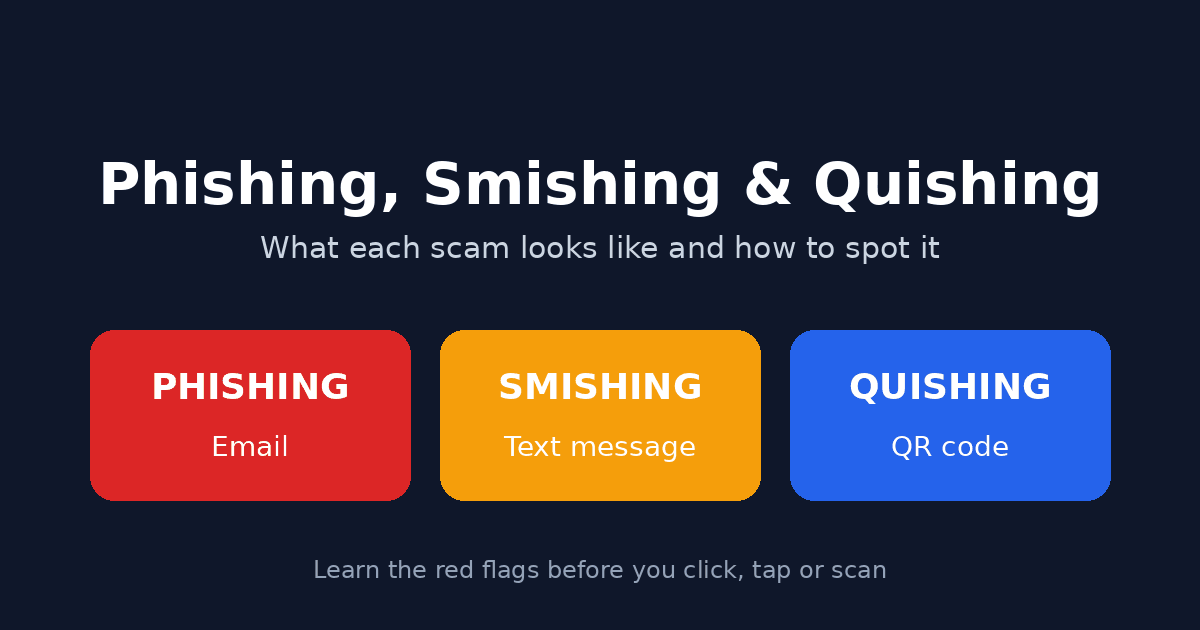
The delivery method changes, though, and so does the way each one fools you. Phishing arrives by email. Smishing arrives by text message. Quishing hides behind a QR code. The goal is the same in all three, but the warning signs are different, and knowing which is which makes you much harder to catch.
This guide walks through all three: what they look like in real life, why they work, and what to do when something feels off.
The short version
Here’s how the three compare at a glance.
Phishing is the umbrella term. It means any attempt to trick you into giving up sensitive information or taking a harmful action by impersonating someone legitimate. Classic phishing happens over email.
Smishing is phishing by SMS or other text messaging. The name combines “SMS” and “phishing.”
Quishing is phishing through QR codes. The name combines “QR” and “phishing.” The malicious link is hidden inside the code, so you can’t read it before you scan.
Technically, smishing and quishing are both types of phishing. People separate them because the format changes what the scam looks like, where you’ll meet it, and which defenses work.
What phishing looks like
Phishing is the oldest of the three and still the most common way attackers go after accounts and money. The basic setup hasn’t changed in years: you get a message that appears to be from a bank, an employer, a delivery company, a government agency, or a software service. It tells you something needs your attention right now.
The typical phishing email
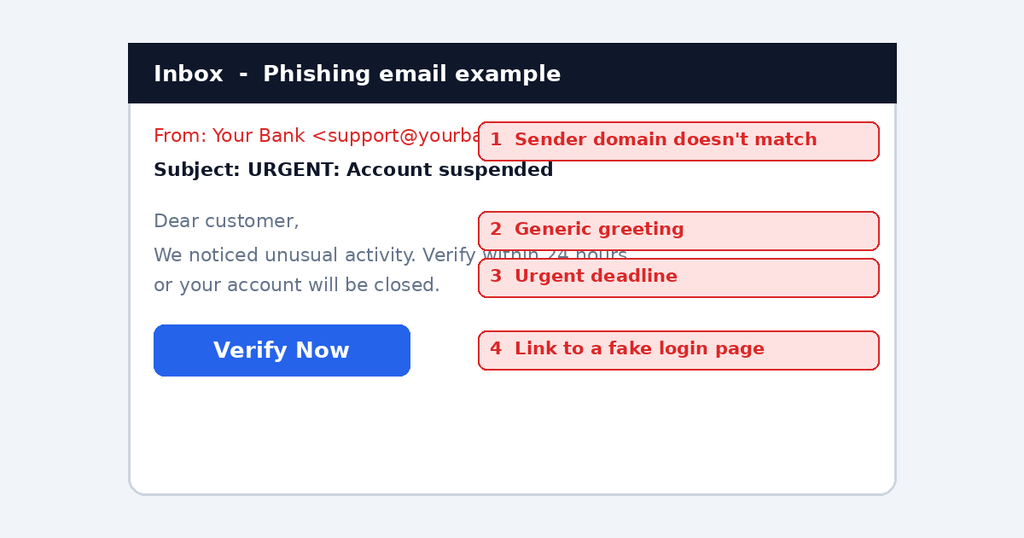
A phishing email usually has four parts:
- A familiar sender. The display name says “Your Bank” or “IT Support” or “Microsoft,” but the actual email address behind it is something else.
- A reason to act. Your account is locked. A payment failed. A document is waiting for your signature. Someone logged in from a new device.
- A deadline or a threat. “Verify within 24 hours or your account will be closed.”
- A link or attachment. The link leads to a fake login page. The attachment may carry malware or lead to another fake page.
The fake login page is where the damage happens. It copies the real site’s logo, colors, and layout. You type your username and password, and the attacker now has them.
Red flags in an email
- The sender’s address doesn’t match the company. Look past the display name. An email from “PayPal” that comes from a random Gmail address or a strange domain is a fake. Watch for lookalike domains too, like a swapped letter or an extra word tacked onto the real name.
- Generic greetings. “Dear customer” or “Dear user” from a company that normally uses your name.
- Pressure. Urgency is the tool phishers rely on most, because panic makes people skip the checking step.
- Links that don’t match their label. On a computer, hover over a link before clicking. If the text says one website and the preview shows another, don’t click.
- Unexpected attachments. Invoices, voicemails, shipping labels, or “secure documents” you weren’t expecting.
- Odd requests. Real companies don’t ask you to email your password, your full card number, or a one-time code.
- Small mistakes. Awkward phrasing, odd formatting, or a logo that looks slightly off. This one is less reliable than it used to be, since attackers now write cleaner messages than they once did, and AI writing tools make polished text easy to produce. A clean message doesn’t mean a safe one.
Targeted phishing: spear phishing and business email compromise
Not all phishing is a mass blast. Some is aimed at one person or one company.
Spear phishing uses details about you, such as your name, job title, employer, or a colleague’s name, to make the message more believable. An email that says “Hi Sara, following up on the Q3 budget Mark mentioned” feels very different from “Dear customer.”
Business email compromise (BEC) is a version where the attacker poses as an executive, a vendor, or a coworker, usually to get someone in finance or HR to send a payment or change bank details. These emails often contain no links or attachments at all, which helps them slip past filters. The only hook is a believable request from someone who seems to have the authority to make it.
Phishing’s other forms
Email isn’t the only place it shows up. You may also hear:
- Vishing, which is phishing by voice call. A caller claims to be from your bank’s fraud department or tech support.
- Social media phishing, where fake accounts or compromised friends send you links or “you won’t believe this photo of you” messages.
- Fake websites and ads, where a convincing page appears in search results or in a paid ad and collects your login or card details.
What smishing looks like
Smishing takes the same trick and puts it in your text messages. It works well for a few reasons. People tend to read texts quickly, often on a small screen, and they tend to trust them more than email. A phone also hides the details that help you spot a fake. You can’t hover over a link, and the sender information is cramped.
Common smishing scenarios
Smishing messages tend to be short, because there’s not much room for anything else. Some of the most common setups:
- The missed delivery. “We couldn’t deliver your parcel. Confirm your address here.” These work because most people are expecting a package at some point.
- The bank alert. “Unusual activity on your account. Verify now.” The link goes to a fake banking page.
- The unpaid fee. A toll, parking charge, or fine you supposedly owe, with a link to pay it and a threat of extra charges if you don’t.
- The prize or refund. You’ve won something, or you’re owed a tax refund or a utility credit.
- Mobile money and wallet scams. A message claiming a transfer was sent to you by mistake, or that your wallet is suspended and needs verification. These are common anywhere mobile payments are widely used.
- The wrong number opener. “Hey, is this still your number? We had dinner plans.” No link in the first message. The point is to get you replying, then build a conversation that leads to a scam, such as a fake investment or romance angle.
- The one-time code ask. Someone says they sent you a code by mistake and asks you to read it back. That code is usually the final step they need to get into one of your accounts.
Red flags in a text
- Unknown number or odd sender. Many smishing texts come from a random number or an email address instead of a normal phone number. Some spoof the sender name so the text appears in the same thread as real messages from your bank, which makes this clue less reliable than it sounds.
- Shortened or strange links. Short links hide the real destination. A long, jumbled address with extra words is another bad sign.
- A request you weren’t expecting. If you didn’t order anything, don’t have an account with that company, or haven’t driven through a toll, be skeptical.
- Demands for speed. “Final notice.” “Act now.” “Your account will be suspended.”
- Requests for sensitive details. Banks and delivery companies don’t ask you to confirm your PIN, password, or full card details by text.
- Vague wording. Real companies usually include specific details, like an order number you recognize. Scam texts stay generic so they can go to thousands of people at once.
Why smishing keeps working
Scammers can send huge numbers of texts cheaply, and they only need a small share of people to respond. The messages also arrive in a place that feels personal and urgent. A text lights up your screen while you’re busy, tired, or on the move, and that’s exactly when people click without thinking.
What quishing looks like
Quishing is the newest of the three, and the one fewest people know to watch for. A QR code is just a square of dots that stores a web address (or other data). Your phone’s camera reads it and opens the link. The trouble is that you can’t see where it leads until after you’ve scanned it, and attackers take advantage of that.
Where quishing shows up
- In emails. An email says you need to scan a QR code to “re-authenticate,” set up multi-factor authentication, view a document, or confirm a delivery. Because the link lives inside an image, some email filters that scan for bad links have a harder time catching it. It also pushes you from your computer to your phone, which may have fewer protections.
- On stickers placed over real codes. Fraudsters have been known to stick fake QR codes over legitimate ones on parking meters, EV charging stations, restaurant tables, and posters. You scan what looks like the official payment code and land on a fake payment page.
- On flyers, posters, and packages. A “scan for a discount” flyer, or a note stuck to your door about a missed delivery.
- In printed letters or fake invoices. Some scam mail now includes a QR code in place of a typed link.
- In text messages and social posts. Less common, but it happens.
What the quishing page wants
Once you scan, you usually end up in one of a few places:
- A fake login page for a service like Microsoft 365, your bank, or a shopping site
- A fake payment page that collects your card details
- A page that prompts you to download an app, which could be malware
- A form asking for personal details like your date of birth or ID number
Red flags for quishing
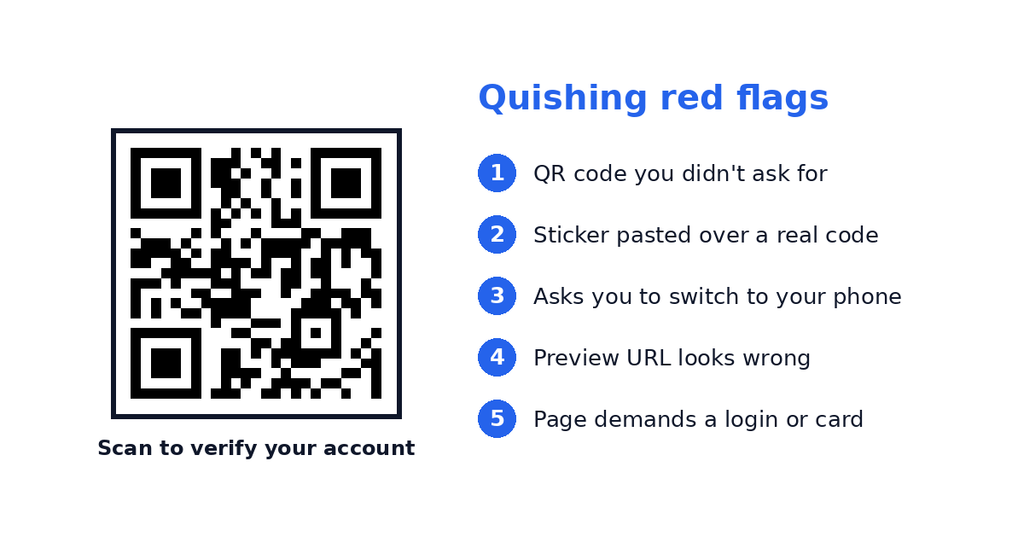
- A QR code you didn’t ask for. Especially in an email that also says it’s urgent.
- A request to scan with your phone when you’re already at a computer. This is a deliberate move to get you off a protected work device.
- A sticker or label that looks added on. If the code at a meter or charging station looks pasted over another one, or the edges are peeling, don’t scan it.
- A preview URL that looks wrong. Most phone cameras show you the web address before opening it. Read it. If it’s a long string of letters, a misspelled brand name, or has nothing to do with the business, close it.
- The page asks for a login right away. If scanning a code for a menu or a parking spot asks you to sign in or enter card details on a page you don’t recognize, back out.
How the three work together
These scams don’t always stay in their lane. A single attack can use more than one:
- An email (phishing) tells you your account is at risk and asks you to scan a QR code (quishing), which opens a fake login page.
- A text (smishing) tells you to call a number, and the person who answers (vishing) walks you through “verifying” your details.
- A phishing email gets your password, and then a smishing text asks you to read back the code your phone just received, because the attacker is trying to log in as you at that very moment.
That last one matters. If someone has your password but not your phone, the code that gets sent to your phone is the last barrier. A request to share a code is a request for the key to your account.
What all three have in common
Once you’ve seen a few examples, the patterns repeat. Almost every scam in this family relies on some mix of these:
- Impersonation. A brand, a boss, an agency, a delivery service.
- Urgency. A deadline, a penalty, a limited window.
- Fear or greed. Your account is at risk, or you’ve won something.
- A single next step. Click, scan, reply, call, or pay.
- A request to skip normal channels. Do it from this link, not from the official app.
If you notice yourself feeling rushed, worried, or excited because of a message, that’s a good moment to stop. Those feelings are what the message was built to create.
What to do when you get a suspicious message
You don’t need to be a security expert. A few habits cover most situations.
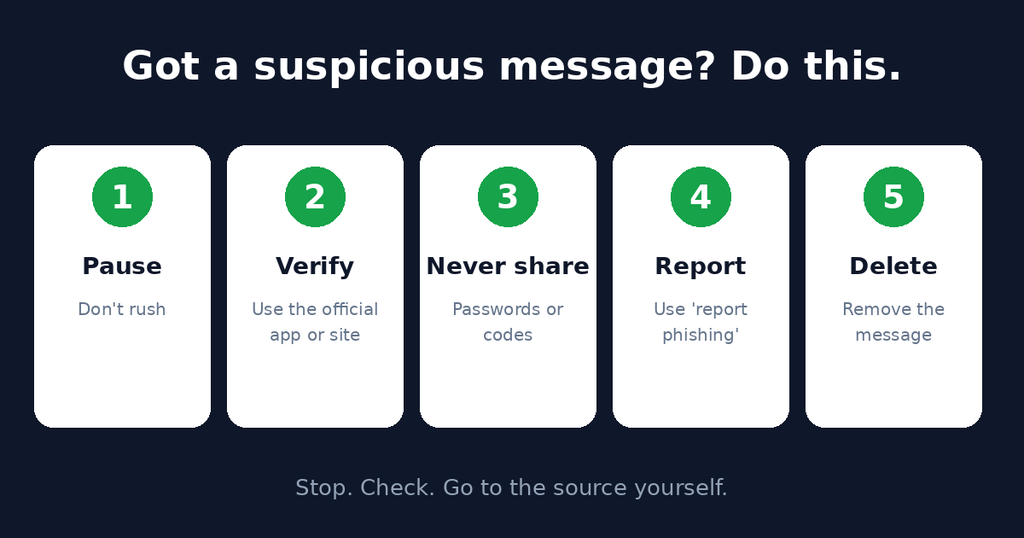
1. Pause before you act. Take a minute. A genuine problem will still be there after you’ve checked.
2. Go to the source another way. Don’t use the link, number, or QR code in the message. Open the company’s app, type the website address yourself, or call the number printed on your card or on the official website. If your account really has a problem, you’ll see it there.
3. Check the details. Look at the sender’s full address or number, the real destination of the link, and whether the message says anything specific that proves it’s meant for you.
4. Never share codes or passwords. One-time passcodes, PINs, and passwords are for you alone. No legitimate support person will ask you to read one out.
5. Don’t reply to be polite. With smishing especially, replying (even with “STOP”) can confirm that your number is active. If you don’t know the sender, ignore it or report it.
6. Report it. Reporting helps block the scam for other people.
- Many mobile carriers accept forwarded scam texts to 7726 (spells “SPAM”), including in the US and UK, though availability varies by country and network. Check with your carrier.
- Most email apps have a “Report phishing” option. Use it before you delete the message.
- Your bank or the impersonated company usually has an address or form for reporting fakes.
- National bodies take reports too. Examples include the FTC in the US and the NCSC in the UK. Search for your own country’s cybercrime or consumer protection agency.
7. Delete it. Once it’s reported, get it off your phone or inbox so nobody accidentally taps it later.
Quick checks for each type
If you’d like something to keep in mind, this is the shortest version.
For phishing emails, check the sender’s actual address and where the link really goes.
For smishing texts, ask whether you were expecting this message at all, and never tap a link from an unknown number.
For quishing codes, read the preview URL before opening it, and be suspicious of any code that arrives unsolicited or looks stuck on top of something else.
What to do if you already clicked or scanned
It happens to careful people, and the first few minutes matter more than how embarrassed you feel. Here’s a sensible order of operations.
If you only opened the link but entered nothing: Close the page. You’re probably fine, but it’s worth running a security scan on your device and keeping an eye on your accounts.
If you entered a password:
- Change that password immediately, on the real site, from a device you trust.
- If you use the same password anywhere else, change those too. Attackers try stolen passwords across other services.
- Turn on multi-factor authentication if it isn’t already.
- Check your account’s recent activity and sign out of all other devices if the option exists.
If you entered card or banking details:
- Contact your bank right away. Use the number on your card or the official app.
- Ask them to freeze or replace the card and to watch for suspicious transactions.
- Review recent statements and flag anything you don’t recognize.
If you gave out a one-time code:
- Treat the account as compromised. Change the password and review security settings straight away.
- Contact the service’s support through official channels.
If you downloaded an app or file:
- Disconnect from the internet if you can.
- Uninstall the app or delete the file.
- Run a trusted security scan. If you’re not sure the device is clean, back up your important files and consider a factory reset.
- Change important passwords from a different, clean device.
If it involved your work account:
- Tell your IT or security team immediately. Speed matters far more than blame, and early reporting can stop a small mistake from spreading to the whole organization.
If you lost money:
- Report it to your bank and to local police or the relevant cybercrime agency. It may not always lead to a recovery, but a report creates a record and sometimes helps authorities connect cases.
Protecting yourself day to day
Awareness is the strongest layer, but a few settings and habits make you harder to trick.
- Use a password manager. It fills in logins only on the correct website, which means it won’t autofill on a lookalike page. That alone is a useful warning sign.
- Turn on multi-factor authentication. Where possible, choose an authenticator app or a hardware security key over SMS codes. Text-based codes are better than nothing, but they’re easier for attackers to intercept or talk out of you.
- Keep your phone and apps updated. Updates close security holes that malicious pages can exploit.
- Use your phone’s built-in protections. Spam filters for texts and calls, safe browsing settings, and QR code previews all help.
- Be careful with QR codes in public. If a code is on a sticker or a loose sign, treat it with the same caution you’d give an unknown link. For parking or charging, use the official app or type in the provider’s web address when you can.
- Limit what you share publicly. The more an attacker knows about your job, your family, and your habits, the easier it is to write a believable message to you.
- Slow down on mobile. Phones make it easy to tap before thinking. Make it a habit to read the sender and the link before touching anything.
For businesses and teams
If you run a company, or you’re responsible for security at one, personal vigilance isn’t enough. A few steps make a real difference:
- Train staff with realistic examples, including QR code scenarios. Many awareness programs still focus on email links alone.
- Make reporting easy and blame-free. People who fear punishment hide mistakes.
- Set clear rules for payment and bank detail changes. A call-back to a known number or a second approval step stops most business email compromise attempts.
- Use email filtering that inspects images and attachments, not just text and links, so QR codes in messages are examined.
- Require multi-factor authentication on email, finance tools, and admin accounts, and prefer phishing-resistant methods where you can.
- Manage mobile devices. Employees often scan QR codes on personal phones, so consider policies and tools that protect work data on those devices.
- Check the physical world. If you display QR codes for payments or menus, inspect them regularly for tampering and consider printing them in a way that’s harder to cover.
Frequently asked questions
Is smishing the same as phishing?
Smishing is a type of phishing. Phishing is the broad category, and smishing is the version that comes through text messages.
What does quishing mean?
Quishing is phishing that uses QR codes. The malicious link is hidden in the code, so you can’t read it before scanning.
Are QR codes dangerous?
The codes themselves are just data. The risk comes from where they lead and who placed them. Codes from sources you trust, like a menu at a restaurant you’re sitting in, are generally fine. Codes that arrive unexpectedly or look tampered with deserve caution.
How can I tell if a text message is fake?
Ask whether you expected it, check who sent it, look at the link, and notice whether it’s pushing you to act quickly. When in doubt, contact the company through its official app or website, not through the text.
Can I get hacked just by opening a phishing email?
Usually the danger comes from clicking a link, opening an attachment, or entering information. Simply viewing a message is much lower risk, though it’s still best not to interact with anything in it and to report it.
What should I do if I get a code I didn’t request?
Don’t share it with anyone. It could mean someone is trying to log in to one of your accounts. Change that account’s password and check its security settings.
Will a bank or delivery company ever text me a link?
Some do send legitimate links, which is exactly why this is tricky. The safest approach is to avoid acting on a link from a text and to log in through the official app or website you already use.
Conclusion
Phishing, smishing, and quishing look different on the surface: an email, a text, a square of black and white dots. Underneath, they all ask for the same thing, which is for you to trust a message you shouldn’t and act before you think.
You don’t have to memorize every variation. Learn the pattern. Be wary of unexpected messages that create pressure, check the sender and the destination, go to the real source through a route you choose, and never hand over passwords or codes. Do those few things consistently and you’ll avoid most of what’s out there.