A few months ago I pasted a client contract into a cloud chatbot to get a quick summary. Halfway through hitting Enter, I stopped. That document had names, payment terms and a confidentiality clause at the top. I had just been about to upload it to a server I know nothing about, run by a company whose retention policy I’ve never read.
I closed the tab, and that was the moment I got serious about running AI on my own laptop.
If you’ve had a similar flicker of “should I really be typing this into a website?”, this guide is for you. It’s long on purpose. I want you to be able to follow it from zero, with no prior experience, and finish with a working private AI that never sends a word of your conversations anywhere.
We’ll cover what “private AI” really means, what hardware you need, which model to pick, three different ways to set it up, how to add a nice chat interface, how to chat with your own documents, how to make it faster, and how to lock it down properly. I’ll also be honest about where local AI falls short, because nobody benefits from hype.
What “Private AI” Actually Means
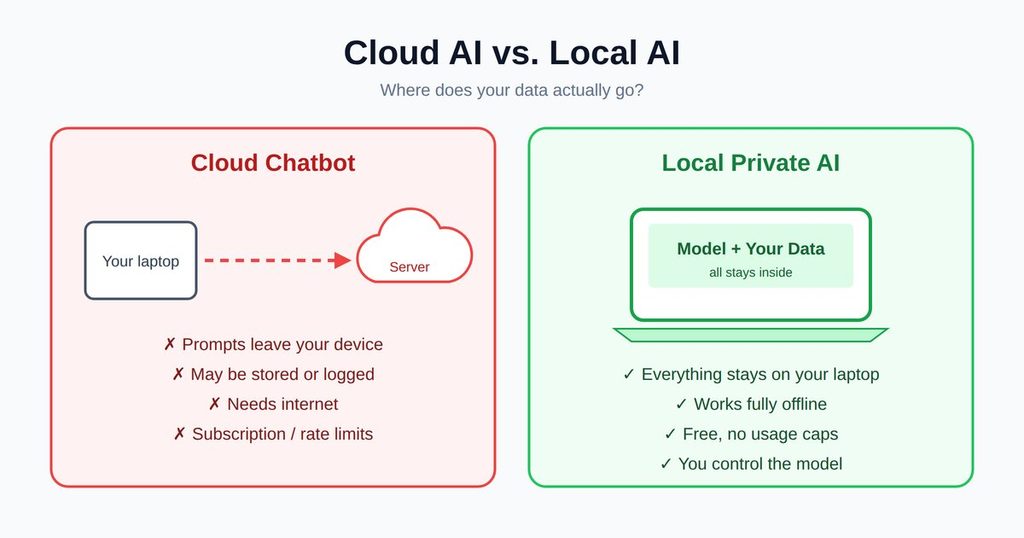
When you use a typical AI chatbot in your browser, here’s what happens: you type a prompt, it travels over the internet to a company’s data center, a huge model processes it on their hardware, and the answer travels back. Your words pass through, and are usually stored on, someone else’s computer. Depending on the service and your settings, they may be logged, reviewed for safety, or used to improve products.
A private, local AI flips this. The model file is downloaded once and lives on your laptop’s storage. When you ask a question, your own processor and memory do the work. Nothing needs to leave your machine. You could switch off your Wi-Fi, ask a question, and still get an answer.
That’s the core idea, but let me be precise about what it does and doesn’t guarantee:
- It does mean your prompts and files aren’t sent to an AI provider’s servers when you use the model.
- It does not automatically mean your laptop is secure. If your computer has malware, or you’ve synced your chat history folder to a cloud drive, privacy can still leak.
- It does not mean the model is smarter or safer. It’s a different trade-off, which we’ll get to.
Think of it like the difference between writing in a notebook at home and dictating to an assistant in a busy café. Both work, but only one lets you completely control who’s listening.
Why Bother? The Honest Pros and Cons
I won’t pretend local AI is better at everything. Here’s the real picture.
The upsides
Privacy. This is the big one. Legal documents, medical notes, financial records, unpublished manuscripts, source code from your employer, personal journals. These are things you may not want to send to anyone.
No subscription. The tools and many excellent models are free. Your only cost is hardware you probably already own and a bit of electricity.
Works offline. On a plane, in a village with patchy internet, during an outage. Once the model is downloaded, you don’t need a connection. If your connection is slow or expensive, you download once and use it forever.
No rate limits or “you’ve hit your cap.” Run it as much as you want.
Control. You choose the model, tweak how it behaves, and nobody can change it overnight or retire it. The version you downloaded stays exactly as it is.
Learning. Running models yourself teaches you how AI actually works, which is a useful skill.
The downsides
Smaller models are less capable. The largest cloud models are enormous and run on racks of specialized hardware. Your laptop runs smaller models. For many everyday tasks (summarizing, drafting, rewriting, brainstorming, explaining code), small local models are surprisingly good. For complex reasoning, long research tasks, or tricky coding, the top cloud models are still ahead.
Speed depends on your hardware. On a modern laptop with enough memory, responses feel snappy. On an older machine, they can crawl.
You’re the IT department. Updates, storage, troubleshooting. It’s all on you.
Battery and heat. Running a model makes your laptop work hard. Expect fans and faster battery drain.
Knowledge cutoff. A local model only knows what it was trained on. It can’t browse the web unless you add tools for that, which would reduce the “offline” benefit.
My practical advice is to use local AI for sensitive and routine work, and cloud AI for hard problems that involve non-sensitive information. Many people end up using both, and that’s perfectly reasonable.
How Local Models Work (Plain English)
You don’t need a computer science degree, but a few concepts will make every later decision easier. I’ll keep this short.
The model is just a big file
An AI model is essentially a very large file of numbers, called parameters or weights. When people say “7B model” or “70B model,” the B means billion parameters. More parameters generally means a more capable model, but also a bigger file and more memory needed.
Memory is the real limit
To run a model, the whole thing (or most of it) must be loaded into fast memory: your computer’s RAM, or your graphics card’s VRAM if you have one. If the model doesn’t fit, it runs painfully slowly or not at all. So the question “can my laptop run this?” is mostly “does this model fit in my memory?”
Quantization: shrinking the model
Here’s the trick that makes all this possible. A full-precision model stores each number with high accuracy and takes huge space. Quantization compresses those numbers into fewer bits. You’ll see labels like Q4, Q5, Q8. The number is roughly the bits per weight.
- Q8 is high quality, bigger file.
- Q5 is a great balance.
- Q4 (often written Q4_K_M) is the popular sweet spot: much smaller, with only a modest quality drop for most tasks.
- Q2/Q3 are tiny but noticeably worse. I’d avoid them unless you’re desperate.
A rough rule: a Q4 model needs about 0.6 GB of memory per billion parameters, plus a gigabyte or two of overhead. So an 8B model at Q4 needs around 5-6 GB total.
GGUF: the format you’ll see everywhere
Most local tools use a file format called GGUF. When you browse models, you’ll see names ending in .gguf. It simply packages a quantized model so tools like Ollama and LM Studio can load it.
Context window: the model’s short-term memory
The context window is how much text the model can consider at once, measured in tokens (a token is roughly three-quarters of a word). A bigger context lets you paste longer documents but uses more memory. Many default setups use a modest context, so if you paste a long document and the model “forgets” the start, this is why. We’ll fix it later.
Inference vs. training
Everything in this guide is inference, which means using a finished model. Training a model from scratch takes massive resources and isn’t something you’d do on a laptop. (Light fine-tuning is possible but outside our scope.)
Can Your Laptop Handle It? Hardware Guide
Let’s get practical. Open your system info and check three things: RAM, GPU (if any), and free storage.
How to check
- Windows: Press Ctrl+Shift+Esc → Performance tab. You’ll see Memory and GPU.
- macOS: Apple menu → About This Mac. Note the chip (M1, M2, M3, etc.) and memory.
- Linux: Run free -h for RAM and lspci | grep -i vga for graphics.
What to expect by RAM
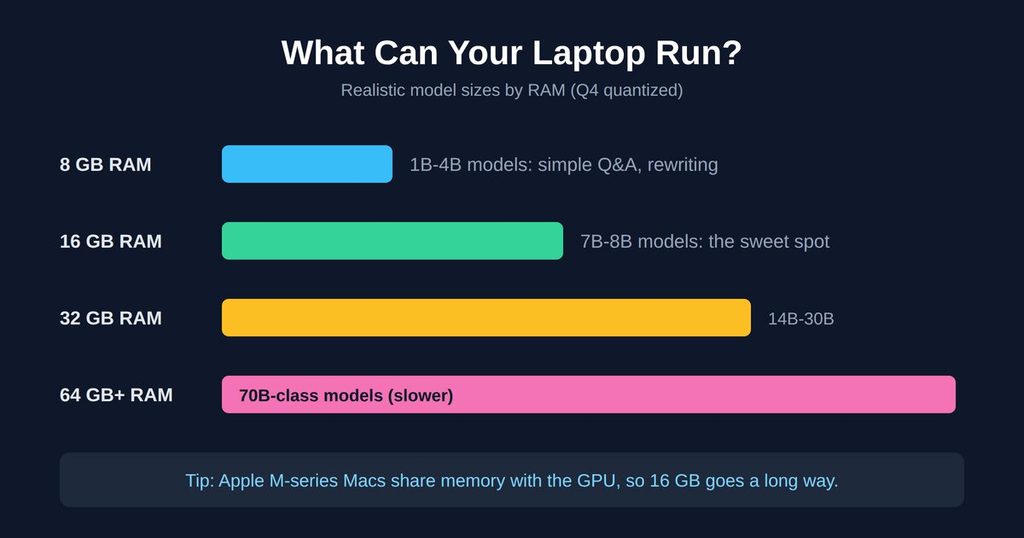
| Your RAM | What’s realistic |
| 8 GB | Small models (1B-4B parameters). Fine for simple Q&A, rewriting, short summaries. Close other apps first. |
| 16 GB | The sweet spot for most people. Comfortable with 7B-8B models, and some 12B-14B models if you’re careful. |
| 32 GB | Comfortable with 14B models and workable with 30B-class models. A big quality jump. |
| 64 GB+ | You can try 70B-class models at heavier quantization, though they’ll be slower. |
Apple Silicon is a pleasant surprise
Macs with M-series chips use unified memory, which the CPU and GPU share. That means a MacBook with 16 or 32 GB can run models that would need an expensive dedicated graphics card on a PC. If you have an M-series Mac, you’re in good shape.
Windows/Linux with a graphics card
If you have an NVIDIA GPU, its VRAM matters most. Fitting the model in VRAM makes it dramatically faster.
- 6 GB VRAM: small models, or larger ones partially offloaded.
- 8 GB VRAM: 7B-8B models at Q4 fit nicely.
- 12 GB VRAM: 12B-14B models.
- 16-24 GB VRAM: 30B-class models. Genuinely impressive.
No dedicated GPU? No problem. Modern tools can run on the CPU. It’s slower, but small and medium models are very usable.
Storage
Each model is a file, typically 2 GB to 20 GB. Keep at least 30-50 GB free if you want to experiment with a few. An SSD makes loading much quicker than an old spinning drive.
A reality check on older laptops
If your laptop is older with 8 GB RAM and no GPU, you can still do this. Stick with small models, expect modest speed, and treat it as a private drafting and Q&A tool rather than a powerhouse. Being realistic now saves frustration later.
How to Choose the Right Model
There are hundreds of models, which feels overwhelming. Here’s a simple way to cut through it.
Step 1: Pick a size that fits your memory
Use the table above. As a rule, choose a model whose Q4 file is at most about 60-70% of your total free memory, so there’s room for the operating system and context.
Step 2: Pick a family
A few well-known open model families you’ll run into:
- Llama (from Meta): a popular all-rounder with a huge community.
- Qwen: strong at multilingual tasks, coding and reasoning, in many sizes.
- Gemma (from Google): efficient and polished, good for smaller hardware.
- Mistral: known for being compact and capable.
- Phi (from Microsoft): small models that punch above their weight.
- gpt-oss (from OpenAI): an open-weight option for people with enough memory.
- DeepSeek-based models: popular for reasoning-style tasks.
Model releases move fast, and by the time you read this there may be newer versions of all of these. Don’t get hung up on the exact version. Check the current model library in whichever tool you use, pick a recent model from a reputable family, and match the size to your hardware.
Step 3: Match the model to your task
- General chat and writing: an “instruct” or “chat” model from Llama, Qwen or Gemma.
- Coding: look for a “coder” variant.
- Reasoning and math: models marketed as “reasoning” or “thinking” models. These produce a chain of thought before answering. They’re slower but often more accurate on hard problems.
- Other languages: Qwen and Gemma tend to do well across many languages. Test with your own language, because quality varies a lot.
- Tiny hardware: 1B-4B models.
Step 4: Read the license
Most popular models are free to use personally, but some licenses have conditions for commercial use or very large companies. If you’re using it for business, take thirty seconds to check the license on the model’s page.
A starter recommendation
If you don’t know where to begin: grab a recent 7B-8B instruct model at Q4 if you have 16 GB, or a 3B-4B model if you have 8 GB. You can always swap later. Models are just files.
Method 1: Ollama (The Easiest Start)
Ollama is the tool I recommend to most beginners. It handles downloading, loading and running models with one simple command-line tool, and it runs quietly in the background so other apps can connect to it.
Step 1: Install
- Windows and macOS: Go to the official Ollama website (ollama.com), download the installer and run it like any other app.
- Linux: Open a terminal and run the install script from the official site:
curl -fsSL https://ollama.com/install.sh | sh
Step 2: Open a terminal
- Windows: search for “Terminal” or “PowerShell.”
- macOS: open “Terminal” from Applications → Utilities.
- Linux: you know the drill.
Step 3: Run your first model
Type:
ollama run llama3.2
The first time, Ollama downloads the model (this is the only step that needs internet, and it might take a while on a slow connection, so be patient or start it before a break). When it’s finished, you’ll see a prompt. Type a question and press Enter:
>>> Explain what a mortgage is like I’m 12.
Congratulations. That answer was generated entirely on your laptop. To leave, type /bye.
Step 4: Learn the handful of commands you’ll actually use
ollama list # see downloaded models
ollama pull <name> # download a model without running it
ollama run <name> # chat with a model
ollama ps # see what’s currently loaded in memory
ollama rm <name> # delete a model to free space
Step 5: Pick other models
Browse the model library on the Ollama website. Each model page shows available sizes. For example, you might pull a specific size like this:
ollama pull qwen2.5:7b
The part after the colon is the tag, which usually indicates size and sometimes quantization. Check each model’s page for the exact tags it offers, because names change.
Step 6: Use it from other programs
Ollama runs a small local server at http://localhost:11434. That address only works on your own machine by default. Developers can send requests to it:
curl http://localhost:11434/api/generate -d ‘{
“model”: “llama3.2”,
“prompt”: “Write a polite email declining a meeting.”,
“stream”: false
}’
This is how Open WebUI, note-taking plugins, code editors and many other tools connect to your private model.
A few useful in-chat commands
Inside ollama run, you can type /? to see options. You can set a system prompt (a standing instruction like “You are a concise editor”) and adjust parameters. Experiment, because nothing here can break your computer.
Ollama pros and cons
Pros: dead simple, huge model library, works everywhere, great ecosystem of add-ons.
Cons: command line only unless you add an interface (we’ll do that), and you have less low-level control than with raw llama.cpp.
Method 2: LM Studio (The Friendliest Interface)
If the terminal makes you nervous, LM Studio is a polished desktop app. You click, search, download and chat, all in a normal window.
Step 1: Install
Download LM Studio from its official website for Windows, macOS or Linux and install it like any app.
Step 2: Discover and download a model
Open the Discover (search) tab. Type the name of a model family, such as “Llama,” “Qwen” or “Gemma.” LM Studio shows available versions and, helpfully, flags whether a model is likely to fit your hardware. That feature alone is a lifesaver for beginners.
Choose a Q4 version of a size that fits your memory, and click download.
Step 3: Chat
Go to the Chat tab, select your downloaded model from the dropdown at the top, wait a few seconds for it to load, and start typing. It feels like a normal chatbot, except the little internet dependency is gone.
Step 4: Adjust settings
LM Studio exposes the knobs plainly:
- Context length: raise it to handle longer documents (watch memory).
- GPU offload: a slider for how many layers run on your graphics card. More offload usually means faster, until you run out of VRAM.
- Temperature: lower (around 0.2-0.5) for factual, consistent answers; higher (0.7-1.0) for creative writing.
- System prompt: set the model’s behavior for the whole chat.
Step 5: Run a local server (optional)
LM Studio can also expose an OpenAI-compatible local server. Other apps that expect an OpenAI-style API can point at your laptop instead. Same idea as Ollama’s server.
Privacy note for LM Studio
The app is free to use, but it’s a closed-source application, and it contacts the internet to search for and download models. Once a model is downloaded, chatting does not require a connection. If you want to be thorough, check the app’s settings and the official documentation for what it does online, and try chatting with your internet switched off to confirm.
LM Studio pros and cons
Pros: beginner-friendly, hardware compatibility hints, easy settings.
Cons: not open source, and heavier than a command-line tool.
Method 3: llama.cpp, Jan and GPT4All
Two or three more options deserve a mention.
llama.cpp: the engine under the hood
Many tools, including Ollama and LM Studio, are built on llama.cpp, an open-source project that runs GGUF models efficiently on almost any hardware. Using it directly gives you maximum control and the newest features first.
Rough workflow:
- Download a prebuilt release from the project’s GitHub page (or build it from source).
- Download a .gguf model file from a trusted source such as Hugging Face.
- Run it:
llama-cli -m path/to/model.gguf -p “Hello, who are you?”
Or start a local server with a web interface:
llama-server -m path/to/model.gguf –port 8080
Then open http://localhost:8080 in your browser.
This route is for tinkerers. You’ll learn the most here, but you’ll also read more documentation. If you’re new, start with Ollama or LM Studio and come back to this later.
Jan
Jan is an open-source desktop app that aims to be an offline-first alternative to cloud chatbots. It has a clean interface, a model hub and local server features. It’s a good middle ground if you like LM Studio’s friendliness but want open-source software.
GPT4All
GPT4All is another open-source desktop app focused on being easy and private. It includes a feature for chatting with your local documents. It’s lightweight, and a good choice for older machines.
Which should you pick?
- Want the easiest, most flexible start? Ollama.
- Hate terminals? LM Studio, Jan or GPT4All.
- Want to learn and squeeze out performance? llama.cpp.
You can install several. Models are just files, and some tools can even share them.
Add a ChatGPT-Style Interface with Open WebUI
Ollama in a terminal is functional but plain. Open WebUI is a free, open-source web interface that connects to Ollama and gives you a polished chat experience: conversation history, model switching, document uploads, and more, all running on your own machine.
Option A: Docker (most common)
Install Docker Desktop, then run:
docker run -d -p 3000:8080 –add-host=host.docker.internal:host-gateway -v open-webui:/app/backend/data –name open-webui ghcr.io/open-webui/open-webui:main
Open http://localhost:3000 in your browser, create a local account (it stays on your machine), and you’ll see your Ollama models listed.
Option B: pip
If you prefer Python and don’t want Docker, Open WebUI can also be installed with pip. Check its official documentation for the current instructions, because installation details change between versions.
Things worth doing inside Open WebUI
- Create presets with system prompts, for example “Editor,” “Code reviewer” and “Explain like I’m new.”
- Switch models mid-conversation to compare answers side by side.
- Organize chats into folders.
- Upload documents for questions (see the next section).
Privacy settings to check
Open WebUI is built to be self-hosted, but like any large app, look through its settings and admin panel. Turn off anything that reaches out to external services you don’t want, such as web search features or external model connections you didn’t intentionally add. Check the documentation for any telemetry options and disable them if you prefer.
Also remember that this runs a web server on your computer. By default it should only be reachable from your own machine. Don’t expose it to your network or the internet unless you know what you’re doing and have set up authentication properly.
Chat With Your Own Documents, Privately
This is where local AI gets truly useful. Imagine asking questions about a 200-page PDF, your meeting notes, or a folder of contracts, with none of it leaving your laptop.
How it works: RAG
The technique is called Retrieval-Augmented Generation (RAG). Instead of cramming the whole document into the model, the system:
- Splits your documents into small chunks.
- Converts each chunk into numbers called embeddings using a small embedding model (also run locally).
- Stores them in a local database.
- When you ask a question, it finds the most relevant chunks and hands only those to the language model along with your question.
The model then answers based on your actual text. That makes answers more grounded and lets you work with documents far longer than the model’s context window.
The easy way
Both Open WebUI and GPT4All include built-in document features. In Open WebUI, you can upload files into a chat or build a “knowledge” collection, then reference it in conversations. LM Studio also supports attaching documents for chat.
A typical flow in Open WebUI:
- Pull an embedding model in Ollama (many guides suggest a small one such as nomic-embed-text).
- In Open WebUI’s settings, make sure the embedding model is set to your local one.
- Upload a PDF or text file to a chat.
- Ask: “What are the payment terms in this contract?” or “Summarize the key risks.”
Tips for better document answers
- Ask specific questions. “What’s the termination notice period?” works better than “Tell me about this.”
- Ask for the source. Request that the model quote the relevant passage so you can verify it.
- Increase context length if answers seem to miss things.
- Use clean text. Scanned PDFs without OCR are just images, so the model can’t read them. Run OCR first.
- Verify important facts. For legal, medical or financial matters, treat the AI’s answer as a first pass, not the final word.
The privacy angle
Because the embedding model, the database and the language model all run locally, your documents stay on your machine. Double-check that you haven’t enabled any cloud-based embedding or search option in the settings.
Make It Faster: Practical Tuning
If your setup feels slow, these are the levers that actually matter, roughly in order of impact.
1. Use a smaller or more compressed model
This is the biggest lever. If a 14B model crawls, a good 7B-8B model will feel much better. Dropping from Q8 to Q4 also helps a lot.
2. Make sure it fits in fast memory
If you have a GPU, make sure the model is actually using it. In Ollama, run ollama ps while a model is loaded. It shows whether the model is running on the GPU, the CPU, or a split. A model that spills out of VRAM into regular RAM gets much slower.
3. Close memory-hungry apps
Browsers with 40 tabs, video editors, and games all compete for memory. Closing them can be the difference between smooth and painful, especially on 8 GB machines.
4. Keep the context length reasonable
A huge context window eats memory and slows things down. Only raise it when you need to process long documents.
5. Keep your laptop plugged in and cool
Laptops throttle performance on battery and when hot. Plug in, set the power mode to high performance, and give it airflow. A cheap laptop stand helps.
6. Update your tools and drivers
Newer versions of Ollama, LM Studio and llama.cpp often include significant speed improvements. If you have an NVIDIA GPU, keep your graphics drivers current.
7. Use the right backend
On Apple Silicon, tools use Metal acceleration automatically. On NVIDIA, CUDA. On some AMD and Intel setups, support varies by tool and version, so check the documentation for your hardware.
8. Be patient with reasoning models
“Thinking” models write out a long chain of reasoning before the final answer. They’re slower by design. For quick tasks, use a standard instruct model instead.
What’s a “good” speed?
Speed is measured in tokens per second. Around 10+ tokens per second feels comfortable to read in real time. 3-5 is usable but slow. Under 2 is frustrating. Run your model on a sample prompt and see what you get, and adjust model size accordingly.
The Privacy Checklist
Running locally is a strong start, but real privacy comes from the details. Work through this list.
1. Verify it works offline. Disconnect from Wi-Fi after downloading your model and try a chat. If it works, the model isn’t phoning home for answers.
2. Download models from trusted sources. Stick to official libraries (Ollama’s library, LM Studio’s catalog) and reputable publishers on Hugging Face. A random file from an unknown uploader is a risk. Prefer .gguf and safetensors formats over formats that can execute code when loaded.
3. Keep services bound to localhost. By default, Ollama listens only on your own machine. Don’t change that to expose it to your network unless you add authentication and know why you’re doing it.
4. Mind your chat history. Your conversations are saved locally by many tools. That’s useful, but if your laptop is shared or stolen, history is exposed. Use full-disk encryption (BitLocker on Windows, FileVault on macOS, LUKS on Linux) and a strong login password.
5. Watch cloud-synced folders. If your chat history or documents live in a folder synced to Dropbox, iCloud, OneDrive or Google Drive, you’ve sent them to the cloud anyway. Keep your private AI data outside synced folders, or exclude them.
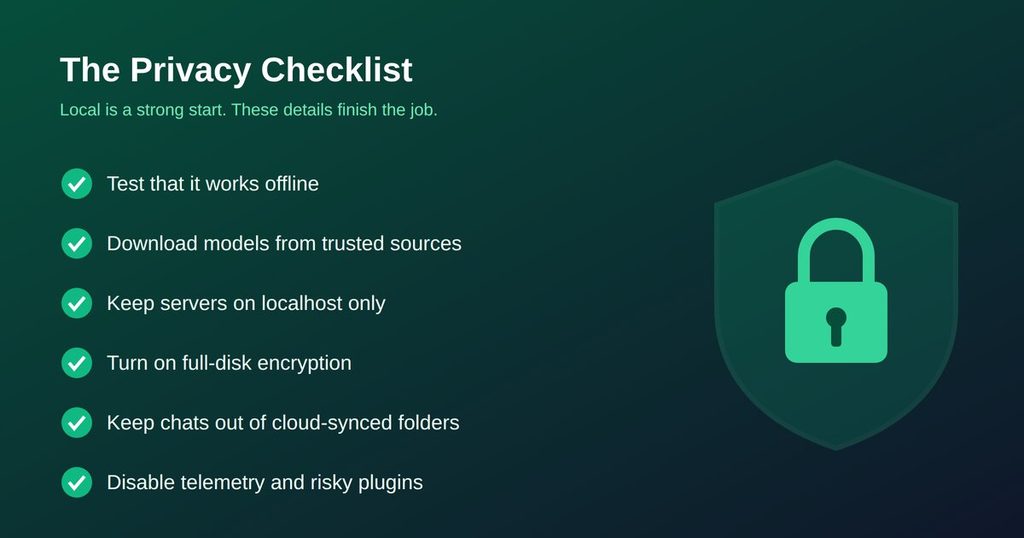
6. Check app settings for telemetry and updates. Look through each tool’s settings and turn off optional analytics. If you want to be strict, you can use a firewall to block the app’s outbound access once your models are downloaded.
7. Be careful with plugins and extensions. Add-ons that enable web search, external APIs or cloud model connections quietly break your privacy model. Only enable what you understand.
8. Keep your system updated and use antivirus. A compromised laptop defeats everything else.
9. Understand what “private” doesn’t cover. A local model can still produce wrong or biased answers. Privacy and accuracy are separate things.
10. Separate profiles for sensitive work (optional). If you want extra care, create a dedicated user account on your laptop for sensitive AI work.
Done properly, this gives you a setup where your most sensitive documents are handled with far more control than any cloud service offers.
Troubleshooting Common Problems
“The model is incredibly slow.”
- Check ollama ps or your tool’s status to see if it’s on CPU rather than GPU.
- Try a smaller model or lower quantization.
- Close other programs.
- Plug in your charger and use performance mode.
“My computer froze or ran out of memory.”
The model is too big for your RAM or VRAM. Switch to a smaller model, reduce the context length, or close other applications.
“The download keeps failing.”
Large files and unstable connections don’t mix well. Ollama can resume interrupted downloads: just run the pull command again. If your connection is limited, schedule downloads for off-peak hours or when you have a stable connection. LM Studio also supports resuming.
“It gave a confident but wrong answer.”
That’s called hallucination, and every language model does it, local or cloud. Smaller models do it more. Mitigate it by asking for step-by-step reasoning, requesting quotes from provided documents, lowering the temperature, and always verifying important facts.
“It forgets what I said earlier.”
The conversation exceeded the context window. Increase the context length (within memory limits), or start a fresh chat and paste a short summary.
“Open WebUI can’t see my Ollama models.”
Make sure Ollama is running, then check the connection URL in Open WebUI’s settings. With Docker, the address http://host.docker.internal:11434 often does the trick. Check the official docs if your setup differs.
“The answers are in the wrong language or low quality.”
Try a different model family. Some models are much stronger in particular languages. Also try telling the model explicitly: “Respond in [language].”
“My laptop gets very hot.”
That’s normal under load, but improve airflow, use a stand, and consider smaller models for long sessions.
Real Ways to Use Your Private AI
A tool is only valuable if you use it. Here are practical uses that I and many others have found worth the setup.
Summarizing sensitive documents. Contracts, HR documents, medical reports, meeting transcripts. Ask for a summary, key dates, or red flags.
Drafting and editing. Emails, reports, cover letters, and blog posts. Paste your rough draft and ask for a cleaner version in your own voice.
Private journaling and reflection. Talk through your thoughts without worrying that a company is storing your most personal writing.
Studying. Ask it to explain tough concepts in simple terms, quiz you, or create practice questions from your own notes.
Coding help. Explain unfamiliar code, write small functions, generate tests, and review snippets, all without uploading proprietary code. A coder-focused model helps here.
Translation and language practice. Draft, translate, and get feedback on your writing in another language. Quality varies by language, so test first.
Brainstorming. Names, ideas, outlines, and angles for projects.
Data cleanup. Reformat messy lists, extract information from text, and convert notes into tables.
Business privacy. Small businesses and freelancers can handle client information without third-party exposure, though always check your own obligations around client data and confidentiality.
Offline assistance. Travel, remote areas, unreliable internet.
A good habit: start with one use case you do every week, and build the habit around that. Then expand.
Mistakes to Avoid
Starting with the biggest model. Bigger isn’t automatically better for you. A 7B model that runs smoothly beats a 70B model that takes a minute per sentence.
Ignoring quantization. Downloading the full-precision version of a model is a classic beginner mistake. Use Q4 or Q5 unless you have lots of memory.
Trusting outputs blindly. Local models can be confidently wrong. For anything important, check the facts.
Exposing your server to the internet. If you open Ollama or Open WebUI to the outside world without proper authentication, you’ve created a security hole.
Syncing your private folders to the cloud. Defeats the point.
Judging local AI by one bad answer. Different models excel at different things. If one disappoints you, try another before giving up.
Skipping the system prompt. A short instruction like “Be concise and ask me if anything is unclear” can transform results.
Hoarding models. Files add up. Delete the ones you don’t use with ollama rm.
Expecting it to know current events. A local model’s knowledge stops at its training cutoff, so don’t ask it for today’s news.
Frequently Asked Questions
Is running AI locally really private?
The model’s processing stays on your device, so your prompts aren’t sent to an AI provider. Overall privacy still depends on your device security, your settings, and whether you’ve synced files to the cloud.
Is it free?
The main tools (Ollama, Open WebUI, llama.cpp, Jan, GPT4All) and many models are free. LM Studio is free for personal use at the time of writing, but check its current terms. Your cost is hardware and electricity.
Is it legal?
Running open-weight models for personal use is legal in most places. Always read the model’s license, especially for commercial use.
Can it match ChatGPT or Claude?
For many everyday tasks, a good local model is more than adequate. For the hardest reasoning, long-context research and complex coding, the best cloud models are still stronger. Local models keep improving quickly, so the gap on everyday tasks continues to narrow.
Do I need a GPU?
No. A GPU makes things faster, but small and medium models run on a CPU. Apple Silicon Macs and laptops with decent RAM are quite capable without a separate graphics card.
How much disk space do I need?
Plan for 30-50 GB if you want to try several models. A single small model may only take 2-5 GB.
Will it damage my laptop?
No, but sustained heavy use makes it hot and drains the battery. Keep it ventilated and plugged in.
Can I use it on a phone?
There are apps that run small models on recent phones. This guide focuses on laptops, but the same principles apply.
Can I run it on a spare or old computer?
Yes. A spare machine with decent RAM can become a dedicated private AI box that you reach from other devices on your home network, though only do this if you understand the security considerations from the privacy checklist above.
Which model should I download first?
A recent 7B-8B instruct model at Q4 if you have 16 GB of RAM, or a 3B-4B model for 8 GB. Check the current model library for fresh options.
How do I update models?
Pull the model again, such as ollama pull <name>, to get the latest version. Models don’t update themselves automatically.
How do I uninstall everything?
Delete the models (ollama rm), then uninstall the application like any other program. Remember to delete leftover chat history and Docker volumes if you want a clean slate.
Final Thoughts
If you’ve read this far, you now know more about running private AI than most people who use it daily. The honest summary is this:
- A private AI is within reach of an ordinary laptop. You don’t need to be a developer or buy new hardware.
- Start small. Install Ollama or LM Studio, download a model that fits your memory, and ask it a real question from your real life.
- Match the model to your hardware and your task, not to the biggest number.
- Add Open WebUI when you want a friendlier interface, and use document chat when you’re ready.
- Lock down the details: encryption, no cloud-synced folders, localhost-only, and careful settings.
- Stay realistic. Local AI is a superb tool for private, routine and offline work, and it’s not a replacement for every cloud use case.
The most surprising thing for me wasn’t the privacy. It was how calm it felt. I stopped second-guessing what I was pasting into a text box. I could drop in a contract, a half-finished draft, or a private note, and just work.
Here’s your simple action plan for today, taking maybe 20 minutes plus download time:
- Check your RAM and free storage.
- Install Ollama (or LM Studio if you prefer clicking).
- Download one model that fits your hardware.
- Switch your Wi-Fi off and ask it something. Watch it answer anyway.
- Pick one weekly task and make the private AI part of it.
That’s it. You’ve just taken back a little bit of control over your own data.
If this guide helped, share it with a friend who works with sensitive documents: a lawyer, a freelancer, a student, a journalist. They’ll thank you for it.