Bitwarden vs 1Password vs Proton Pass (2026): Honest Comparison
Bitwarden, 1Password, and Proton Pass compared on price, security, features, ease of use, and family plans. Find out which password manager fits you.
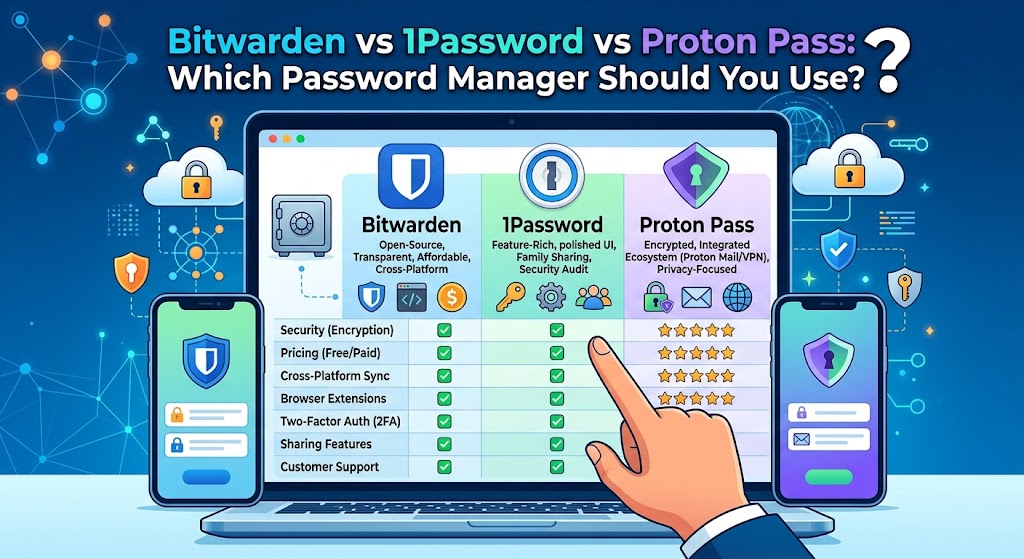
Pick any two of these password managers and a fan of each will tell you the other is a mistake. That’s because all three are good. Bitwarden, 1Password, and Proton Pass each encrypt your vault so the company can’t read it, each works across phones, browsers, and desktops, and each fills in logins without much fuss. What separates them is price, polish, philosophy, and a few features that matter a lot to some people and not at all to others.
This comparison covers what each one costs right now, how they handle security, where each is strongest, and who should pick which. Prices in this space have been moving, so the numbers below reflect what was published in 2026. Check the official pricing pages before you pay.
The short version
If you want the answer before the reasoning:
- Choose Bitwarden if you want the best value, a generous free plan, open-source code, or the option to host your own server.
- Choose 1Password if you want the most polished experience, strong family sharing, and good developer tools, and you don’t mind paying for it.
- Choose Proton Pass if you care about email privacy, already use Proton Mail or Proton VPN, or want a free plan that includes passkeys and some email aliases.
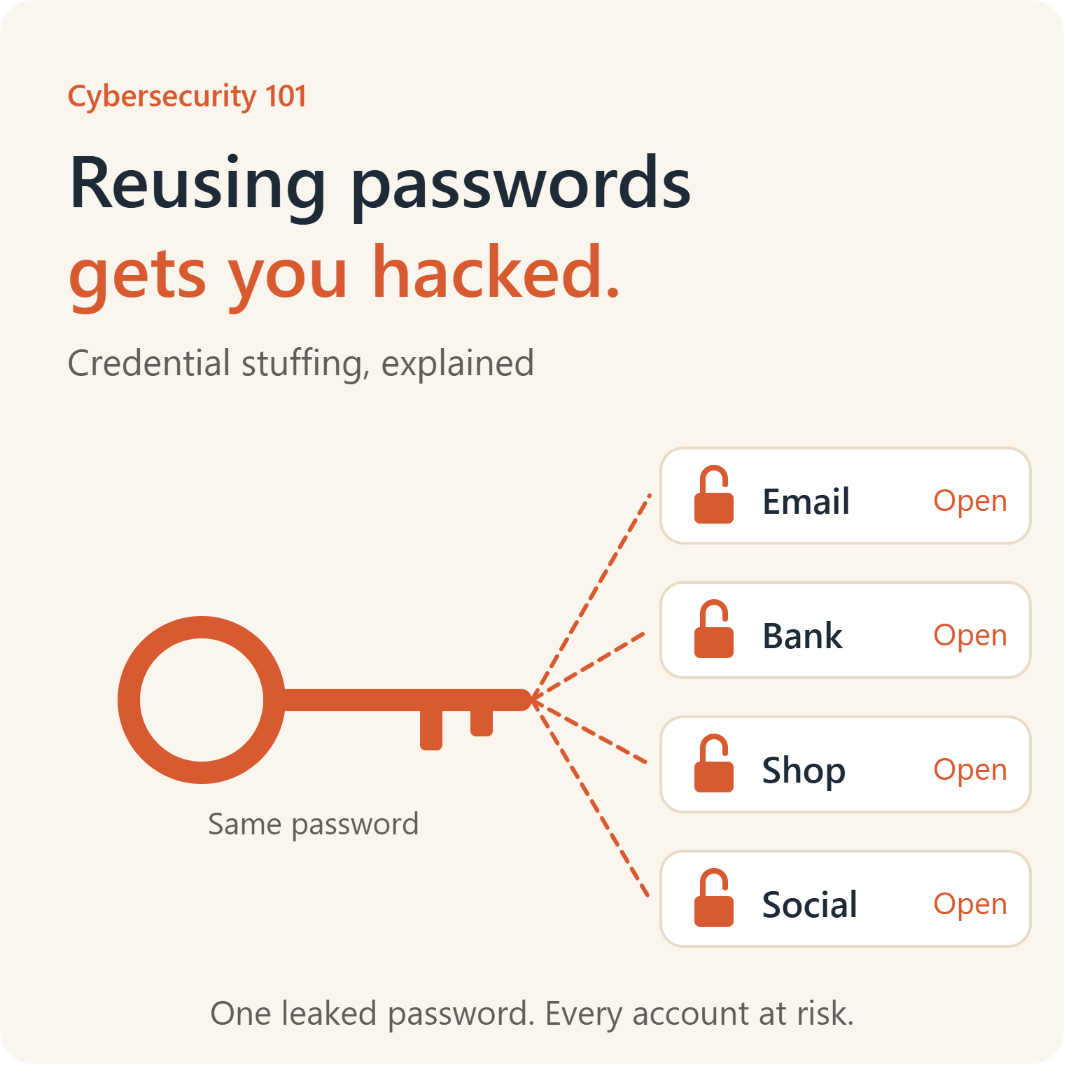
None of these is a bad choice. Any of them is far better than reusing the same password across your accounts or keeping logins in a notes app.
Quick comparison table
| Bitwarden | 1Password | Proton Pass | |
| Free plan | Yes, with unlimited devices | No (free trial only) | Yes, with unlimited logins and devices |
| Paid individual price | About $1.65/month | About $4.99/month at list price | About $2.49–$4.99/month depending on billing |
| Family plan | Up to 6 users | Up to 5 members | Up to 6 users |
| Open source | Yes | No | Yes |
| Self-hosting | Yes | No | No |
| Built-in 2FA codes | Paid plans | All plans | Paid plans |
| Email aliases | Via integration with third-party services | Via integration with third-party services | Built in (hide-my-email) |
| Best for | Value and transparency | Polish and ease of use | Privacy and the Proton ecosystem |
Prices are approximate and shift with promotions, billing period, and region.
What they cost in 2026
Pricing is the first thing most people look at, and it’s gotten more complicated this year, since two of the three companies raised their rates.
Bitwarden pricing
Bitwarden has a free plan, and its paid plans are the cheapest of the three. In early 2026 the company announced new pricing: Premium is $1.65 per month and Families is $3.99 per month for up to six users. That works out to $19.80 a year for Premium and $47.88 a year for Families, up from $10 and $40 previously. The company tied the increase to added security features, and existing subscribers were offered a one-time 25% loyalty discount on their first renewal at the new rate.
Even after the increase, Bitwarden is still the least expensive option here by a clear margin. A family of six pays less than a single 1Password subscription.
1Password pricing
1Password doesn’t have a free plan. It announced increases starting March 27, 2026: the individual plan went from $3.99 to $4.99 per month ($47.88 per year), and the family plan went from $6.95 to $7.99 per month ($71.88 per year). The company’s own pricing page has also shown promotional rates for new customers in the first year with annual billing, so what you pay on day one may be lower than the list price, and renewal will land at the regular rate. The Families plan covers up to five family members with unlimited shared vaults and admin controls.
Proton Pass pricing
Proton Pass sits in the middle, with a real free tier. The free plan includes unlimited logins, notes, and credit cards, unlimited devices, a password generator, 10 hide-my-email aliases, weak and reused password alerts, and passkeys. Paid plans add more. Reviewers have reported Pass Plus at figures ranging from around $2.49 a month to $4.99 a month before discounts ($59.88 annually), and the difference mostly comes down to monthly versus annual billing and current promotions. Pass Family, which launched in October 2024, supports up to six accounts, and it’s priced as six Plus accounts bundled together with an admin panel.
Proton Pass is also included in Proton Unlimited, which bundles Pass with Mail, Calendar, VPN, and Drive. If you’d use those other products anyway, that changes the math considerably.
What this means in practice
For a single person, the annual cost gap between Bitwarden and the others is roughly $20 to $30 a year. For a household, it can be $25 to $45. That’s not life-changing money, but it’s not nothing either. If price is your top concern, Bitwarden wins. If you’d happily pay a bit more for a smoother experience, the gap narrows into a question of taste.
Security and encryption
All three use end-to-end encryption, and none of them can read what’s in your vault. If you’re choosing purely on whether your passwords are safe from the company itself, you can relax. The differences are in how each handles the details.
Bitwarden
Bitwarden’s biggest security argument is transparency. The code for its servers, apps, and browser extensions is open source, so anyone can inspect it, and the company publishes results from third-party security audits. Open source doesn’t automatically mean secure, but it does mean researchers can check the work rather than take the company’s word for it.
Your vault is encrypted with AES-256, and your master password is stretched through a key derivation function before it’s used. Bitwarden lets you adjust those settings, including switching to the stronger Argon2id option. Most people never touch this, but it’s there if you want it.
The practical weakness is the same as every password manager: your master password. Pick a long, unique passphrase and turn on two-step login.
1Password
1Password takes a different approach to protecting your account. On top of your master password, it generates a Secret Key, a long random string stored on your devices. Both are needed to decrypt your vault. The result is that even a weak master password is much harder to attack, because someone who steals your encrypted data from the company’s servers still wouldn’t have the Secret Key.
The tradeoff is convenience. When you sign in on a new device, you need your Secret Key as well as your password, which means you need to keep it somewhere safe, like the Emergency Kit PDF that 1Password prompts you to print and store. People do lose these, and while 1Password can help you recover an account in some situations (especially in Families, where a family organizer can help), the design means the company can’t simply reset access to your data.
1Password’s code isn’t open source, but the company publishes a detailed security white paper and has third-party audits. You’re trusting the published design and the audits rather than inspecting the code yourself.
Proton Pass
Proton Pass is built by the company behind Proton Mail and Proton VPN, which is based in Switzerland and has made privacy its brand. Its apps are open source, and everything in the vault is end-to-end encrypted, including notes, passkeys, and attachments. Proton describes it as free, unlimited, and open-source, with end-to-end encryption.
Your Proton account login is what protects the vault, so securing that account properly matters a great deal. Turn on two-factor authentication, and save your recovery methods. If you use Proton Mail too, your whole Proton identity sits behind that one login, which is convenient and also a reason to make it strong.
Who has the edge?
On pure design, 1Password’s Secret Key gives it an extra layer that the others don’t have by default. On transparency, Bitwarden and Proton Pass both let outsiders see the code. For most users, any of the three is secure enough that the weak point will be how you manage your master password, not the software.
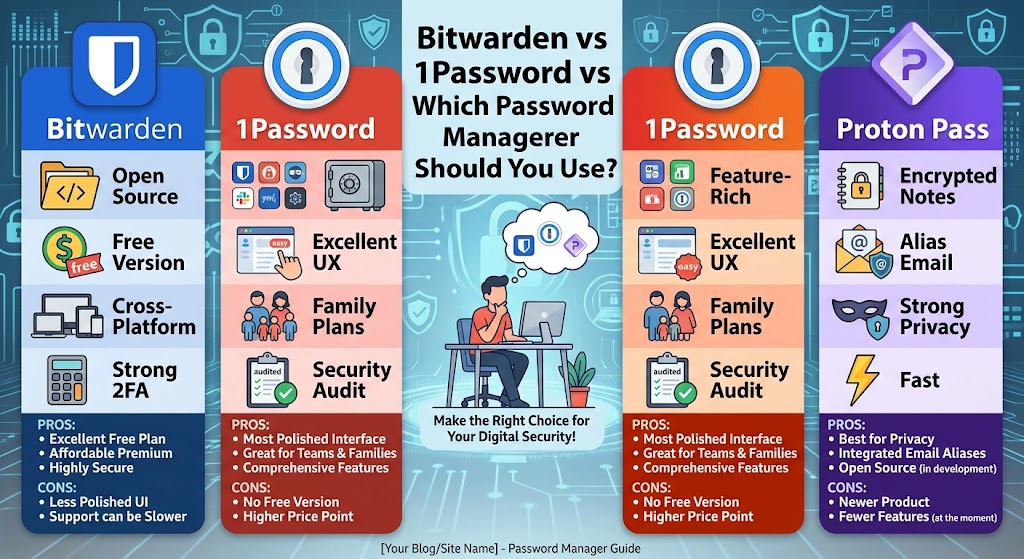
Features compared
Autofill and everyday use
This is where you’ll spend nearly all your time. 1Password has long had the reputation for the smoothest autofill and the cleanest interface. Its apps look and feel consistent across devices, saving and filling logins is quick, and it handles unusual login forms well.
Bitwarden’s autofill works and has improved, but its interface is plainer and a bit more utilitarian. One comparison site notes that Bitwarden’s extension works well but occasionally has autofill quirks on complex login forms. If you’re comfortable with software that favors function over looks, you may not mind. If you or your family members get frustrated easily, that matters.
Proton Pass sits closer to 1Password in feel. The interface is clean and modern, and it’s pleasant to use day to day. It’s a newer product, so some features are still being rolled out and a few platforms have fewer options than others.
Passkeys
All three support passkeys, the newer password-free login standard. You can store them, sync them across devices, and use them to sign in to supporting sites. Proton Pass includes passkeys on its free tier. Bitwarden supports them across its apps and has been expanding where they work, including passkey login to Windows 11. 1Password has been an early and vocal supporter of passkeys and handles them smoothly.
If passkeys matter to you, check that the specific apps and browsers you use are supported, as this area changes quickly.
Built-in two-factor codes
Many accounts ask for a six-digit code in addition to your password. All three can generate those codes inside the app, which is convenient since they autofill alongside your login. The catch is cost. 1Password includes this on every plan. On Bitwarden, the built-in authenticator requires Premium. Proton Pass also locks its integrated authenticator behind paid tiers.
A side note on security: storing your password and your 2FA codes in the same app is convenient but means one compromise gives access to both. Some security-minded people keep codes in a separate authenticator app. It’s a legitimate preference, so choose based on how much convenience you want versus how many eggs you want in one basket.
Email aliases
This is Proton Pass’s standout feature. When you sign up for a service, it can generate a throwaway email address that forwards to your real inbox, so the site never learns your actual address. If an alias starts receiving spam or turns up in a data breach, you switch it off without affecting anything else. The free plan includes 10 of these aliases, and the paid plans unlock more.
Bitwarden and 1Password can generate aliases too, but through integrations with outside forwarding services, which means you usually need a separate account. Proton Pass has it built in, and that’s a real advantage if you want to cut down on spam and tracking.
Sharing
If you share logins with a partner, family, or coworkers, sharing is important.
1Password’s family sharing is arguably the best of the three. You get shared vaults, easy permission controls, and a clean experience for getting everyone to the same set of streaming and utility logins. You can also share individual items with people who don’t use 1Password.
Bitwarden’s Families plan uses an organization structure with shared collections. It’s flexible and works well, but the setup is a little more technical. One setup guide describes it as built on the same organization structure Bitwarden uses for businesses, just scaled down, which is accurate and explains both the power and the slightly steeper learning curve.
Proton Pass offers vault sharing on paid plans, and lets you send items securely to people who don’t use the app. Its family tier adds an admin panel for the account owner. It does the job, though it’s a younger system than the other two.
Security monitoring
All three flag weak, reused, and compromised passwords. 1Password’s version is called Watchtower and is included with every account, as is the general alerting for compromised credentials. Bitwarden has vault health reports that Premium unlocks. Proton Pass has Pass Monitor, and Pass Plus and Family add dark web monitoring for your email address.
Bitwarden has also said it’s working on a phishing blocker that would identify and block malicious websites before they capture credentials, which is worth watching if it ships. 1Password has pointed to phishing protection among its recent additions as well.
Developer tools
If you write code, 1Password has a clear lead. It supports SSH key management, Git commit signing, and command-line tools and SDKs. Its pricing page lists SSH workflows, Git commit signing, and CLI and SDK access among included features. Bitwarden also has a command-line interface and a separate Secrets Manager product for teams. Proton Pass has been adding developer-oriented features too, though it’s less established here.
Self-hosting
Only Bitwarden lets you run your own server. That’s a niche need, but for people who want complete control over where their encrypted vault lives, it’s a major reason to choose it. Be aware that self-hosting means you handle updates, backups, and uptime. If you get that wrong, you can lock yourself out of your own passwords, so it’s best for people comfortable with server administration.
Ease of use
Ease of use depends on who’s using it, and it’s easy to overrate.
1Password is the one to pick if you’re setting this up for people who don’t love technology. The apps are clear, onboarding is guided, and common tasks are obvious. The Secret Key adds a small learning step, but the Emergency Kit makes it manageable.
Bitwarden takes slightly more effort. Nothing is difficult, but the interface assumes you know what a “collection” or “organization” is, and settings are spread across more places. Once configured, it runs fine. The free tier is generous enough that most people can learn it without paying.
Proton Pass feels the most modern of the three and is simple to start with. The main friction is that it’s newer, so you may occasionally find a missing option or a platform with a less complete app than others.
Platform support
All three offer apps for Windows, macOS, Linux, iOS, and Android, plus browser extensions for the major browsers. A few things to check:
- Linux users get good support from Bitwarden and 1Password. Proton Pass also has Linux apps.
- Browser coverage is wide for all three, but if you use a less common browser, confirm it’s supported before committing.
- Wearables and extras like Apple Watch support vary. 1Password supports watchOS, for example.
The best test is to install the extension and mobile app of whichever one you’re considering and try them on your most-used sites. Free plans and trials make that easy.
Free plans compared
Free tiers matter, because they let you try before you pay and may be all you ever need.
Bitwarden Free is one of the most capable free password managers available. You can store unlimited passwords across unlimited devices, and it covers the essentials. You lose built-in 2FA codes, emergency access, and some reporting, which are Premium features.
Proton Pass Free also includes unlimited logins, notes, and cards across unlimited devices, passkeys, and a handful of email aliases. Reviewers have called the free tier genuinely usable and perpetual, with no credit card required.
1Password has no permanent free plan, so you’re paying from the start after a trial. If budget is tight, that rules it out.
For someone who just wants a safe place to keep passwords and doesn’t need extras, Bitwarden Free or Proton Pass Free is enough.
Family plans compared
Families have different needs, so it’s worth a separate look.
| Bitwarden Families | 1Password Families | Proton Pass Family | |
| Users included | Up to 6 | Up to 5 | Up to 6 |
| Approx. annual cost | About $47.88 | About $71.88 (list) | Varies by promotion; roughly $50–$85 per reported pricing |
| Shared vaults | Yes, via collections | Yes, unlimited | Yes |
| Admin controls | Yes | Yes | Yes |
| Best for | Large households on a budget | Households wanting simplicity | Privacy-focused families |
If you’re choosing for a household that includes teenagers or grandparents, the question to ask is who will actually use it. A cheaper plan that half the family refuses to open is worse than a pricier one everyone uses. 1Password’s polish helps with adoption, while Bitwarden’s low price helps with budget. Proton Pass makes sense if your family is already in the Proton ecosystem.
Who should choose each one
Choose Bitwarden if…
- Price is a deciding factor, or you want a strong free plan.
- You like open-source software and want to see the code.
- You might want to self-host.
- You’re comfortable with a slightly more utilitarian interface.
- You have a large family and want six seats for a low price.
Choose 1Password if…
- You want the best overall polish and ease of use.
- You’re setting this up for less technical family members.
- You work in software and want SSH, Git, and command-line integrations.
- You value the Secret Key as an extra layer of protection.
- You don’t mind paying more and you don’t need a free plan.
Choose Proton Pass if…
- You care about reducing spam and hiding your real email address.
- You already use or plan to use Proton Mail, Drive, or VPN.
- You want a free plan with passkeys and aliases.
- You like Proton’s privacy-focused approach and Swiss base.
- You don’t mind using a younger product that’s still adding features.
Switching between them
You aren’t locked in. All three import from other password managers and browsers, and all three can export your data. That means you can try one, and if it doesn’t suit you, move to another.
The general process looks like this:
- Export your vault from the old manager as a file (often CSV or a format specific to that app).
- Import the file into the new manager.
- Check that logins, notes, and cards came across, since some data like attachments or custom fields may not transfer perfectly.
- Delete the export file securely. It contains your passwords in plain text, so don’t leave it in your downloads folder.
- Keep the old vault for a week or two before deleting it, in case something went missing.
One comparison site confirms that you can export a 1Password file and import it directly into Bitwarden, and similar import paths exist for Proton Pass. Because switching is possible, the decision doesn’t have to be permanent.
Mistakes to avoid whichever one you pick
Choosing the manager is the easy part. These are the habits that actually decide whether you’re protected:
A weak master password. Use a long passphrase made of several unrelated words, and don’t reuse it anywhere else.
Skipping two-factor authentication. Turn it on for your password manager account first, before anything else. Use an authenticator app or a hardware security key rather than text messages where you can.
Losing recovery information. Each product has a different recovery model. With 1Password, save your Emergency Kit. With Proton, save your recovery phrase or file. With Bitwarden, understand that the company generally can’t recover a forgotten master password, so consider setting up emergency access if you’re on a plan that offers it.
Not cleaning up old passwords. After importing, use the weak and reused password reports to fix the worst offenders, starting with email, banking, and anything tied to money.
Autofilling on unfamiliar sites. If your manager doesn’t offer to fill a login on a site you know you’ve saved, stop. It might be a lookalike phishing page.
Keeping the only copy of recovery details on the same device. If your phone is lost or broken, you’ll need those details elsewhere.
Frequently asked questions
Is Bitwarden safer than 1Password?
Neither is clearly safer. Bitwarden is open source, which lets outsiders inspect the code. 1Password adds a Secret Key that makes stolen vault data harder to crack. Both are well regarded, and your own habits, like master password strength and two-factor authentication, matter more than the difference between them.
Is Proton Pass as good as Bitwarden and 1Password?
For core password management, yes. It’s newer, so it has fewer advanced features and some platforms are less mature, but it covers the essentials well, and its built-in email aliases are a real strength.
Which password manager is best for families?
It depends on priorities. 1Password offers the smoothest sharing experience, Bitwarden offers the lowest price for up to six people, and Proton Pass suits families who want privacy features and already use Proton services.
Which is the cheapest?
Bitwarden. Both its individual and family plans cost less than the others at list price, and its free plan is excellent.
Do I need a paid plan at all?
Not necessarily. Bitwarden Free and Proton Pass Free both cover the basics. Paid plans make sense if you want built-in 2FA codes, advanced reporting, sharing, emergency access, or family features.
Can I use a password manager built into my browser or phone instead?
You can, and it’s much better than reusing passwords. Dedicated managers generally offer better sharing, cross-browser support, security reporting, and control over your data, and they work across different platforms, which matters if you use, say, an iPhone with a Windows PC.
What happens if I forget my master password?
It depends on the service. Because the companies can’t read your vault, they often can’t simply reset it. Set up whichever recovery option your manager provides, and store it somewhere safe and separate.
Is it risky to put all my passwords in one place?
It concentrates the risk, but it also lets you use a different strong password on every account, which removes the much bigger danger of password reuse. With a strong master password and two-factor authentication, a reputable manager is considerably safer than the alternatives.
Conclusion
If you’re still undecided, here’s a simple way to settle it. Start by choosing Bitwarden Free or Proton Pass Free and use it for two weeks. If it clicks, you may never need to pay. If the interface frustrates you or your family, trial 1Password and see whether the polish is worth the extra cost to you.
Bitwarden gives you the most for the least money and the most freedom to tinker. 1Password gives you the smoothest experience and the best tools for families and developers. Proton Pass gives you a privacy-first approach, a strong free tier, and email aliases that the others can’t match out of the box.
The most important decision isn’t which of the three you pick. It’s that you pick one, set a strong master password, turn on two-factor authentication, and start moving your accounts over, beginning with your email and your bank. Do that, and you’ll be safer than most people online, whichever logo is on the app.