Your router is the front door to everything you own that connects to the internet: phones, laptops, smart TVs, cameras, the baby monitor, the thermostat. It’s also the device most people set up once, years ago, and never touch again.
That’s a problem, because routers get attacked. Criminals scan the internet for weak ones, and nobody has to be targeting you personally for yours to be on the list. The good news is that most of the protection you need comes from a handful of settings, and you can change all of them in about ten minutes. You don’t need technical skills, special software, or a new router.
This guide walks through the changes in the order that gives you the biggest security gain per minute. Then it covers how to tell when a router is too old to protect, how to spot signs of a compromise, and what to do if you find one.
Why your router deserves ten minutes of your attention
Antivirus software protects your computer and phone. It doesn’t protect your router, because the router runs its own small operating system, called firmware, and security apps don’t scan it. That makes router infections hard for ordinary users to notice. A compromised router can keep working normally while quietly doing someone else’s bidding.
The FBI has been blunt about this. In a May 2025 alert, it warned that criminals were exploiting end-of-life routers to install malware and build botnets, then selling access to those hijacked devices as proxy services. A proxy service means other criminals route their own traffic through your internet connection, so their attacks and fraud look like they came from your home. The bureau said the malware spreads to internet-connected devices that have remote administration turned on, which is a setting you’ll check in step 5. Coverage in 2026 still treats that warning as very much relevant.
That’s the dramatic end of the risk. The everyday end is simpler. A router with the factory admin password, outdated firmware, or a weak Wi-Fi password lets neighbors, guests, and opportunistic strangers onto your network. From there, the realistic worries include snooping on unencrypted traffic, tampering with your settings so your web traffic gets redirected, and attacking the less-protected gadgets in your home.
You also don’t have to be paranoid to benefit. These steps match the baseline recommended by government agencies like the NSA and CISA, who agree on the core list: keep firmware updated, use modern encryption, and separate your guests and smart devices from your main network. We’ll use that as our spine.
What you need before you start
Gather these first and the whole job goes faster:
- A device on your home network. A laptop or phone connected to your Wi-Fi works. A laptop plugged in with an Ethernet cable is even better, since changing Wi-Fi settings can briefly disconnect you.
- Your router’s login details. Many routers print the default admin address and password on a sticker on the bottom or back. If you changed it long ago and forgot, you’ll need to reset the router (more on that below).
- A password manager or notebook. You’ll create a few new passwords and you need somewhere safe to keep them.
- Your router’s model name. It’s on the same sticker. You’ll use it if you need to look up update instructions.
If your internet provider supplied your router, the settings may be limited, or the provider may manage some of them for you. The steps below still apply for most of it. We cover provider-supplied routers further down.
Minute 1: Log in to your router
Open a web browser and type your router’s address into the address bar. The most common ones are 192.168.1.1, 192.168.0.1, and 10.0.0.1. The correct one is usually printed on the router’s sticker. Many newer routers, especially mesh systems, skip the browser entirely and are managed through a phone app. If that’s you, open the app and look for a settings or advanced section.
Enter the admin username and password. If you’ve never changed them, they’re the defaults from the sticker. Yes, that’s exactly the problem we’re about to fix.
If a browser warning appears about the connection not being private, that’s normal on many home routers, which use a self-signed certificate. Only proceed if you typed your own router’s local address and you’re on your own network.
Minute 2: Change the router admin password
This is the single most important step, and it’s the one people skip most often.
There are two different passwords on your router, and they do different jobs. The Wi-Fi password is what lets devices join your network. The admin password is what lets someone change your router’s settings. If an attacker or a curious guest gets the admin password, they can alter your DNS, open ports, turn off protections, and lock you out. Default admin passwords are published online for nearly every router model.
Find the section labeled something like Administration, System, Router Password, or Account. Then:
- Change the admin username too, if the router lets you. “admin” is the first guess for anyone trying.
- Create a long, unique password. A random string from a password manager is ideal. If you’d rather type it by hand, a passphrase of four or five unrelated words works well and is easy to remember.
- Make it different from your Wi-Fi password and from every other password you use.
- Save it in your password manager or write it down and store it somewhere private, not on a sticky note attached to the router.
If the router asks you to set security questions, treat the answers like passwords. Don’t use real, guessable facts about yourself.
Minutes 3 and 4: Update the firmware and turn on auto-updates
Firmware updates fix security holes that attackers already know about. Running outdated firmware is one of the most common ways routers get taken over, and it’s the reason the FBI’s warning focuses on devices that no longer receive updates.
Look for a section called Firmware Update, Router Update, Software Update, or Maintenance. Many routers have a Check for Updates button. Click it. If a new version is available, install it and let the router restart. Don’t unplug it while it updates, and expect a few minutes of downtime. Your connection will drop and come back.
While you’re there, turn on automatic updates if the option exists. Government guidance consistently recommends automatic updates where possible. The NSA’s home network guidance, for example, points to automatic updates for your router, since the router is the gateway into everything else on your network. If your router doesn’t offer them, put a repeating reminder on your calendar to check once a month. Setting it takes 30 seconds, and it’s the habit that matters most over the long run.
Two things to watch for:
- No update option, or no updates for years. If the manufacturer’s support page shows your model hasn’t had a firmware release in a long time, or lists it as end-of-life, skip ahead to the section on replacing an aging router. No setting will fully protect a router that’s no longer patched.
- Updates via the app. Mesh systems from major brands usually handle this automatically or through their app. Open it and confirm the status says everything is current.
Minute 5: Lock down your Wi-Fi name, password, and encryption
Now for the part everyone thinks of first. Find the Wireless or Wi-Fi settings.
Check the encryption type
This setting decides whether the traffic between your devices and your router is scrambled, and who can join. You want WPA3 if your router and devices support it. CISA’s guidance for home users says to make sure your router uses WPA3 Personal or WPA2 with AES encryption. The NSA gives the same advice and adds that if some devices on your network can’t use WPA3, you can choose the mixed WPA2/3 option instead.
In practice:
- Choose WPA3-Personal if every device you own supports it.
- Choose WPA2/WPA3 mixed (transition) mode if you have older gadgets that connect only with WPA2. Most homes will land here.
- Choose WPA2-Personal with AES if that’s the best your router offers.
- Never use WEP, WPA (the original), or TKIP, and never leave the network open with no password. These are broken or unprotected, and anyone nearby can get in or read your traffic.
Create a strong Wi-Fi password
Use at least 16 characters. A passphrase of several random words with a few digits or symbols is easy to type on a TV remote and hard to guess. Avoid street names, phone numbers, pet names, or anything from your social media. And don’t reuse your admin password.
Rename your network sensibly
Your network name, or SSID, is broadcast publicly. Don’t put your family name, apartment number, or address in it. Something neutral works fine. It’s also smart to avoid names that reveal the router brand or model, since that tells an attacker which known flaws to try.
You may have seen advice to “hide” your network name. Skip that one. Hiding the SSID doesn’t stop anyone with basic tools from finding the network, and it can make devices connect less reliably. The same goes for filtering by device address (MAC filtering), which takes effort to maintain and is easy to get around.
Minute 6: Turn off the risky features you don’t use
Routers ship with convenience features that can quietly widen your exposure. Check these three, which are usually under Advanced, Administration, or Security.
Remote management (also called remote administration or remote access). This lets you log in to your router from outside your home. For most people it’s unnecessary, and it’s exactly what the FBI named as the route that lets malware reach vulnerable routers. The bureau advises users to prevent infection by disabling remote administration and rebooting the router. Turn it off. If you ever need remote access, use a reputable VPN to your home network rather than exposing the login page to the internet.
WPS (Wi-Fi Protected Setup). This feature lets devices join using a button or a short PIN instead of your password. The PIN method has well-known weaknesses and has long been a way into home networks. Turn it off. Joining a device with your normal Wi-Fi password only takes a few seconds longer.
UPnP (Universal Plug and Play). UPnP lets devices on your network automatically open ports on your router, which is convenient for some games and apps and risky if a compromised device starts opening doors you didn’t approve. CISA’s guidance notes that you may need UPnP to initially add a device, but should disable it afterward. Turn it off, and only switch it back on if a specific app or console genuinely stops working. If that happens, you can turn it on, test it, and decide.
While you’re in the Advanced menu, make sure the router’s built-in firewall is enabled. It usually is by default, but it’s worth confirming.
Minutes 7 and 8: Set up a guest network, and move your smart devices onto it
This step takes about two minutes and protects you from a surprising number of problems.
A guest network is a separate Wi-Fi network on the same router. Devices on it can reach the internet but are kept apart from the devices on your main network. Look for Guest Network or Guest Wi-Fi in the wireless settings, switch it on, give it its own name and its own strong password, and make sure any option labeled “allow guests to access local network” or “intranet access” is off.
Then use it for two groups:
- Visitors. Friends and relatives get the guest password, never your main one. CISA recommends that anyone who doesn’t routinely connect to your home Wi-Fi use the guest network.
- Smart home and IoT devices. Smart plugs, cameras, speakers, TVs, and appliances are often the weakest links, because they rarely get security updates and some have poor built-in protection. CISA advises connecting these devices to the guest network if internet access is the only thing they require, which stops them from finding your other devices or reaching your router settings. The NSA goes a step further for people who want it, recommending that you split your home network into primary, guest, and IoT segments.
A few devices won’t work from a guest network, usually because they need to talk to your phone or computer on the same local network. Casting to a TV, some printers, and certain smart-home hubs are the common ones. If something stops working, move just that device back to the main network and leave everything else where it is.
Moving a device means forgetting the old network on it and joining the new one, so budget a minute or two for each gadget. You don’t have to move them all today. Start with cameras and anything you’d least want an attacker poking at.
Minutes 9 and 10: Check your DNS and look at who’s connected
You’re nearly done. Two quick checks finish the job.
Look at your DNS settings
DNS is the internet’s address book, translating site names into addresses. One trick attackers use after taking over a router is to change its DNS settings so your traffic gets sent through servers they control, which can lead you to fake versions of real sites. Find the DNS or Internet settings and check which servers are listed. If they’re set to automatic or to your internet provider’s servers, that’s normal. If you see unfamiliar numbers you never entered, treat that as a warning sign and read the section on signs of a compromise below.
Optionally, you can choose a DNS provider that blocks known malicious sites. Public services from providers such as Cloudflare and Quad9 offer security-focused options. This is an extra layer, not a requirement, and your provider’s DNS is fine for most households.
Review the connected-devices list
Most routers show a list of everything currently connected, sometimes under Attached Devices, Client List, or Device List. Go through it and match each name to something you own. Unfamiliar names aren’t automatically a threat, since many gadgets show up with cryptic labels, but anything you can’t account for is worth investigating. Disconnect the devices you recognize one at a time and see what disappears, or check the device’s own settings.
If you find something you truly can’t identify, change your Wi-Fi password, make sure the admin password is the new one, and reconnect only your own devices.
Your ten-minute recap
- Minute 1: Log in to the router.
- Minute 2: Change the admin username and password.
- Minutes 3-4: Update the firmware and enable auto-updates.
- Minute 5: Set WPA3 or WPA2/3, a strong Wi-Fi password, and a neutral network name.
- Minute 6: Turn off remote management, WPS, and UPnP.
- Minutes 7-8: Create a guest network and move visitors and smart devices onto it.
- Minutes 9-10: Check DNS and review connected devices.
After the ten minutes: keep it secure with almost no effort
Security isn’t a one-time job, but upkeep is light.
- Check for updates monthly if your router doesn’t update itself. Set a recurring calendar reminder.
- Reboot occasionally. The FBI recommends rebooting as a protective step, since a restart can clear some types of malware that live only in memory. Doing it every few weeks costs you almost nothing.
- Re-check your settings after any update or reset. Updates occasionally switch features like UPnP back on.
- Review connected devices every few months. It takes a minute and catches surprises early.
- Keep your other devices updated too. The router is the gate, but phones, laptops, and smart gadgets need patches as well.
- Change your Wi-Fi password if you’ve shared it widely, like after a party, a rental, or contractors working in your home.
When to replace your router instead of securing it
Settings can’t fix a router that no longer gets security updates. Once a manufacturer declares a model end-of-life, any new flaw discovered in it stays open forever. That’s the exact situation behind the FBI’s alerts. The bureau said routers dated 2010 or earlier likely no longer receive manufacturer updates and could be compromised by attackers using known vulnerabilities. It also named a group of specific older models as targets, including some Linksys and Cisco units, and said the malware involved doesn’t need a password to infect a router, because it works by scanning for open ports.
How do you know whether your router is at that point? Check these:
- Look up your model on the manufacturer’s support page. It usually says whether the product is supported or end-of-life, and shows the date of the most recent firmware.
- Notice your firmware history. If the last update was many years ago and the update check finds nothing, take that seriously.
- Think about age. Manufacturers support routers for different lengths of time, so age alone doesn’t settle it. But a router that’s well past its fifth or sixth birthday deserves a closer look, and anything from around 2010 or earlier should be replaced.
- Check whether it supports modern encryption. If it can’t do WPA2 with AES at a minimum, it’s time.
If you do need a new one, look for a model from a manufacturer with a clear, published policy on how long it will provide security updates, automatic update support, WPA3, and a guest network feature. Newer routers that support current Wi-Fi standards generally cover these basics. Your internet provider may also swap an old rented router for free, so ask before buying.
Signs your router may already be compromised
Router attacks are quiet, but they sometimes leave clues. Watch for:
- Your internet suddenly gets slow or unstable with no clear reason.
- Websites redirect to pages you didn’t ask for or show unexpected pop-ups, or your browser warns about certificate problems on sites that were fine yesterday.
- The router’s DNS settings have changed to numbers you didn’t enter.
- Your admin password no longer works, or settings you didn’t change look different.
- Remote management is switched on and you didn’t do it.
- You see unfamiliar devices on the connected-devices list.
- Your internet provider contacts you about unusual traffic from your connection.
Any one of these has innocent explanations, so don’t panic. But if you see several, or a clear red flag like changed DNS settings or a locked-out admin account, act.
What to do if you suspect a compromise
- Disconnect the router from the internet by unplugging the cable that runs to your modem or wall.
- Factory reset it. Most routers have a small recessed button you hold down for around ten seconds with a paperclip. This wipes all your settings, which also wipes any changes the attacker made. Check your model’s instructions first, because the method varies.
- Update the firmware before anything else, then repeat the ten-minute checklist from the top, with a brand-new admin password and Wi-Fi password.
- Change important passwords from a clean device, starting with email, banking, and anything tied to money, in case someone saw your traffic.
- Contact your internet provider if the router is theirs or if you think the problem started upstream.
- Replace the router if it’s end-of-life. A reset won’t make an unpatched device safe, because the same flaws that let attackers in are still there.
Special cases: provider routers, mesh systems, and work-from-home setups
Provider-supplied routers. Many internet providers manage the firmware remotely and push updates automatically, which is helpful. But they sometimes restrict the settings you can change or hide the admin page behind an app. Do what you can: change the default Wi-Fi and admin passwords, check the encryption type, and turn off remote access if you can see it. If you can’t reach key settings, call the provider and ask. If the equipment is old, ask for a newer one. You can also run your own router behind theirs, but that’s a bigger project than a ten-minute fix.
Mesh Wi-Fi systems. These are mostly managed through an app, and many handle updates and guest networks cleanly. Open the app, confirm automatic updates are on, check the encryption options if they’re exposed, and set up the guest network. The principles are the same.
Working from home. If you handle work files, your home network is effectively an extension of your employer’s. The NSA’s guidance specifically warns that, with so many people working remotely, a home network can be used as an access point by nation-state actors and cybercriminals. Keep work laptops on your main network and off the guest network, follow any rules your IT team provides, and consider a separate network for the smart gadgets. It’s the same checklist, just with more at stake.
Common router security myths
“Hiding my network name makes me invisible.” It doesn’t. Anyone with basic tools can still see it.
“I have antivirus, so my router is covered.” Antivirus protects the device it runs on. It doesn’t scan your router’s firmware.
“I’m not interesting enough to be hacked.” Most router attacks are automated and opportunistic. Criminals want your connection and your devices, not information about you personally.
“A VPN fixes router security.” A VPN encrypts your traffic and hides it from your internet provider, which is useful. It doesn’t patch a vulnerable router or stop someone from changing your router’s settings.
“Changing my Wi-Fi password kicks out any hacker.” Only if they got in through your Wi-Fi. If they have your admin login or exploit a flaw in the firmware, a new Wi-Fi password won’t remove them.
“The router works fine, so it’s fine.” A router can run smoothly while infected. Working isn’t the same as secure.
Frequently asked questions
How long does it take to secure a home router?
For most people, about ten minutes if you already have the login details. Plan on extra time for reconnecting smart devices to a guest network and for firmware updates, which can take a few minutes on their own.
Do I need WPA3?
It’s the best option when your devices support it. If you have older gadgets, WPA2/WPA3 mixed mode or WPA2 with AES is a solid choice. Avoid WEP, original WPA, and TKIP.
Should I hide my Wi-Fi network name?
No. It adds little real protection and can cause connection headaches.
Is it safe to log in to my router from outside my home?
It’s safer not to. Turn off remote management, and if you need access while traveling, use a trustworthy VPN to reach your home network instead.
How often should I update my router’s firmware?
Turn on automatic updates if you can. If you can’t, check once a month.
What if I forgot my router’s admin password?
You can reset the router to factory settings using the reset button, then set it up again with new credentials. Note that this erases all your custom settings, including your Wi-Fi name and password, so every device will need to reconnect.
Should I use my internet provider’s router or buy my own?
Either can be secure. A provider’s router often gets updates automatically, while your own gives you more control. What matters most is that it receives security updates and that you’ve changed the default passwords.
How do I know if my router is end-of-life?
Look up the exact model on the manufacturer’s support site, which typically states its support status and firmware history. If it hasn’t had an update in years, assume the worst and plan to replace it.
Conclusion
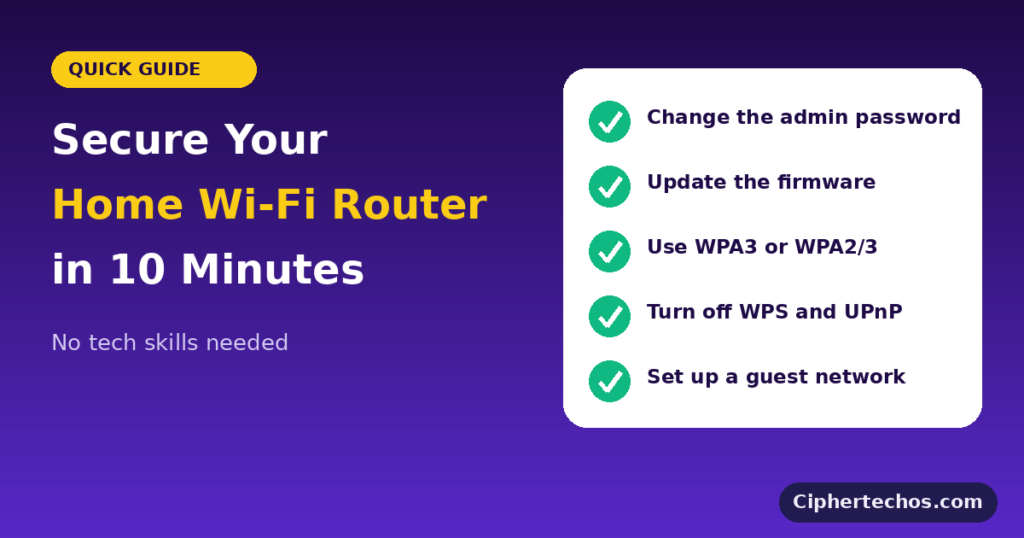
You don’t need to understand networking to protect your home Wi-Fi. You need to change a few defaults and keep the router updated. Do the ten-minute checklist: a strong admin password, current firmware with automatic updates, WPA3 or WPA2/3 encryption with a long Wi-Fi password, remote management, WPS and UPnP turned off, a guest network for visitors and smart devices, and a quick look at DNS and connected devices.
Then put one reminder in your calendar to check for updates monthly. That small habit is what separates a router that was secure on the day you set it up from one that stays secure.
If your router is old enough that the manufacturer has stopped supporting it, the best fix is a replacement. Every setting in this guide helps, but nothing substitutes for a device that still gets security patches. Set aside ten minutes this weekend, and you’ll be a far harder target than most of the homes on your street.