What actually keeps you safe in 2026
Last month my cousin called me in a panic. His laptop had been “acting weird,” and he was sure he’d been hacked. His first line of defense? “But I have antivirus. It’s been running for years.”
I asked him when he last opened it. Long pause. “…Is it the little shield thing in the corner?”
That’s the state of antivirus for most of us. We install it, see a green checkmark, and never think about it again. The shield sits in the corner of the screen like a smoke detector we’ve stopped hearing. Maybe it’s working. Maybe the battery died two years ago. We have no idea.
So let’s ask the question honestly. In 2026, is that little shield doing anything, or is it a very expensive security blanket?
I’ll tell you up front that the answer isn’t “antivirus is dead” and it isn’t “you’re fully protected.” It’s somewhere in the middle, and understanding where can save you money, time, and a lot of false confidence.
The short answer
Yes, your antivirus does something. But probably not what you think, and probably not as much as its marketing suggests.
It’s good at a specific set of jobs: stopping known malicious files, catching some suspicious behavior, and cleaning up messes. Those jobs still matter. But the ways people actually get hurt online have shifted, and a lot of the damage now happens in places antivirus can’t see or can’t stop.
If you take one idea from this article, let it be this: antivirus protects your device. Most modern attacks target you.
First, what antivirus actually does
It helps to know what’s happening under the hood, because it explains both the strengths and the blind spots.
Signature scanning: the old-school approach
The original idea was simple. Security researchers find a piece of malware, extract a unique fingerprint (a “signature”), and add it to a database. Your antivirus compares files on your computer against that database. If there’s a match, the file gets blocked or quarantined.
It’s like a bouncer with a stack of mugshots. If your face is in the stack, you’re not getting in. If you’re a brand-new troublemaker nobody has photographed yet, you walk right past.
That’s the weakness. Attackers can change a file slightly, and suddenly the fingerprint no longer matches. Today’s malware authors often generate thousands of slightly different versions automatically, specifically to dodge signature checks.
Heuristics and behavior monitoring
To deal with that, security products added smarter methods. Heuristic analysis looks at what a file looks like and how it’s built, asking “does this resemble known malware, even if I haven’t seen this exact copy?” Behavior monitoring watches what programs actually do once they run. If a random program starts encrypting your documents, disabling your security settings, or quietly talking to a server in another country, that’s a red flag no matter what the file is called.
This is where modern antivirus earns much of its keep. Ransomware, for instance, has a recognizable behavior: it rapidly locks up lots of files. Good security software can notice that pattern and shut it down, sometimes even restoring the affected files.
Cloud lookups and machine learning
Most current products also send suspicious files or fingerprints to cloud systems for quick analysis and use machine learning models to judge whether something is likely malicious. That means your protection can update in minutes instead of waiting for a daily download.
It’s clever stuff. But notice what all of these methods have in common: they’re looking for bad software. They’re all designed to answer the question “is this file or program dangerous?”
And that’s exactly the problem, because a growing share of attacks don’t need any bad software at all.
The threats changed. Antivirus mostly didn’t.
Ask yourself how people you know have actually gotten burned in the past few years. Chances are it wasn’t a classic virus. It was something like this.
Phishing: the attack with no file to scan
You get a text that says your package couldn’t be delivered, or an email saying your account will be suspended in 24 hours. You click, land on a page that looks exactly like your bank or your email provider, and type your password. Done.
Nothing was downloaded. No malicious program ran on your machine. The attacker now simply has your login. Your antivirus has nothing to flag, because from the computer’s point of view, you just visited a website and typed some text.
Some security suites do include anti-phishing features that block known fake sites, and they can help. But phishing sites are created and abandoned in hours. Attackers are constantly ahead of blocklists, and the page only needs to survive long enough to fool a few people.
Stolen and reused passwords
Here’s an uncomfortable truth: a huge number of account takeovers don’t involve “hacking” in the movie sense. Your email and password leaked from some forgotten website’s data breach three years ago. You used the same password on a few other accounts. An attacker ran those credentials against popular services, and one of them worked.
No malware. No exploit. Just a key that fit a lock. Antivirus can’t protect you from a password you already gave away, or one somebody else’s company lost.
Info stealers and session theft
Now here’s a category where antivirus should help, and sometimes does. Info stealers are a type of malware that quietly grabs saved passwords, browser cookies, and sometimes crypto wallet data from an infected machine, then ships it off to criminals.
The cookie part is especially nasty. A session cookie is what keeps you logged in to a site. If a criminal steals it, they may be able to walk into your account without your password and sometimes without triggering your two-factor prompt. These tools are often spread through fake software downloads, pirated programs, malicious ads, and cracked games.
So yes, this is a real case where good antivirus is worth having. But it’s also a good example of why the human side matters: most victims ran the infected file themselves, believing it was something else.
AI-powered scams
This is the big shift of the last couple of years. Generative AI has made social engineering cheaper, faster, and more convincing.
- Better phishing emails. The awkward grammar that used to give scams away is disappearing. Attackers can produce fluent, well-formatted, personalized messages in any language.
- Voice cloning. A few seconds of someone’s voice from a social media video can be enough to imitate them. The “family emergency” phone call, where a relative sounds panicked and needs money now, is far more believable when it sounds like them.
- Deep fake video calls. Fake video of a company executive or a colleague has been used to pressure employees into sending payments.
- Scale. What once took a skilled criminal hours now takes minutes, and it can be done thousands of times in parallel.
None of this involves a malicious file. The weapon is persuasion, and there’s no signature for persuasion.
Malicious browser extensions and fake apps
Browser extensions can read what you type and see what pages you visit. Most are harmless. Some are not, and some start harmless and turn malicious after an update or a change of ownership. The same goes for mobile apps: lookalike apps, flashlight apps that want your contacts, “free” tools that are really data collectors.
You install these yourself, from what looks like an official store. Antivirus may catch the worst known offenders, but it’s playing catch-up.
Your phone is where your life lives
Think about what’s on your phone: your email, banking apps, photos, authentication codes, private conversations, location history. Yet “antivirus” on phones works very differently from antivirus on laptops.
Phone operating systems isolate apps from each other in ways traditional desktop systems historically didn’t. That limits what a security app can even see. Mobile “antivirus” apps often end up being a bundle of web filtering, app reputation checks, and privacy tools rather than a classic malware scanner. Some are genuinely useful. Some are mostly marketing, and a few are questionable themselves.
Attacks on the software supply chain
Sometimes the danger arrives through something you trusted. A legitimate app gets compromised, or a popular update gets tampered with. Because the software is signed and from a known source, it can sail past basic checks. This is more of a concern for businesses, but it’s a reminder that “it came from a trusted place” isn’t a perfect guarantee.
The pattern
Put it all together and the trend is clear. Attackers go where the defenses are weakest, and increasingly that’s the person sitting at the keyboard. It’s easier to trick someone into handing over a password than to break through modern operating system defenses.
Antivirus is built to defend a computer. It cannot defend you against being convinced.
What your antivirus is actually good at
Let’s be fair, because this is not an “antivirus is useless” article. It’s an “antivirus is one tool, not the whole toolbox” article.
Catching known malware before it runs
Plenty of malware out there is still old, common, or recycled, and security software catches a lot of it. Sketchy downloads, infected USB drives, booby-trapped email attachments, and malicious installers are all things a decent product can stop.
Spotting bad behavior
As mentioned, behavior monitoring is the modern value-add. If something starts acting like ransomware, tampering with system settings, or stealing data, the software can intervene even if it’s never seen that specific program.
Warning you about dangerous websites
Web protection can block known phishing pages, scam sites, and pages hosting malware. Your browser does much of this already, but an extra layer doesn’t hurt, especially if you use multiple browsers.
Cleaning up after an infection
If something does get through, a good security tool can often remove it, repair the damage, and help you figure out what happened. For less technical users, that’s a real benefit.
Protecting against the “oops” moment
Everyone makes mistakes. You click the wrong link, open the wrong attachment, plug in a mystery drive. Antivirus is a safety net for exactly those moments. It doesn’t need to be perfect to be worth something.
All of that applies most strongly to Windows, which is still the most heavily targeted desktop platform, simply because of how many people use it.
The uncomfortable part: you probably already have solid protection for free
This is the piece many people don’t realize, and it’s the heart of the “is it actually doing anything?” question.
Windows
Windows comes with Microsoft Defender Antivirus built in and turned on by default. It’s been a serious product for years, and in independent lab evaluations it has generally scored well for everyday protection. It updates automatically through Windows Update, works in the background, and doesn’t pester you with sales pitches.
If you install a third-party antivirus, Windows typically steps aside and lets the other product take over. If you uninstall it, Defender usually turns itself back on. (That’s worth checking if you’ve ever removed an old trial.)
macOS
Macs have several layers of built-in protection. Gatekeeper checks that apps come from identified developers or the App Store. Notarization means Apple has scanned apps for known malicious content. XProtect is Apple’s built-in malware detection, updated quietly in the background. On top of that, apps are increasingly sandboxed, limiting what they can access.
That doesn’t make Macs immune. Mac malware exists and is growing, particularly info stealers disguised as cracked software or fake installers. But for typical users who stick to official sources, the built-in protections do a lot.
Android and iPhone
Android has Google Play Protect, which scans apps from the Play Store and checks apps you install elsewhere. iPhones have tight app review, strong app isolation, and sandboxing that make traditional malware difficult, though they’re not immune to phishing, spyware targeting specific individuals, or scam apps.
Browsers
Chrome, Edge, Safari, and Firefox all have built-in warnings for deceptive and dangerous sites, updated constantly. Many also check your saved passwords against known breaches.
So what’s the real question?
It isn’t “should I have antivirus?” It’s “what am I paying extra for, and is it worth it?”
Because here’s what happens: you buy a paid suite, and what you’re actually buying isn’t a dramatically better virus scanner. You’re buying a bundle.
What a paid security suite might actually give you
Some of these extras are genuinely useful. Some are filler. Here’s an honest look.
Password manager. Potentially valuable, since password managers are one of the best security upgrades you can make. But standalone password managers (and the ones built into your browser, phone, or operating system) are often more polished, and you don’t need a whole antivirus suite to get one.
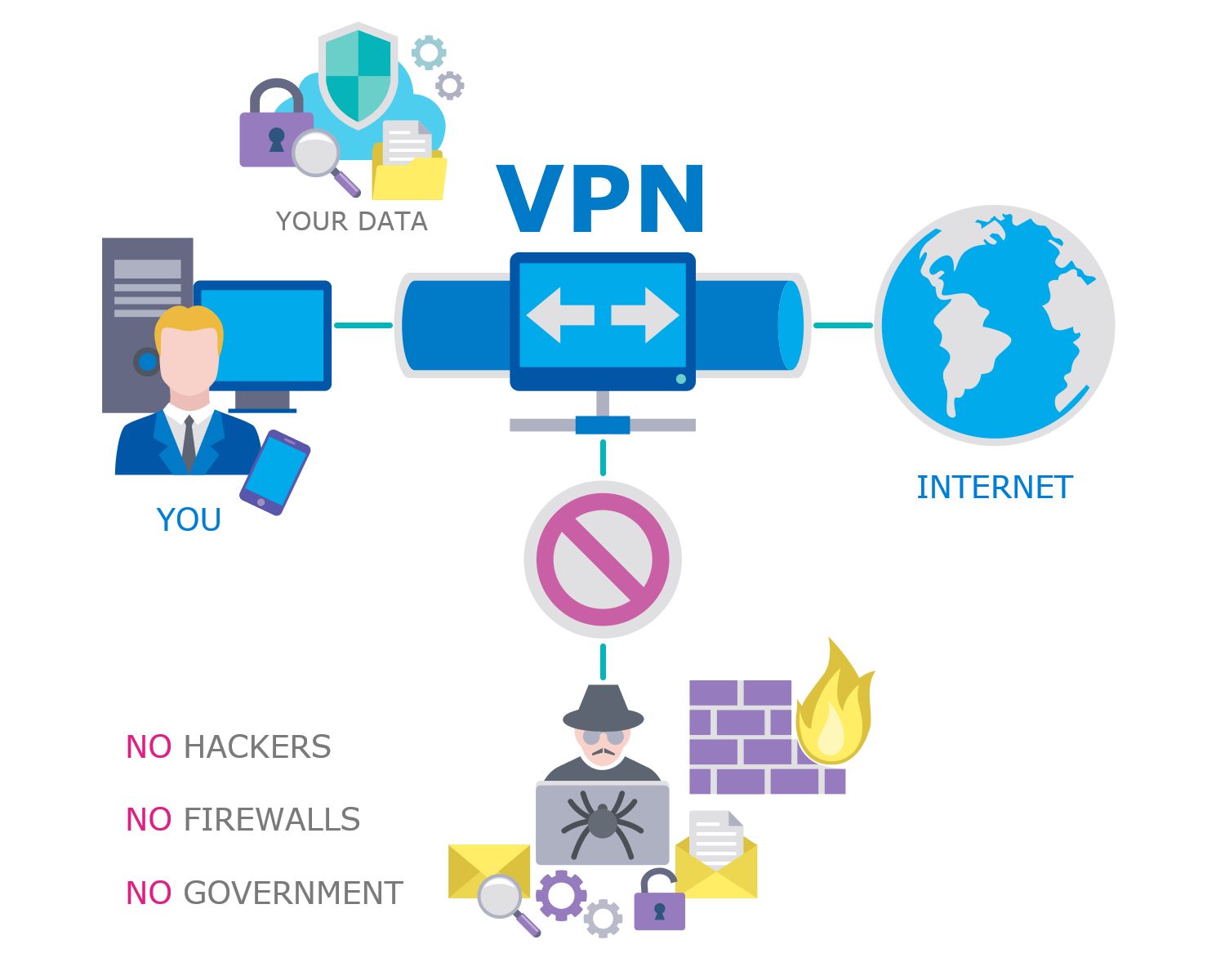
VPN. Helpful on public Wi-Fi and for some privacy uses. But a bundled VPN is frequently limited or slow, and a VPN doesn’t protect you from phishing or malware. Also, it doesn’t make you “anonymous.” It shifts who can see your traffic from your internet provider to your VPN provider.
Identity theft monitoring. Can be useful, particularly in regions where these services are robust and include recovery help. Check what’s actually covered, since quality varies a lot.
Parental controls. Often a real selling point for families, letting you filter content, set screen time, and see what kids are doing.
Multi-device licenses. If you’re managing a household with a mix of laptops, phones, and tablets, one subscription covering everything can be convenient and cost-effective.
“PC optimizers,” “registry cleaners,” and “tune-up” tools. Usually the least valuable part of the bundle. Modern operating systems don’t need registry cleaning, and some of these tools are more annoying than helpful.
Dark web scanning. Sounds dramatic, often amounts to telling you that your email appeared in a breach, something free services like Have I Been Pwned will tell you anyway.
If you’d use several of these features, a suite can be good value. If you just want a virus scanner, you may be overpaying for a pile of extras.
How to read antivirus test results (without getting fooled)
If you do want to choose a product, independent labs like AV-TEST and AV-Comparatives publish regular evaluations. They test how well products block real-world threats, how often they raise false alarms, and how much they slow down a computer. That’s far more trustworthy than a company’s own marketing.
A few tips for reading them:
- Look at the whole picture. A product that blocks everything but also flags lots of legitimate software as dangerous is annoying and erodes trust.
- Check performance impact. Protection that makes your computer crawl is protection you’ll be tempted to switch off.
- Notice that top products cluster together. In many tests, several products score near the top. The difference between the very best and “very good” is often small in real life.
- Check recent results. Products change. Last year’s winner isn’t guaranteed to be this year’s.
- Remember what labs test. They measure malware protection. They generally can’t measure how well a product will save you from a convincing scam.
And be skeptical of “best antivirus” lists on random websites. Many are affiliate-driven, meaning the site earns money when you click and buy, which can shape which products get recommended.
Warning signs your antivirus is more noise than help
Not sure whether yours is earning its place? Here are some red flags.
It nags you constantly. Pop-ups telling you to upgrade, “your PC is at risk” banners, and recurring sales pitches are a sign the product is optimizing for revenue, not your peace of mind.
It slows your computer down. A little overhead is normal. Noticeable lag every time you open a file or start your computer is not.
It bundles junk. Toolbars, browser extensions you didn’t ask for, “optimizers,” and cleanup tools are often signs of a product that’s padded rather than excellent.
You don’t know what you’re paying for. If the renewal charge surprised you, or you can’t say what the subscription includes, that’s worth investigating. Many subscriptions start at an attractive introductory price and renew at a much higher rate.
It’s been switched off, expired, or out of date. An expired antivirus isn’t doing anything, but it can still show a reassuring icon. Check that yours is actually active.
It makes you feel invincible. This is the most dangerous one. If having antivirus makes you more willing to click random links, download questionable files, or ignore warning signs, it’s making you less safe, not more.
Common antivirus myths
“I don’t have anything worth stealing.”
Criminals often aren’t after you specifically. They want your email account to reset other passwords, your computer to use as part of a botnet, your identity to open accounts, your contacts to scam, or simply your money. Your data has value even if it doesn’t feel that way.
“Macs and iPhones can’t get viruses.”
They can be attacked, though the nature of the attacks differs. Phishing and scams work on any device. Mac-targeting malware exists. Nobody is invulnerable.
“Free antivirus is garbage, paid is always better.”
Not necessarily. Built-in tools like Microsoft Defender perform well for many users. Some free third-party products are legitimate; others make money by collecting data or pushing upsells. Paid isn’t automatically better, and free isn’t automatically dangerous. It depends on the specific product.
“If my antivirus says I’m protected, I’m safe.”
The green checkmark means the product isn’t aware of a problem. It doesn’t mean there isn’t one. A phishing site you typed your password into won’t trigger any alarm.
“I’ll just install three antivirus programs to be extra safe.”
Please don’t. Running multiple real-time antivirus products often causes conflicts, slowdowns, and crashes, and doesn’t make you meaningfully safer. One good product at a time is the rule.
“I’d know if I had a virus.”
Often you wouldn’t. Modern malware is designed to be quiet. Stealing your data or using your computer in the background works best when you don’t notice.
“Antivirus is obsolete.”
Also not true. Dropping protection entirely and treating the internet as a safe place is a bad idea. The better framing: antivirus is now a baseline, not a strategy.
What actually keeps you safe in 2026
If I had to rank security measures by how much real-world protection they give an ordinary person, antivirus wouldn’t be at the top. Here’s the list I’d actually give a friend.
1. Use a password manager and unique passwords everywhere
If you only do one thing, do this. Reusing passwords means one breach anywhere can unlock your accounts everywhere. A password manager generates and remembers long, unique passwords for every site, so you don’t have to.
The key habit is a strong, memorable master password (a long passphrase works well) and making the switch gradually. Start with your most important accounts: email, banking, cloud storage, and social media. Then work through the rest over a few weeks.
Also, use it as a phishing check. A good password manager only autofills on the real website. If it doesn’t offer your password on a page that “looks like” your bank, that’s a clue something’s off.
2. Turn on multi-factor authentication (and upgrade it when you can)
Multi-factor authentication (MFA) means a password alone isn’t enough to get into your account. It stops a huge amount of account takeover.
Not all MFA is equal, though:
- SMS text codes are better than nothing but can be intercepted or hijacked through SIM-swapping scams.
- Authenticator apps generate codes on your device and are stronger.
- Passkeys and hardware security keys are the best option for most people. They’re resistant to phishing because they’re tied to the real website, so a fake page simply can’t use them.
Start with your email account, since email is the master key to resetting everything else. Then financial accounts, then everything else.
3. Keep everything updated
Software updates are boring, and they’re one of the most powerful security tools you have. Many attacks work by exploiting known vulnerabilities that already have fixes available. People get hit because they didn’t install the update.
Turn on automatic updates for your operating system, browser, phone, and apps. Restart when prompted. Also don’t forget the things people overlook: your router’s firmware, smart home devices, and old apps you rarely open.
If a device no longer receives security updates from its manufacturer, it’s time to plan its retirement.

4. Slow down before you click
This is the human firewall, and it’s the most valuable upgrade of all. A few habits make a big difference:
- Be suspicious of urgency. Scams almost always create time pressure: “act now,” “your account will be closed,” “your boss needs this immediately.” Urgency is a manipulation tactic.
- Verify through a separate channel. If your bank emails you about a problem, don’t click the link. Open your banking app or type the address yourself. If a relative calls asking for money, hang up and call them back on their known number.
- Agree on a family code word. With voice cloning around, a simple pre-agreed phrase for emergencies can cut through a fake call.
- Check the sender and the link. Hover over links to see where they really go. Look for slight misspellings in web addresses.
- Be wary of unexpected attachments, even from people you know, because their account might be compromised.
- Remember that no legitimate organization asks for your password, your one-time codes, or payment in gift cards. Ever.
5. Back up your important files
Backups are your real insurance policy. If ransomware locks your files, your laptop gets stolen, your drive fails, or you delete something by accident, a good backup turns a disaster into an inconvenience.
The classic approach is the 3-2-1 rule: three copies of your data, on two different types of storage, with one copy offsite or offline. For a home user, that might be your computer, an external drive you disconnect after backing up, and a cloud backup service.
The “offline” part matters. Ransomware can encrypt backups that stay permanently connected to your computer. And test your backup occasionally by actually restoring a file. A backup you’ve never tested is a hope, not a plan.
6. Install apps and extensions only from official sources, and prune regularly
Stick to official app stores and the developer’s real website. Avoid “cracked” software, pirated games, and sketchy download sites, which are among the most common ways info stealers spread.
Then do some housekeeping. Every few months, go through your browser extensions and phone apps and delete anything you don’t use. Each one is a potential risk, and the fewer you have, the smaller your attack surface.
Review app permissions too. Does that simple game really need your microphone and contacts?
7. Lock down the basics on your accounts and devices
- Use a screen lock with a PIN, password, or biometric on all your devices.
- Turn on device encryption (it’s often on by default, but check).
- Enable “find my device” features so you can locate or wipe a lost phone or laptop.
- Set up alerts for unusual logins and transactions with your bank and email.
- Freeze your credit if you live somewhere that offers it and you’re not actively applying for credit. It’s often free and blocks a lot of identity fraud.
- Use separate email addresses for important accounts versus throwaway signups.
8. Then have decent antivirus running in the background
Yes, it’s still on the list. It’s just not at the top. Having solid protection running quietly in the background is a sensible final layer. It’s there for the day you slip up.
Who needs what? A practical guide
Security needs depend on who you are. Here’s how I’d think about it.
The casual user on Windows or Mac
Built-in protection (Microsoft Defender or Apple’s built-in tools), automatic updates, a password manager, MFA, and good habits cover most of what you need. A paid suite is optional, not essential. If you like the extras or want a bit more peace of mind, fine, but you’re not reckless without one.
The family with kids or less tech-savvy relatives
A reputable paid product with parental controls, multi-device coverage, and easy central management can be worth the cost. The value isn’t just malware blocking; it’s content filtering, screen time tools, and being able to help family members without being on the phone for an hour. Also consider setting up their accounts with MFA for them and teaching them the “pause before you click” rule.
The older adult who’s a frequent scam target
For this group, technology helps, but conversation helps more. Explain the common scams: fake tech support pop-ups, romance scams, bank impersonation, “grandchild in trouble” calls. Agree on a rule: if anyone pressures you about money, stop and call me first. Consider call-blocking tools and making sure a trusted person can help verify suspicious messages.
The remote worker or freelancer
You’re managing client data and possibly logging in to business systems from home. Use strong MFA, keep work and personal browsing separated where possible (different browser profiles help), keep software updated, use a password manager, and back up your work. Check whether your clients or employer require specific security software.
The small business owner
Basic consumer antivirus isn’t enough. Look at proper endpoint protection, which monitors devices more deeply and lets you manage them centrally. Add managed updates, enforced MFA, employee security training, email filtering, and a tested backup and recovery plan. Staff training is often the highest-return investment, because employees are the main target of phishing and invoice fraud.
The person who downloads pirated software or cracked games
No antivirus will rescue you from this decision. Cracked software is a top delivery method for info stealers and other malware, and these programs often ask you to disable your antivirus as part of the “installation.” That alone should tell you everything. If an installer asks you to turn off your security software, walk away.
The privacy-conscious person
Security and privacy overlap but aren’t identical. Antivirus suites sometimes collect data about what you browse or run. Read the privacy policy, and prefer reputable vendors. Focus on strong authentication, updated software, minimal extensions, and a privacy-respecting browser setup.
A five-minute security check you can do this week
Here’s a simple audit you can do today. You don’t need to be technical.
- Open your security software and confirm it’s running, updated, and not expired. If you rely on Windows Defender, open Windows Security and check that there are no red warnings.
- Check your subscriptions. Look at your bank or card statement for recurring security-software charges. Cancel anything you’re not using or don’t understand.
- Turn on two-factor authentication on your email account. Email first, always.
- Install pending updates on your phone and computer, and switch on automatic updates.
- Check whether your email has appeared in a data breach. A free breach-notification service can tell you, and then you can change the affected passwords.
- Review your browser extensions and phone apps. Delete what you don’t need.
- Confirm you have a backup of your most important files, and that at least one copy isn’t permanently plugged in.
That’s it. If you do these seven things, you’ll be safer than most people, regardless of which antivirus you use.
Frequently asked questions
Do I need antivirus on my Mac?
Many people do fine with built-in protections and cautious habits, but Mac threats are real and growing, especially infostealers hiding in fake software. If you install lots of software from outside the App Store, or you want an additional layer, reputable antivirus is a reasonable choice. It’s a judgment call, not a requirement.
Do I need antivirus on my phone?
For most people, keeping the operating system and apps updated, installing only from official stores, and being careful about phishing matters much more than a third-party security app. Some mobile security apps offer useful extras like scam-call filtering or web protection, but you can often get similar features elsewhere.
Is Microsoft Defender good enough?
For many everyday users, yes. It has performed well in independent testing and integrates well with Windows. Your experience depends on your habits and needs. If you want extras like parental controls or identity monitoring, you may want a third-party product. Either way, check recent independent test results, since things change.
Can antivirus stop ransomware?
It can help, particularly through behavior monitoring that spots suspicious mass encryption. But it’s not a guarantee. The best ransomware defense is a good, tested, offline or cloud-versioned backup, along with updates and cautious habits.
Can antivirus protect me from phishing?
Partly. Web protection can block known phishing pages, and some email tools flag suspicious messages. But new phishing pages appear constantly, and many scams happen through text messages, phone calls, or social media where antivirus has little visibility. Your attention and verification habits are the stronger defense.
Is a VPN a substitute for antivirus?
No. A VPN encrypts your connection and masks your IP address from the sites you visit, but it doesn’t scan for malware or stop you from entering your password on a fake website. They do different jobs.
What should I do if I think I’ve been infected?
Disconnect from the internet, run a full scan with your security software, and consider a second-opinion scanner from a reputable vendor. Change important passwords from a different, clean device, since an infected machine may be capturing what you type. Enable MFA, check your accounts for unusual activity, and contact your bank if finances might be affected. If it’s a work device, tell your IT team immediately. If you’re unsure, a professional can help, and sometimes a clean reinstall of the operating system is the safest route.
How often should I run scans?
Most modern products scan files in real time and run periodic scheduled scans automatically. You don’t usually need to run manual scans constantly, but an occasional full scan doesn’t hurt, especially if something feels off.
Should I pay for antivirus?
If you’ll actually use the extras (parental controls, multi-device coverage, identity protection, a solid password manager), a paid product can be good value. If you just want baseline malware protection and you’re careful online, built-in tools may be enough. The worst option is paying for something you don’t use or understand.
A note on false confidence
I want to come back to something, because it’s the thread running through this whole article.
Security software creates a feeling. That feeling is comfort, the sense that “someone is watching my back.” It’s a pleasant feeling, and it’s not entirely irrational. Someone is watching for a certain category of threat.
The danger is when that comfort changes your behavior. You click the link because “my antivirus would have warned me.” You download the file because “it’ll scan it anyway.” You ignore the odd request from your “boss” because, well, you’re protected.
Real security isn’t a product you buy once. It’s a set of habits, layered together, so no single failure ruins you. Antivirus is one layer. Updates are another. Backups, MFA, password hygiene, and healthy skepticism are others. When one layer fails (and eventually, one will), the others catch you.
The bottom line
So, is your antivirus actually doing anything in 2026?
Yes. It’s a smoke detector, and a smoke detector is worth having. It catches known malware, watches for suspicious behavior, and cleans up after the occasional slip. For many people, the built-in protection on their devices already does that job well.
But a smoke detector won’t stop a burglar you invite in. It can’t stop you from handing your password to a convincing stranger, approving a fraudulent payment because a cloned voice sounded like your sister, or installing a fake app that looks perfectly real. The fastest-growing threats don’t go through your software. They go through your attention.
In 2026, the strongest security tool you own isn’t installed on your computer. It’s the half-second pause before you click.
So here’s my challenge to you. This week, take five minutes. Open that little shield and make sure it’s actually running and up to date. Cancel anything you’re paying for but not using. Turn on two-factor authentication on your email. Set up a password manager. Make sure your files are backed up somewhere safe.
And the next time your phone buzzes with an urgent message that demands you act right now, take a breath, step back, and verify. That single habit will protect you better than any software license ever could.
And maybe call your cousin. He’d probably appreciate the reminder too.
Disclaimer: This article offers general information, not personalized security advice. Product features, pricing, and independent test results change often, so check recent evaluations from sources such as AV-TEST or AV-Comparatives before buying. If you believe you’ve been the victim of fraud or identity theft, contact your bank and the appropriate authorities in your country promptly.